When Weevio Cloud loads, it tries to sign your browser session into your PIMS server using the credentials configured under PIMS Settings. Most of the time you'll see "Signing into PIMS..." for a moment and then land on the home screen. If the PIMS server is unreachable — wrong URL or port, a firewall silently dropping the connection, or the server itself stopped responding — that step can hang.
This page covers what you'll see when it does, the two ways out, and how to fix the underlying connection.
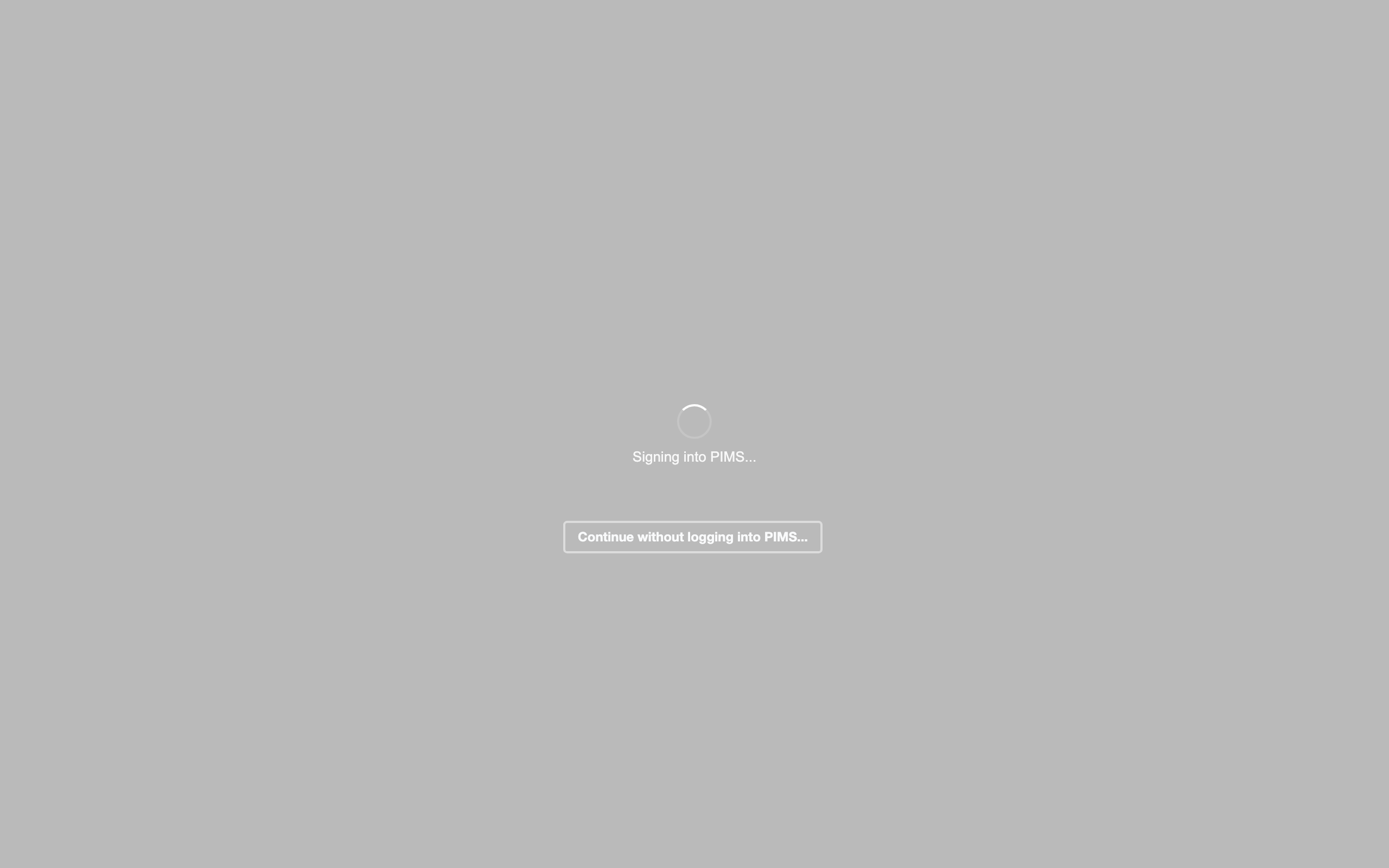
What You See During Sign-In
A full-screen loading dimmer appears with the message Signing into PIMS... while Weevio Cloud waits for your PIMS server to respond. On a healthy connection this disappears in a second or two and you land on the Home screen.
If the sign-in is slow or stuck, Weevio Cloud gives you two ways to continue without waiting indefinitely.
The 8-Second Skip Button
After about 8 seconds on the Signing into PIMS... screen, a new button appears below the spinner:
Continue without logging into PIMS...
Click it to enter Weevio Cloud immediately. You won't be signed into PIMS, so any feature that needs a live PIMS connection — orders, repairs, customers, inventory — will be limited until the connection is restored, but the app shell loads so you can reach the Integrations page and fix the problem.
Note:
The skip button is a manual escape hatch — nothing happens if you don't click it. The 25-second automatic fallback below kicks in on its own if you choose to keep waiting.
The 25-Second Automatic Fallback
If you stay on the loading screen for about 25 seconds without clicking Continue without logging into PIMS..., Weevio Cloud gives up on the sign-in automatically and continues into the app. You don't need to do anything — the loading dimmer disappears and you'll see the Home screen with a warning toast (see below).
This is the same end-state as clicking the skip button: the app is reachable, but PIMS-backed features are limited until the connection is restored.
The Warning Toast
Whichever path you take — clicking the skip button or waiting for the auto-fallback — Weevio Cloud shows a persistent warning toast in the corner of the screen explaining the situation and what to do next. The toast does not auto-dismiss; close it manually after you've read it.
If you clicked the skip button, the toast reads:
Some features may not be available until you sign into PIMS. If your PIMS connection is misconfigured, fix it under Integrations > PIMS (requires Weevio Cloud "Admin" permissions), then refresh the page to try signing in again.
If the 25-second timeout elapsed, the toast reads:
PIMS sign-in timed out. Some features may not be available until the connection is restored. Check your PIMS server and credentials under Integrations > PIMS (requires Weevio Cloud "Admin" permissions), then refresh the page to try signing in again.
Note:
Fixing the PIMS connection requires the Weevio Cloud "Admin" permission. Staff users without Admin can land in the app and use features that don't need PIMS, but they cannot edit the integration credentials themselves — escalate to an Admin or to your Weevio Cloud account owner.
Fixing the Connection
Once you're past the loading screen, follow these steps to repair the PIMS connection:
Open Integrations > PIMS
From the left sidebar, select Integrations, then open the PIMS tile. The tile shows the live connection status — Connected means Weevio Cloud can reach your PIMS server right now; otherwise the tile shows Connect (and clicking it takes you straight into the settings).
Verify the server URL, port, and credentials
The PIMS card and the PIMS API Connection settings page report the same live status. Confirm the Server URL, Server Port, API Username, and API Password match what your PIMS server actually expects. See PIMS Settings for what each field controls.
Save and check the status banner
After saving, Weevio Cloud immediately re-tests the connection. PIMS Connection Established means you're good; PIMS Connection Failed means the saved credentials still can't reach the server — see PIMS Settings → Save outcomes.
Refresh the page to retry sign-in
With a working connection in place, refresh the Weevio Cloud tab in your browser. The startup flow runs again from the top, signs you into PIMS with the corrected credentials, and the warning toast no longer appears.
The Integrations Page "Connected" Badge
The Connected badge on the PIMS tile of the Integrations page reflects the live backend connection between Weevio Cloud's servers and your PIMS server — not just whether you personally are signed into PIMS in this browser session. In practice that means:
- The badge stays Connected only while Weevio Cloud can actually reach your saved PIMS server URL, port, and credentials.
- If the saved URL, port, or credentials become invalid, the badge flips to Connect even if you were already signed in earlier in the day.
- The badge state matches what the PIMS API Connection settings page shows — both check the same live connection, so a green badge on Integrations and a red banner on PIMS Settings (or vice versa) shouldn't happen anymore.
Note:
Shopify's tile on the Integrations page continues to use session-based status — it reflects whether your Shopify OAuth session is active, not a live backend probe. Only the PIMS tile uses live-connection status.
Common Causes of a Hanging Sign-In
Most stuck sign-ins fall into one of these patterns:
- Wrong server URL or port. A typo in the saved Server URL, or a port that no longer matches the PIMS listener, means Weevio Cloud's request never reaches a real PIMS process.
- Firewall silently dropping the connection. Some firewalls drop unexpected traffic without sending a reset, so the request waits the full 25 seconds before timing out. If a recent network or VPN change preceded the hang, check that Weevio Cloud's outbound IPs are still allowlisted.
- PIMS server hung or restarting. The server accepts the TCP connection but the application itself is unresponsive (long CGI request, restart in progress, or out of memory). Restarting or freeing up the PIMS server usually resolves it.
- Rotated or disabled API user. If the API username was disabled or its password was rotated on the PIMS side without updating Weevio Cloud, the saved credentials no longer authenticate. Update the API Username and API Password in PIMS Settings.
If none of these apply and the hang persists after a refresh, contact Weevio support and include the approximate time of the failure, your tenant, and whether you saw the 8-second skip button or the 25-second auto-fallback.
Related Pages
- PIMS Settings — the tenant-wide PIMS connection form (URL, port, credentials) and its own troubleshooting section.
- Managing Integrations — the Integrations hub at
/pos/integrationswhere the PIMS tile lives. - User Management — per-user PIMS sign-in credentials and Admin vs. Regular permissions.
Need Help?
For assistance, please send a message to our Support page.