The Appointment Scheduler is a customer-facing web application that allows end-users to book repair appointments at your service locations. Customers select a location, choose an appointment type, pick an available date and time, and provide their contact information — all through a guided, step-by-step booking flow.
How It Works
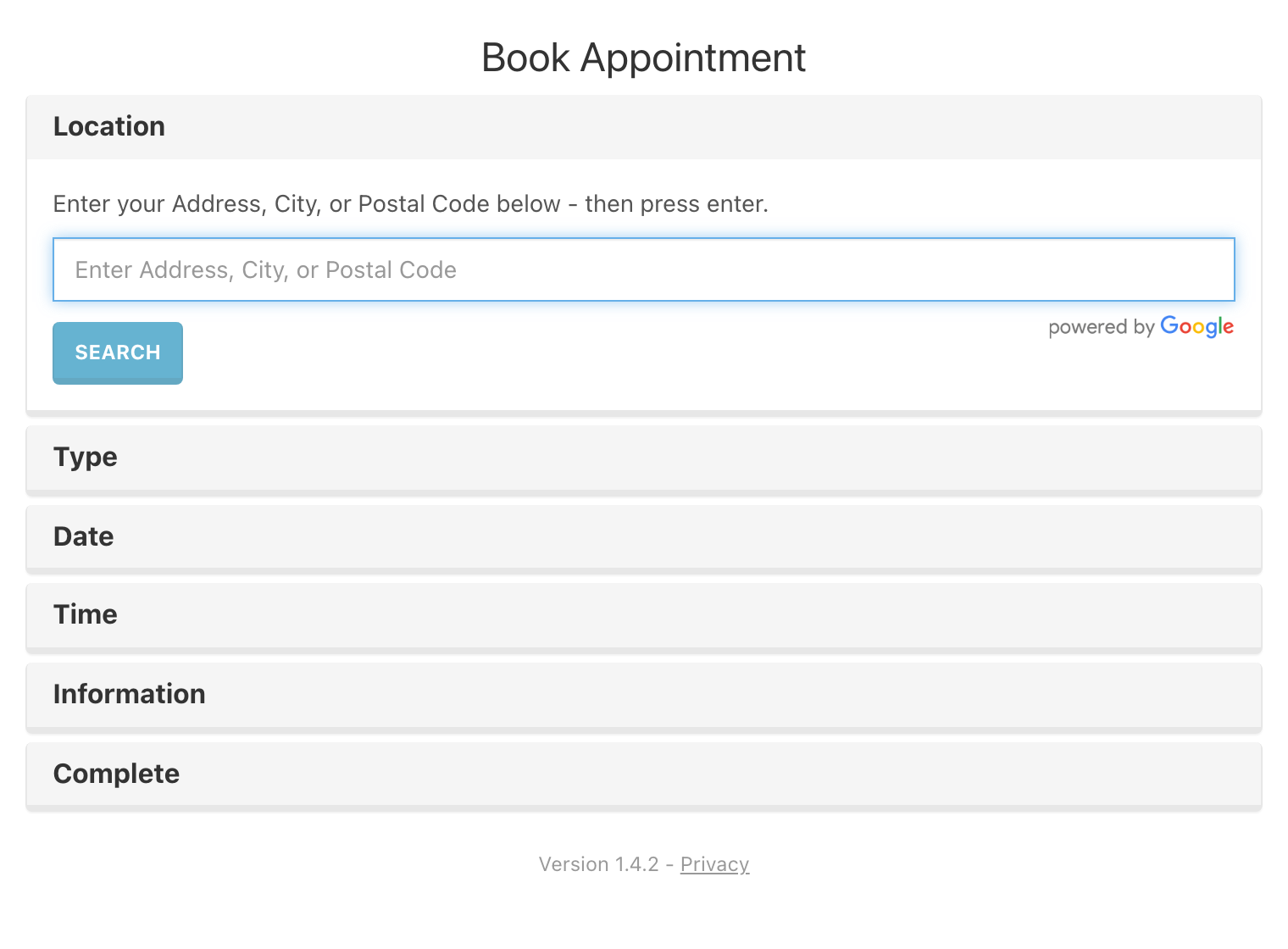
The scheduler presents customers with a streamlined accordion-style interface that walks them through each step of the booking process.
Select a Location
Customers enter their address, city, or postal code to search for nearby service locations. Results are sorted by distance using Google Maps, showing the location name, distance, and estimated travel time. Customers click a location to select it.
Choose an Appointment Type
After selecting a location, a list of available appointment types is displayed. These types are configured per-location or use your organization's default appointment types. Customers click to select the type of service they need.
Pick a Date
A calendar displays available dates based on the selected location and appointment type. Dates with no availability are automatically disabled. Customers click an available date and then click Continue to see available time slots.
Pick a Time
Available time slots for the selected date are displayed. Customers click a time slot to select it and advance to the next step.
Enter Personal Information
Customers fill out a short form with their contact details:
- Email Address (required)
- Phone Number (required)
- First Name (required)
- Last Name (required)
- Comments (required for Apple GSX appointments, optional otherwise — 250 character limit)
All fields are validated in real-time. The Continue button becomes active once all required fields are valid.
Confirm and Book
A confirmation dialog shows the selected date and time. Customers click Book Appointment to finalize. Upon successful booking, a confirmation message displays the appointment details and an email confirmation is sent automatically.
Email Confirmations
After a successful booking, the system automatically sends an email confirmation to the customer with:
- The appointment type
- The scheduled date and time
- Your organization's name as the sender
The reply-to address uses the location's configured notification email, so customers can respond directly to the location if needed.
Note:
If a booking fails (for example, the selected time is no longer available), the customer sees an error message with a Try Again button and the location's phone number as a fallback contact option.
Privacy Controls
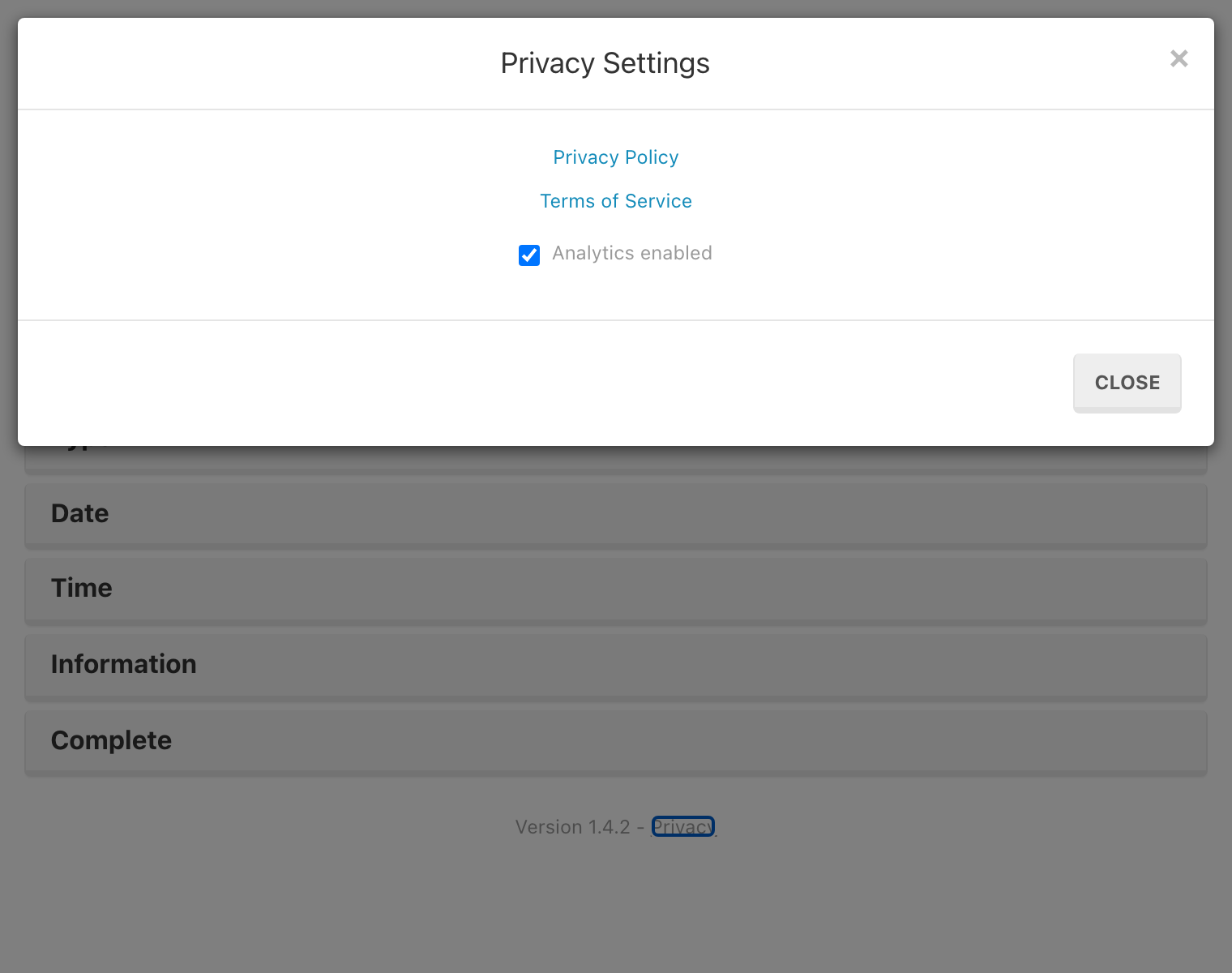
A Privacy link is displayed at the bottom of the scheduler alongside the version number. Clicking it opens a Privacy Settings modal where customers can:
- View and access the Privacy Policy (opens in a new tab)
- View and access the Terms of Service (opens in a new tab)
- Toggle analytics tracking on or off using a checkbox
Note:
Analytics are enabled by default. When a customer disables analytics, no further usage data is collected for their session. This preference is stored locally in the browser and persists across page reloads.
Scheduler Availability
The scheduler only appears when it is both purchased and activated for your tenant. If the scheduler is disabled, customers see a message directing them to call for an appointment instead.
Similarly, if no locations are currently active for appointment scheduling, a message informs customers that the company is not currently accepting online appointments.
Related Pages
Need Help?
For assistance, please send a message to our Support page.