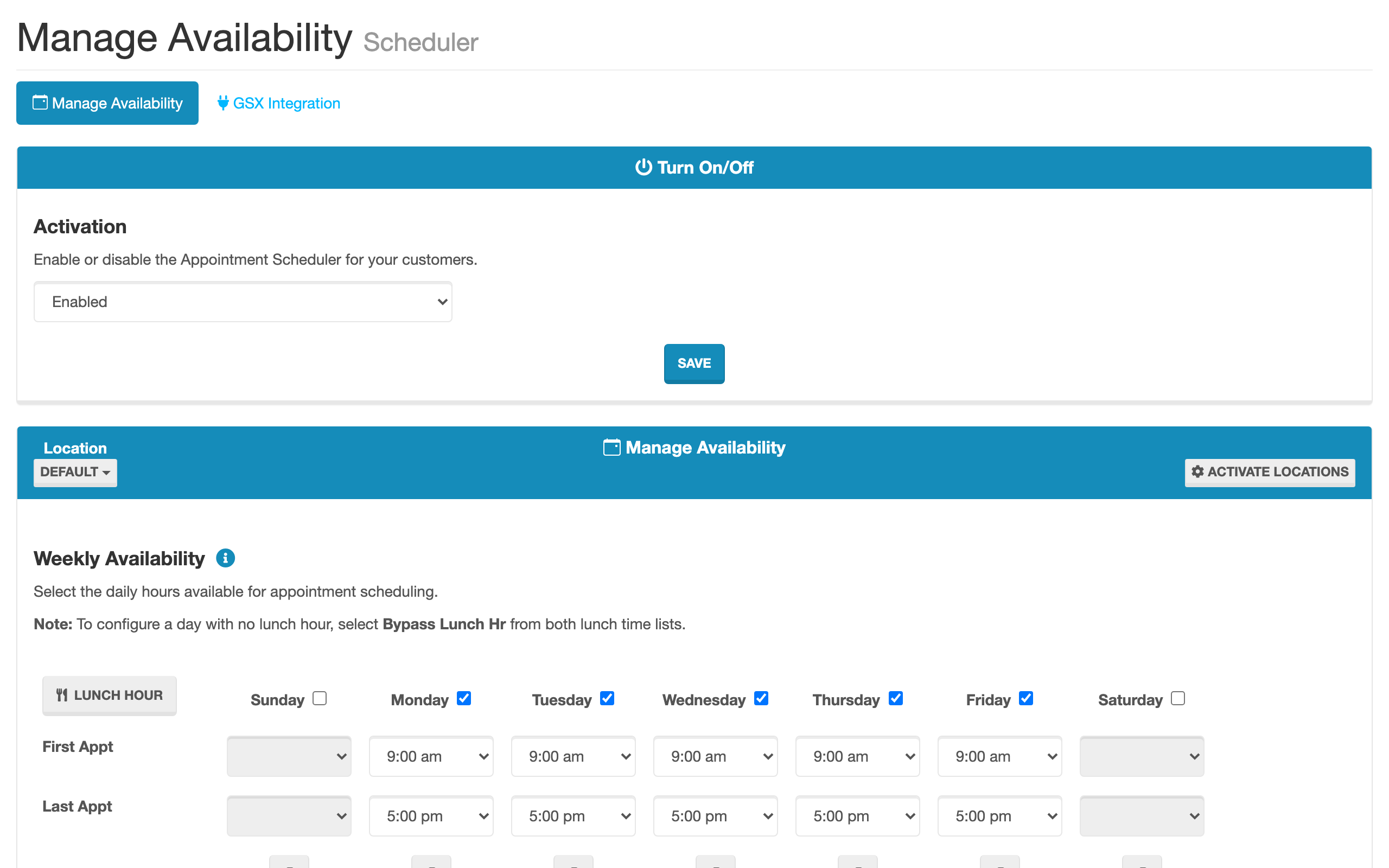
Before customers can book appointments, you need to activate the Appointment Scheduler and configure your locations with appointment types and availability windows.
Activation
The Appointment Scheduler requires two conditions to be active:
| Requirement | Description |
|---|---|
| Purchased | The Appointment Scheduler add-on must be purchased for your tenant. |
| Activated | The scheduler must be enabled in your tenant settings. |
When both conditions are met, the scheduler becomes available to customers at your booking URL.
Note:
If the scheduler is deactivated or not purchased, customers visiting the booking URL will see a message: "Online appointment system is currently disabled. Please call to schedule an appointment."
Location Configuration
Each location can independently enable or disable appointment scheduling. When a customer searches for nearby locations, only locations with active scheduling appear in results.
Per-Location Settings
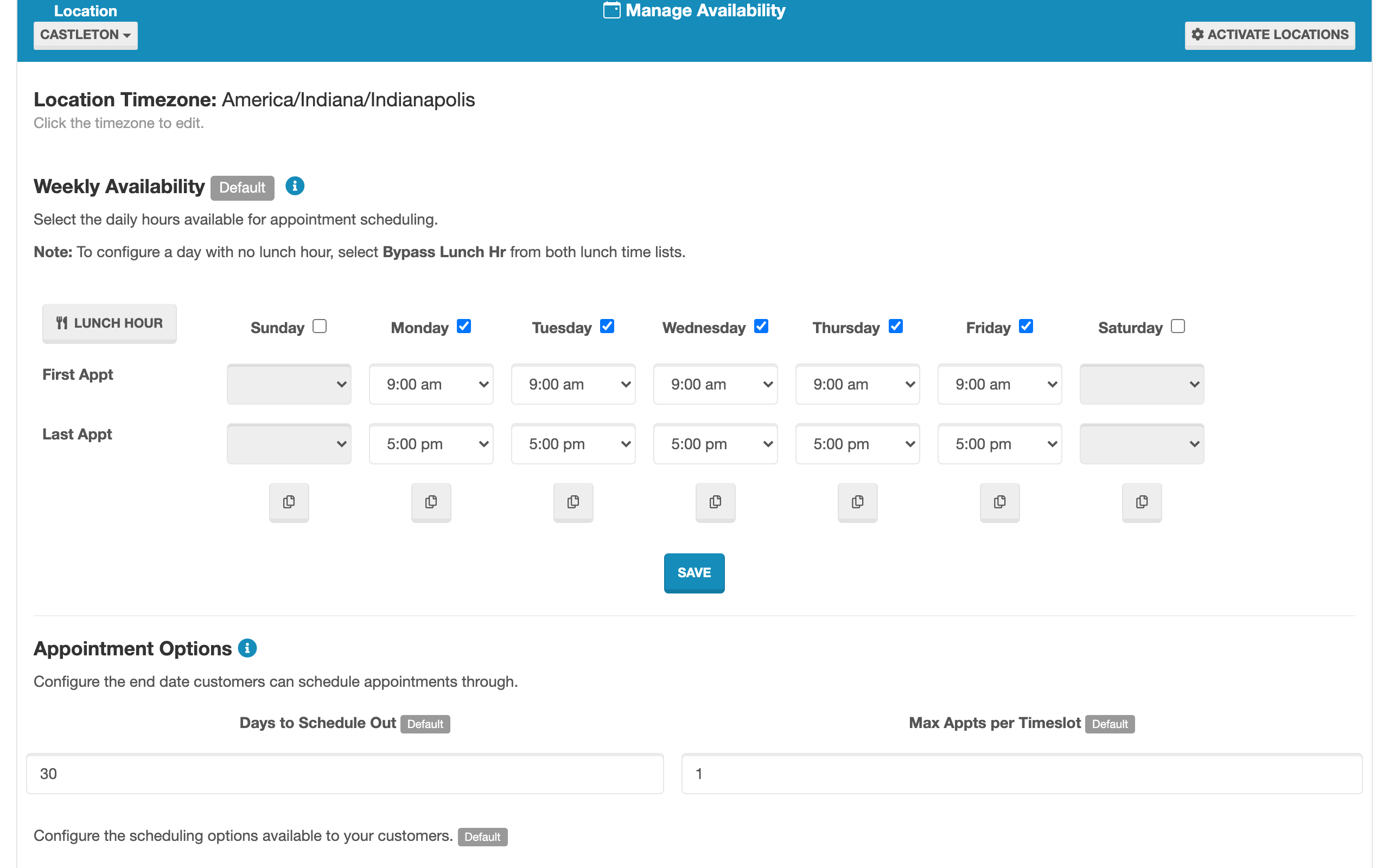
Locations can have customized scheduling configurations:
| Setting | Description |
|---|---|
| Appointment Types | Custom appointment types specific to this location. If not set, the organization's default types are used. |
| Availability Windows | The days and time slots when appointments can be booked. |
| Schedule Out Days | How many days into the future customers can book appointments. |
| Internal Notification Email | Email address that receives booking notifications and serves as the reply-to address for customer confirmation emails. |
| Timezone | The location's timezone, used for displaying correct appointment times to customers. |
Note:
If a location does not define custom appointment types, the organization-wide default appointment types are used automatically.
Appointment Types
Appointment types define the categories of service customers can choose from when booking. Each type has a name that customers see in the booking flow (for example, "Screen Repair", "Battery Replacement", or "General Consultation").
Appointment types can be configured at two levels:
- Organization defaults — Applied to all locations unless overridden.
- Per-location overrides — Custom types for a specific location, replacing the defaults.
For Apple Authorized Service Providers, appointment types can also be linked to GSX repair types. See GSX Integration for details.
Availability Management
The availability system controls when customers can book appointments:
- Available dates are calculated based on your configured availability windows and schedule-out-days setting.
- Unavailable dates (fully booked or outside the scheduling window) are automatically disabled on the customer's calendar.
- Time slots for each available date are generated based on your availability configuration, and already-booked slots are removed.
Privacy & Analytics
The Appointment Scheduler includes built-in privacy controls that are visible to customers. No tenant configuration is required — these controls are enabled automatically.
What Customers See
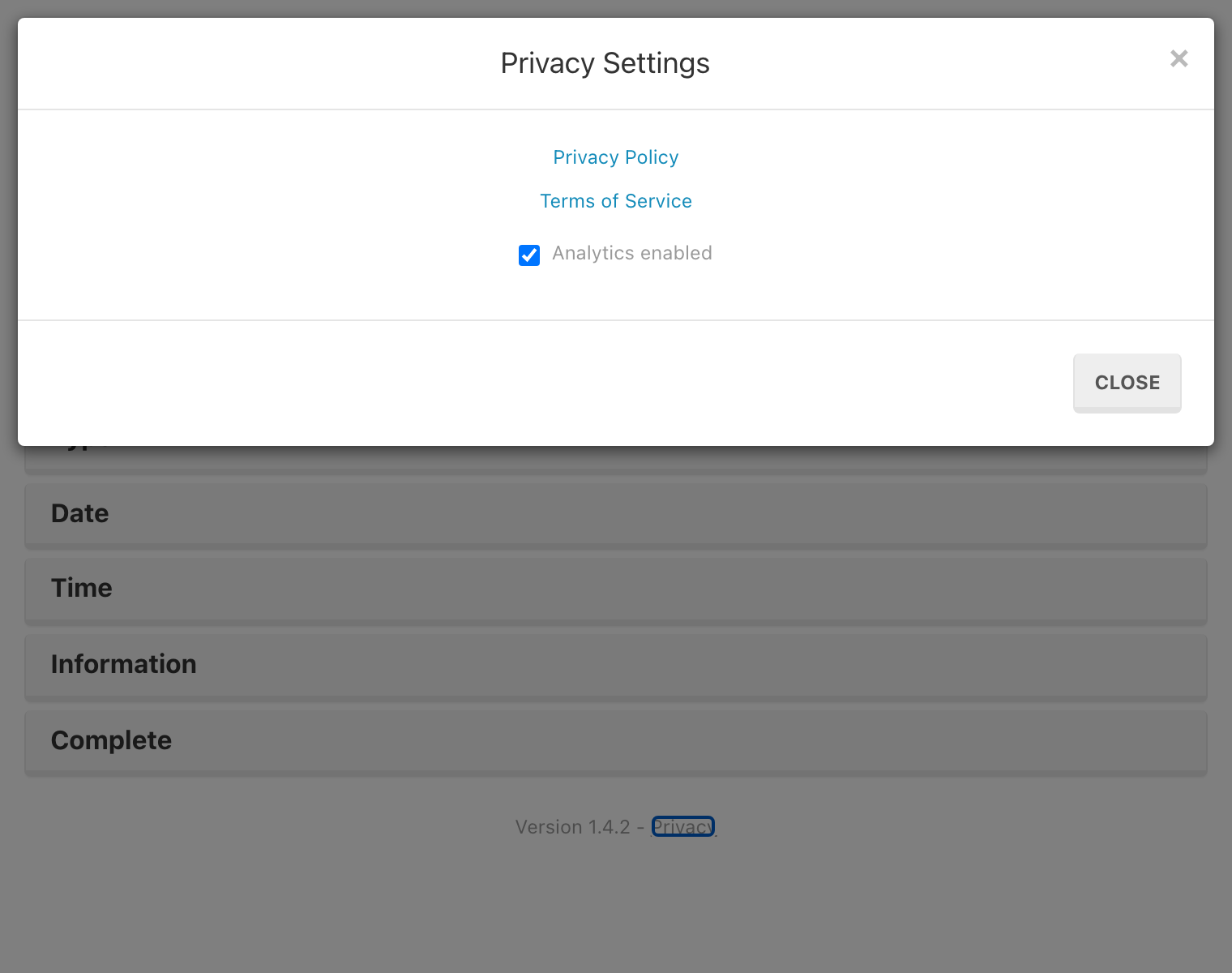
A Privacy link appears at the bottom of the scheduler next to the version number. When clicked, it opens a Privacy Settings modal where customers can:
- View the Privacy Policy (opens in a new tab)
- View the Terms of Service (opens in a new tab)
- Toggle analytics tracking on or off using a checkbox
Analytics Behavior
Anonymous usage analytics are collected by default to help improve the scheduling experience. These analytics track general interaction patterns (such as which steps customers complete) and do not collect personally identifiable information (PII) like email addresses or phone numbers.
Customers can opt out of analytics at any time using the toggle in the Privacy Settings modal. This preference is stored in the customer's browser and persists across page reloads.
Note:
As a tenant, you do not need to configure or manage privacy controls. They are built into the scheduler and comply with privacy best practices automatically. The Privacy Policy and Terms of Service links point to Weevio Cloud's standard policy pages.
For more details on the customer-facing privacy experience, see the Appointment Scheduler overview.
Viewing Appointments
Staff can view all booked appointments for a location through the admin interface, filtered by date. Each appointment record includes the customer's name, email, phone number, appointment type, date/time, and any comments provided during booking.
Need Help?
For assistance, please send a message to our Support page.