PIMS Settings is where you tell Weevio Cloud how to reach your PIMS server. The credentials saved here are used by every Weevio Cloud module that talks to PIMS — appointment scheduling, customer lookup, repair workflows, inventory sync, and more — so this page only needs to be configured once per tenant.
Note:
PIMS Settings stores tenant-wide connection details. For the per-user PIMS credentials each staff member signs in with, see User Management → PIMS Integration.
Accessing PIMS Settings
PIMS Settings sits alongside General Settings and User Management in the Tenant Settings area of Weevio Cloud.
Open Tenant Settings
From the main navigation, open Settings and choose PIMS Settings.
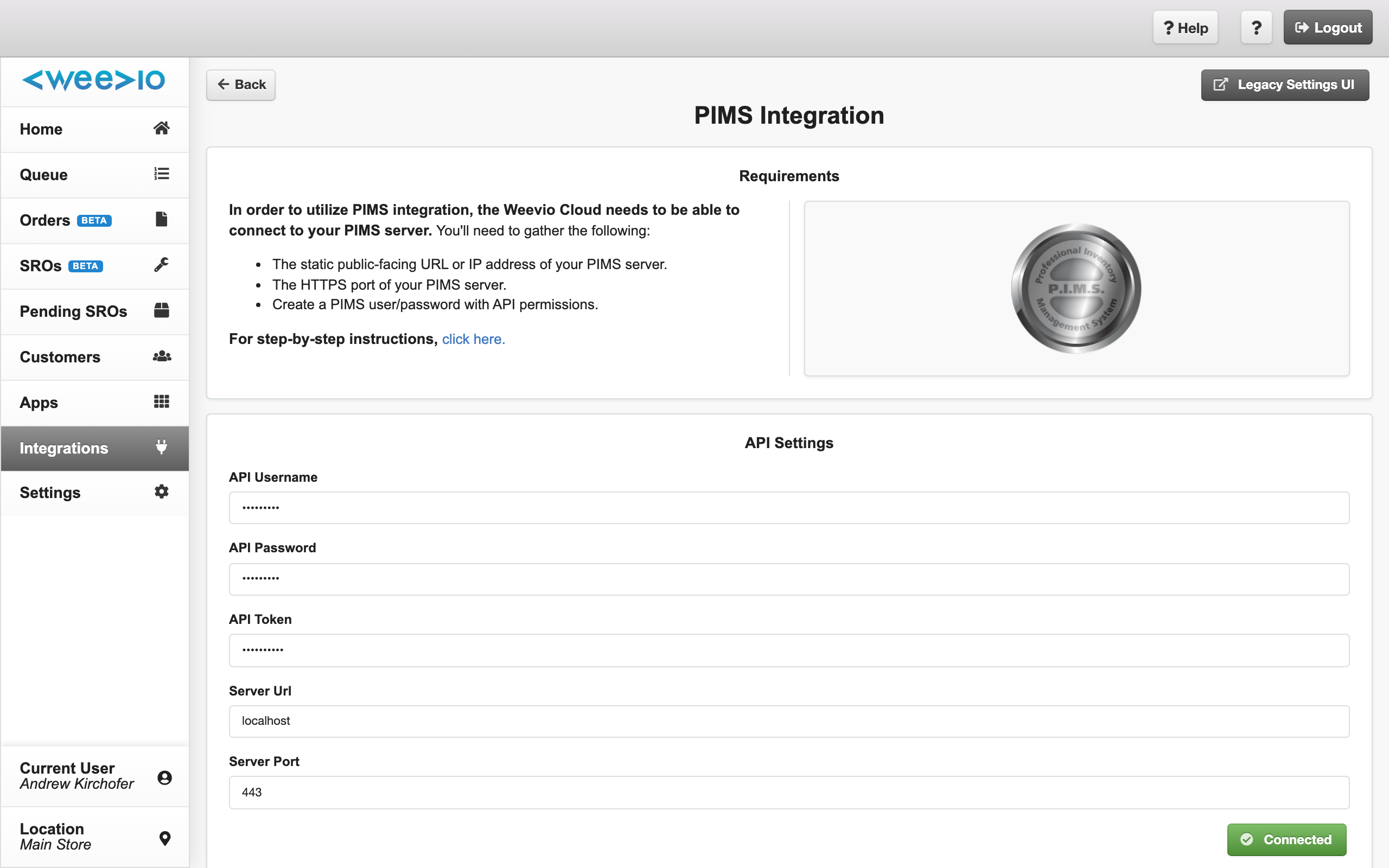
Review the connection status
The page shows a PIMS connection indicator at the top — green when Weevio Cloud can currently reach your PIMS server with the stored credentials, red when it cannot.
Note:
Any signed-in user with access to your tenant can view and edit PIMS Settings. Treat the page as administrator-only in your internal processes — incorrect values immediately affect every PIMS-connected feature.
Connection Fields
| Field | Required | What it controls |
|---|---|---|
| HTTP Protocol | Yes | The scheme Weevio Cloud uses when calling your PIMS server. Choose https:// for production setups; http:// is only appropriate for isolated test environments. |
| Server URL | Yes | The hostname or IP address of your PIMS server. Do not include the protocol or port here — those go in their own fields. |
| Server Port | Yes | The TCP port your PIMS server listens on. |
| API Username | Yes | The username Weevio Cloud uses for the PIMS API request. |
| API Password | Yes | The password paired with the API Username. |
| API Token | No | An optional token used by Weevio Cloud's diagnostic tooling. Leave blank unless Weevio support has asked you to populate it. |
Note:
The five required fields combine to form a single API base URL of the shape protocol://username:password@host:port. If any one of them is wrong, every PIMS-backed feature in Weevio Cloud will fail until it is corrected.
Saving Changes
Enter or update the fields
Fill in or change any of the fields above. The form saves all values together — partial updates are not possible, so leave correct values in place when changing only one or two settings.
Click Save
Weevio Cloud first checks that all required fields are filled in. If any are blank, the page reloads with Please fill out all fields and nothing is saved.
Live connection test
Once validation passes, Weevio Cloud immediately calls your PIMS server using the new credentials and waits for a response.
Outcome banner
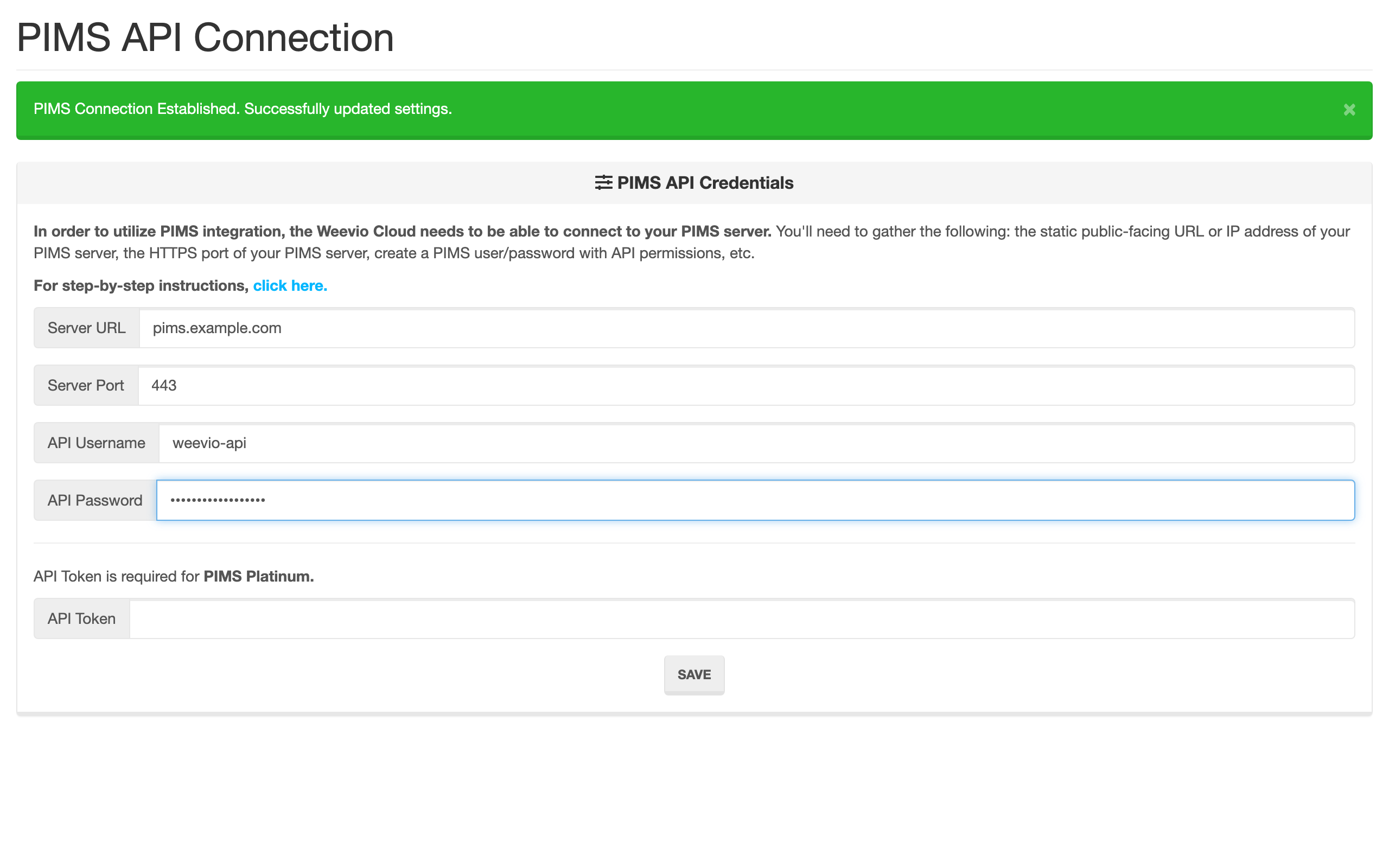
The result is shown as a banner at the top of the page — see Save outcomes below.
Save outcomes
| Banner | What it means | Recommended action |
|---|---|---|
| PIMS Connection Established | Credentials were saved and Weevio Cloud reached your PIMS server successfully. | None — the integration is live. |
| PIMS Connection Failed. Please review your API Connection Settings. | Credentials were saved but the live test failed. | Double-check each field; see Troubleshooting. |
| Settings failed to save | A platform-side error prevented the credentials from being written. | Retry the save. If the error persists, contact Weevio support and include the message details. |
Note:
Even when the live connection test fails, the credentials you entered are still saved. This is intentional — it lets you stage values during scheduled maintenance — but it means a PIMS Connection Failed banner indicates a live outage for every PIMS-backed feature in Weevio Cloud until the connection is restored.
When Changes Take Effect
PIMS Settings updates are immediate. There is no scheduled sync, deploy step, or restart required:
- The new credentials are written to your tenant record as soon as you click Save.
- The PIMS connection indicator re-tests the connection on the next page load.
- Any subsequent PIMS API call from any Weevio Cloud module — appointments, repairs, customer lookups, inventory — uses the new values immediately.
Integration Assistant Flow
Weevio Cloud's Integration Assistant onboarding wizard walks new tenants through PIMS connection setup the first time the integration is configured. When you arrive at PIMS Settings from the assistant:
- A successful save returns you to the next step of the wizard automatically.
- A failed connection test keeps you on the page so you can correct the credentials before continuing.
Saving from the standalone PIMS Settings page (outside the assistant) simply shows the outcome banner and stays put.
Troubleshooting
The connection indicator stays red after saving
- Confirm the HTTP Protocol matches what your PIMS server expects. Most production deployments use
https://. - Verify the Server URL is reachable from the public internet and resolves to the correct host.
- Check that the Server Port matches the listener configured on your PIMS server.
- Re-enter the API Password — copy/paste from a password manager can introduce trailing whitespace or other invisible characters.
- Confirm the API Username has not been disabled or rotated on the PIMS side.
"Please fill out all fields" appears even though I only changed one value
The save action requires every required field — Protocol, Server URL, Server Port, API Username, and API Password — to be present in the submission. If your browser's autofill or a partially-loaded page leaves one blank, the form rejects the save without writing anything. Reload the page so all current values populate, change what you need to, then save.
PIMS-backed features stop working immediately after a save
A failed connection test still persists the new credentials to your tenant record, so an incorrect save takes effect immediately across the platform. Roll back by re-entering the previous values in PIMS Settings and saving again — you do not need to contact Weevio support to restore prior credentials.
Related Features
- General Settings — manage your business locations, including per-location PIMS location codes that work alongside these tenant-wide credentials.
- User Management — add, edit, and remove the staff users who sign in to Weevio Cloud, including their per-user PIMS sign-in details.
Need Help?
For assistance, please send a message to our Support page.