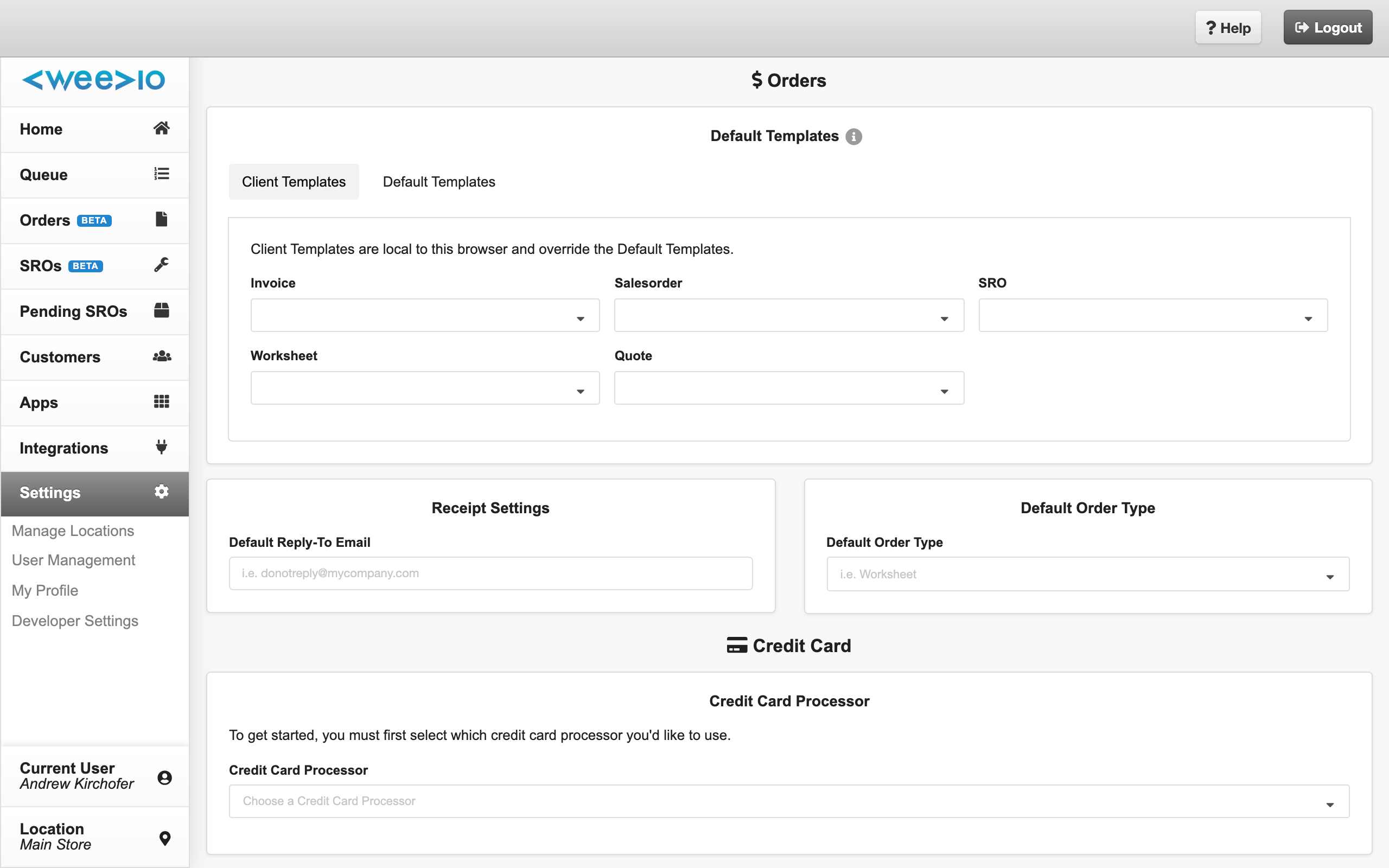
General Settings is where tenant administrators manage the list of physical locations your business operates from. Each location carries its own address, contact details, timezone, and integration codes — and most other Weevio Cloud features (appointments, distance-based logic, GSX, PIMS) reference these locations.
Note:
This page is labelled General Settings in the Tenant Settings sidebar but renders as Manage Locations when opened — both refer to the same page.
Accessing General Settings
Open Settings
From Weevio Cloud, navigate to Tenant Settings → General Settings in the sidebar.
Sign in if prompted
You must be signed in to Weevio Cloud. Access to the Settings sidebar generally requires an administrator-level account at your tenant.
Managing Your Locations
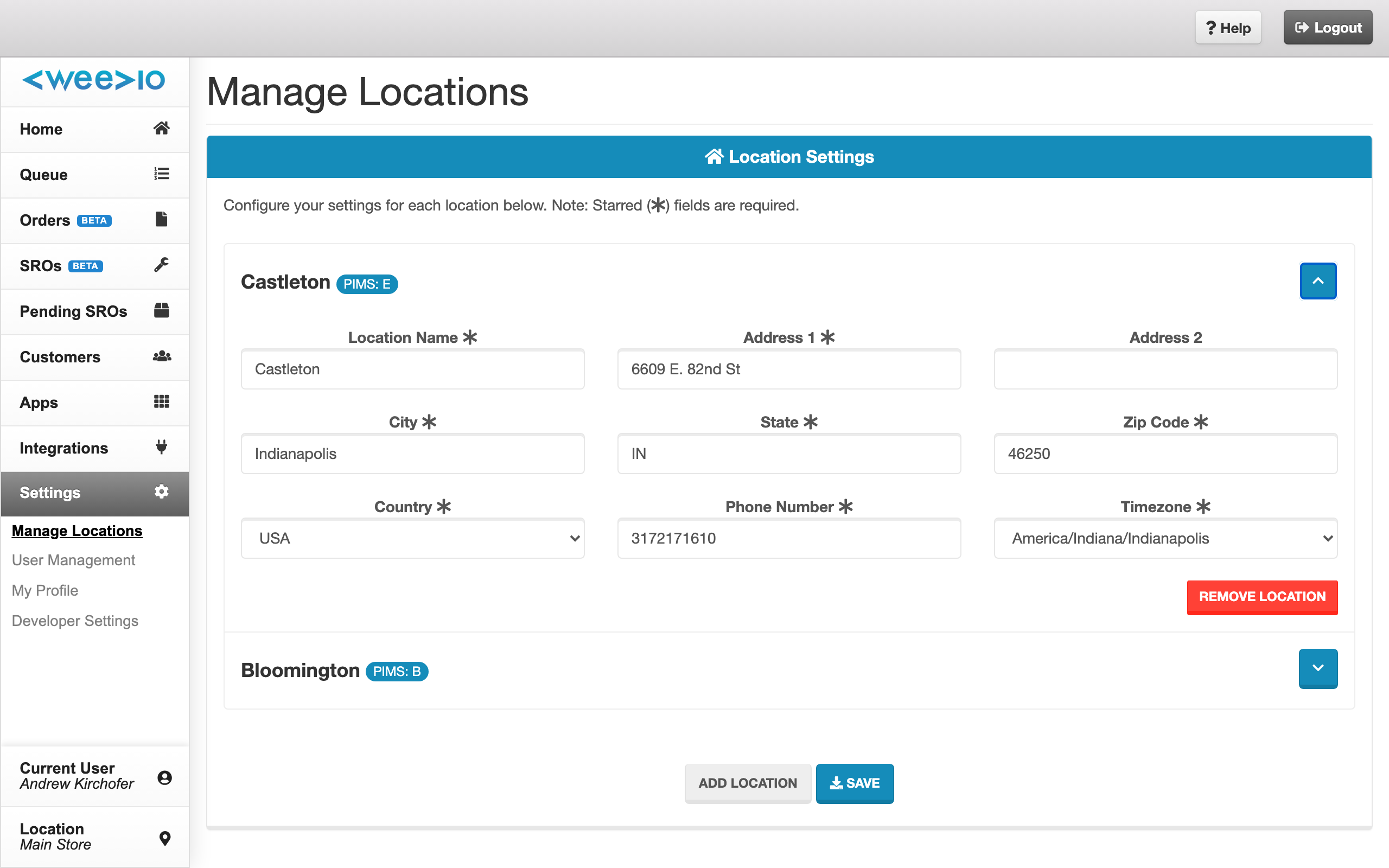
Each location appears as a collapsible card with a chevron toggle. The card header shows the location name and, where applicable, a PIMS badge indicating it is linked to your PIMS system.
Add a location
Click Add Location at the bottom of the page. A new, blank location card is appended. Fill in the required fields and click Save to create the location.
Note:
A new location must be saved before its PIMS Location Code dropdown becomes available. After the first save, reopen the location to assign its PIMS code.
Remove a location
Click the red Remove Location button on the card you want to delete. The card disappears from the form, but the change is not committed until you click Save.
Note:
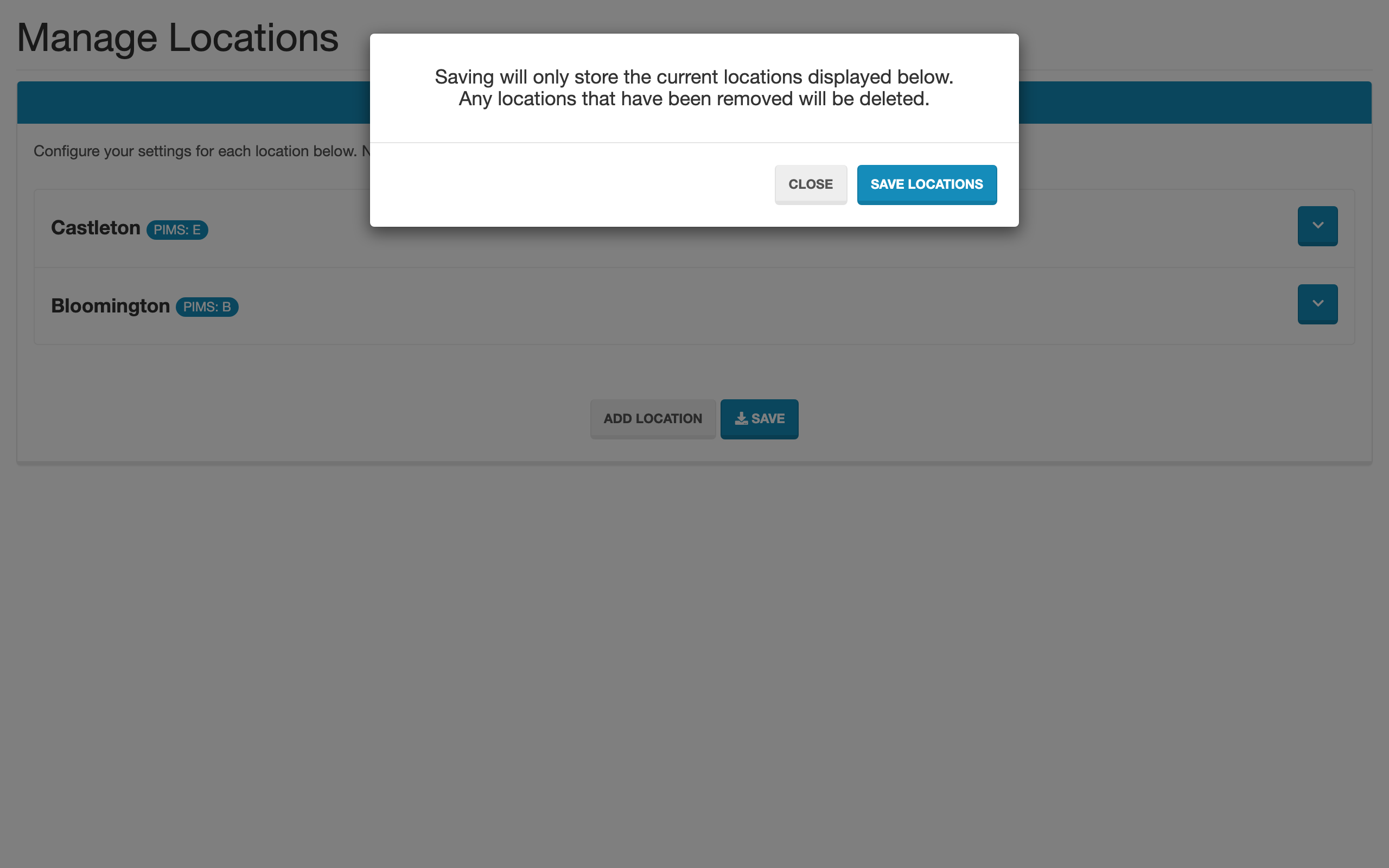
Saving with a location card removed will permanently delete that location. The confirmation modal that appears before saving is your only chance to cancel:
"Saving will only store the current locations displayed below. Any locations that have been removed will be deleted."
Save changes
Click Save to commit your changes. A confirmation modal summarising the action appears — click through to apply.
Location Fields
| Field | Required | Notes |
|---|---|---|
| Location Name | Yes | The friendly label shown across Weevio Cloud (e.g. "Downtown"). |
| Address 1 | Yes | Street address. |
| Address 2 | No | Suite, unit, or floor. |
| City | Yes | |
| State | Yes | |
| Zip Code | Yes | |
| Country | Yes | Choose from the dropdown. |
| Phone Number | Yes | Validated against a mobile-format pattern. Punctuation (dashes, spaces, parentheses, leading +) is normalised automatically before storage. |
| Timezone | Yes | Full IANA timezone list. Used for appointment scheduling, calendar exports, and any time-of-day logic at this location. |
| PIMS Location Code | Yes (when PIMS is connected) | Dropdown bound to your tenant's PIMS system. Links this Weevio location to its PIMS counterpart. |
| GSX Tech ID | Optional | 7–10 alphanumeric characters. Required only when reaching this page through the GSX-Notifier email-settings flow. |
| GSX Ship To | Optional | 10-digit numeric. Required only when reaching this page through the GSX-Notifier email-settings flow. |
PIMS Location Code
The PIMS Location Code dropdown only appears when Weevio Cloud has detected a valid PIMS connection for your tenant. It maps each Weevio location to its counterpart in your PIMS system so per-location data flows correctly between the two.
For brand-new locations, save first to create the location record, then reopen it to set the PIMS code.
GSX fields
GSX Tech ID and GSX Ship To are optional on the standard General Settings page. They are validated as required only when this page is reached through the GSX-Notifier email-settings workflow — see the GSX Integration docs for the appointment-scheduling side of GSX.
Calendar Subscriptions
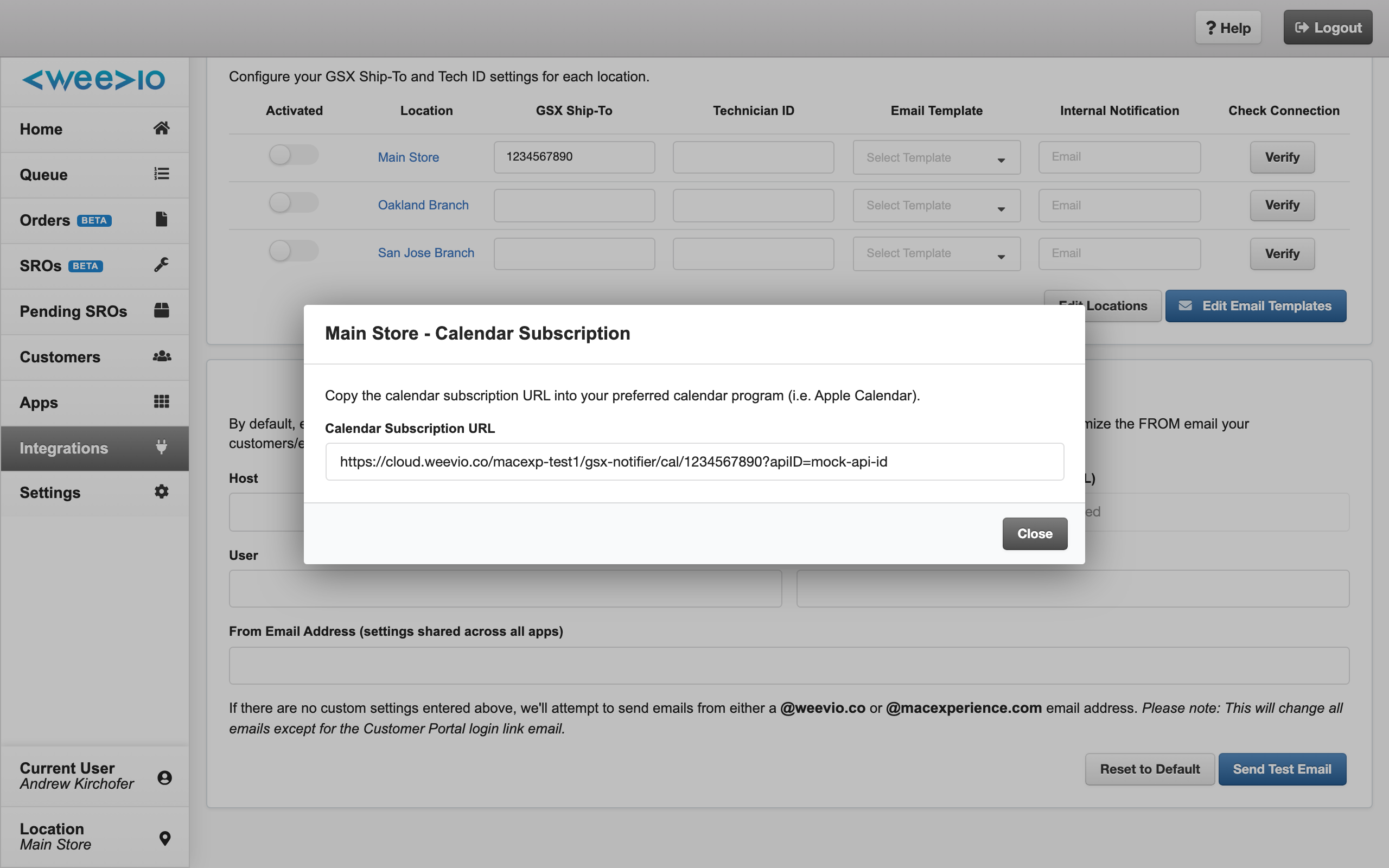
Each location exposes an iCal subscription URL that you can subscribe to from Apple Calendar or Google Calendar. Open the Calendar Subscription modal on the location card to copy the URL and follow the platform-specific instructions provided in the modal.
Note:
GSX appointment data refreshes in your subscribed calendar every 15 minutes.
What Happens When You Save
When you save, Weevio Cloud:
- Stores the current list of locations exactly as shown on the page (any removed cards are deleted).
- Re-syncs each location's latitude and longitude from Google Maps. Distance-based features (such as nearest-store lookups) update automatically.
- Sends a notification to your billing contact when the number of locations changes — adding or removing a location may affect your subscription if your plan is priced per location.
- Preserves each existing location's appointment-scheduler settings and PIMS location code, so other apps' per-location configuration survives a save.
Note:
Because the latitude/longitude resync runs for every location on every save, a tenant with many locations may see a brief delay before the save completes.
Troubleshooting
"Outdated location structure" banner
If you see a banner asking you to re-save your locations, simply review the form and click Save without making changes. This upgrades the underlying record to the current schema; no data is lost.
Phone number rejected
The phone field expects a mobile-format number. If your number is rejected, remove unusual characters and try again — punctuation such as dashes, spaces, parentheses, and the leading + are stripped automatically.
PIMS Location Code dropdown is missing
The dropdown only appears when Weevio Cloud detects a valid PIMS connection. If you expect it but don't see it, confirm your PIMS integration is connected and healthy, then refresh the page.
Save takes a long time
Every save re-geocodes every location. If you operate many locations, expect a proportional delay. Avoid clicking Save repeatedly — wait for the confirmation before navigating away.
Related Features
- User Management — manage staff users and permissions for your tenant.
- GSX Integration — configure GSX appointments and the per-location GSX Tech ID and Ship To codes.
- Appointment Scheduler Setup — control which locations are bookable and their availability windows.
Need Help?
For assistance, please send a message to our Support page.