Email Configuration lets tenant administrators set the SMTP credentials Weevio Cloud uses to send outbound email — order confirmations, repair status updates, appointment reminders, customer portal sign-in links, and similar notifications. Configuring custom SMTP makes those emails appear to come from your business's own domain instead of Weevio's default sender.
Note:
Weevio Cloud sends outbound email over standard SMTP (host, port, username, password). It does not currently provide a one-click "Sign in with Microsoft" or "Sign in with Google" OAuth flow for email. To use a Microsoft 365 or Google Workspace mailbox, configure standard SMTP credentials following the steps below.
Default Behavior
If you leave Email Settings blank, Weevio Cloud sends outbound mail from a generic Weevio-owned address (typically @weevio.co or @macexperience.com) using Weevio's default mail server. Customers will receive working email — but it will not be branded with your business's domain.
Configuring custom SMTP credentials switches your tenant to send via your mail server, using your From address.
Accessing Email Settings
Sign in to Weevio Cloud as an administrator
Custom SMTP affects every outbound email for your tenant, so access is restricted to administrator-level accounts.
Open Tenant Settings → General Settings
From the Weevio Cloud sidebar, navigate to Tenant Settings → General Settings.
Scroll to the Email Settings panel
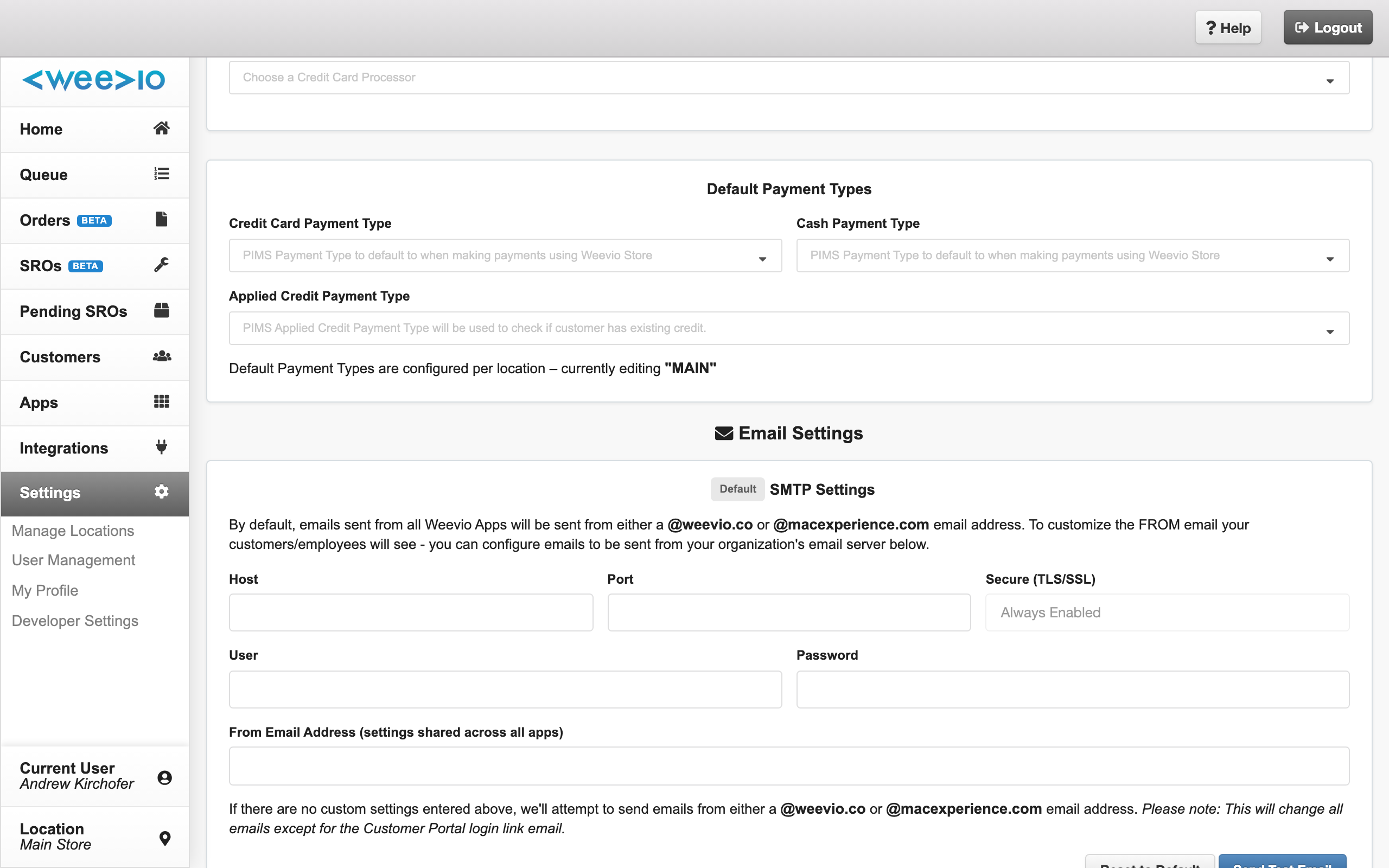
The panel is marked with an envelope icon. A small badge next to the heading shows Default when no credentials are saved or Custom when your own SMTP details are in use.
How Email Settings Work
A few behaviors are worth knowing before you start:
- Auto-save. There is no Save button. As you type, Weevio Cloud saves your changes after a short pause. A small spinner appears next to the panel header while saving.
- Default vs Custom. The badge next to the panel heading flips to Custom as soon as any field has a value. Clear all fields to return to Default.
- TLS is always on. The Secure (TLS/SSL) field is read-only and always enabled. Port
465is treated as implicit TLS; any other port uses STARTTLS. - Per-tenant scope. Email Settings apply to your entire Weevio Cloud tenant, not per-user or per-location.
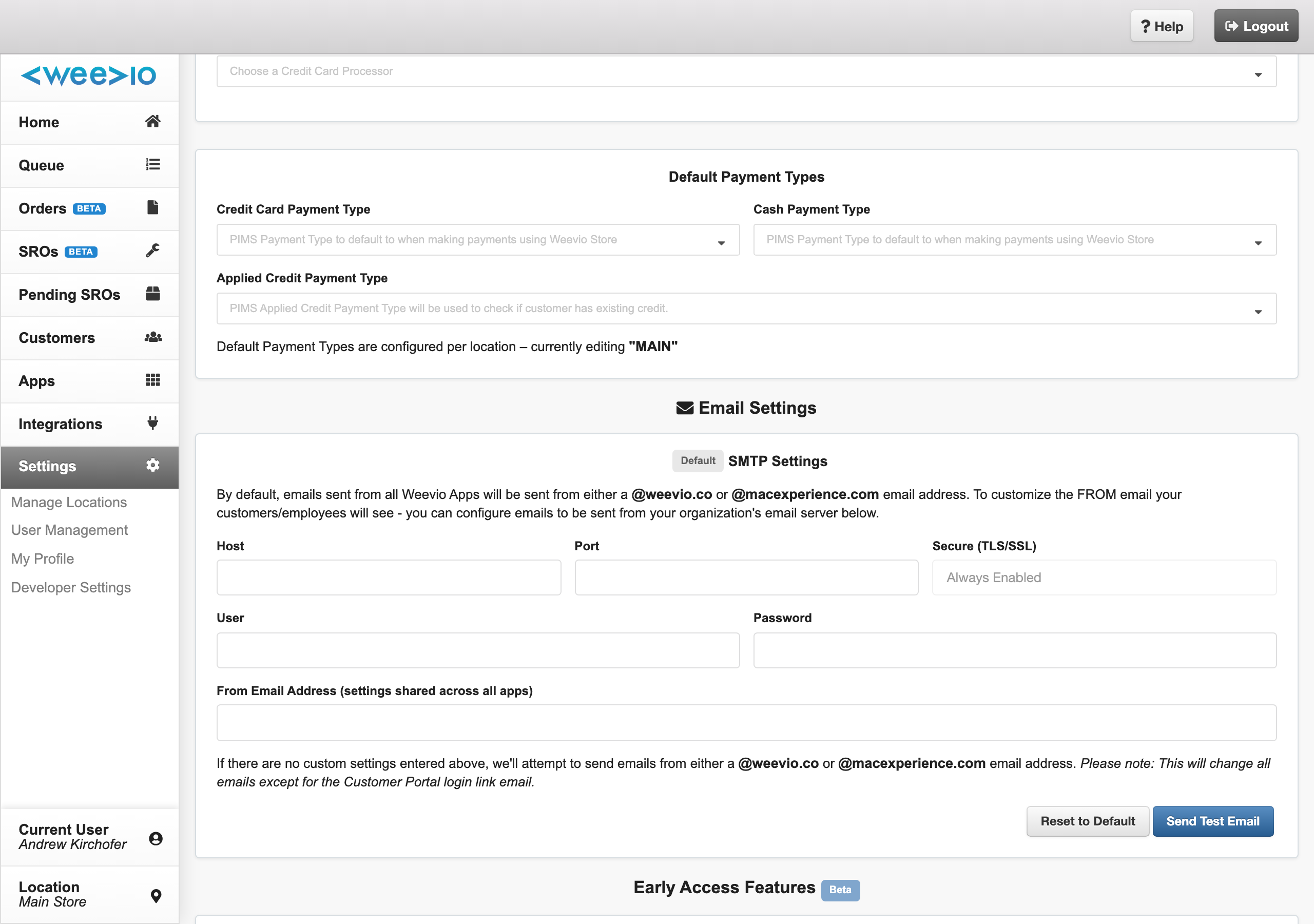
Configuration Fields
| Field | Required | Notes |
|---|---|---|
| Host | Yes | The SMTP server hostname provided by your email provider (for example smtp.office365.com). |
| Port | Yes | Typically 587 for STARTTLS or 465 for implicit TLS. |
| Secure (TLS/SSL) | — | Always enabled — this field cannot be turned off. |
| User | Yes | The full mailbox login, usually the entire email address (e.g. [email protected]). |
| Password | Yes | The mailbox password or — if your provider requires modern authentication — an app password generated for Weevio Cloud. See the provider-specific guides below. |
| From Email Address | Yes | The address customers see in the From field of received emails. Most providers require this to match the User mailbox. |
Set Up Microsoft 365 / Office 365
Microsoft 365 supports SMTP, but most tenants today have Multi-Factor Authentication (MFA) and Modern Authentication enabled, which means the mailbox password by itself will not authenticate — you must use an app password (and your administrator must allow SMTP AUTH on the mailbox).
Note:
Microsoft is in the process of deprecating basic SMTP AUTH for Microsoft 365 mailboxes. Before configuring Weevio Cloud, confirm with your Microsoft 365 administrator that SMTP AUTH is enabled on the mailbox you plan to use. Without it, sign-in attempts from Weevio Cloud will be rejected.
Settings to enter in Weevio Cloud
| Field | Value |
|---|---|
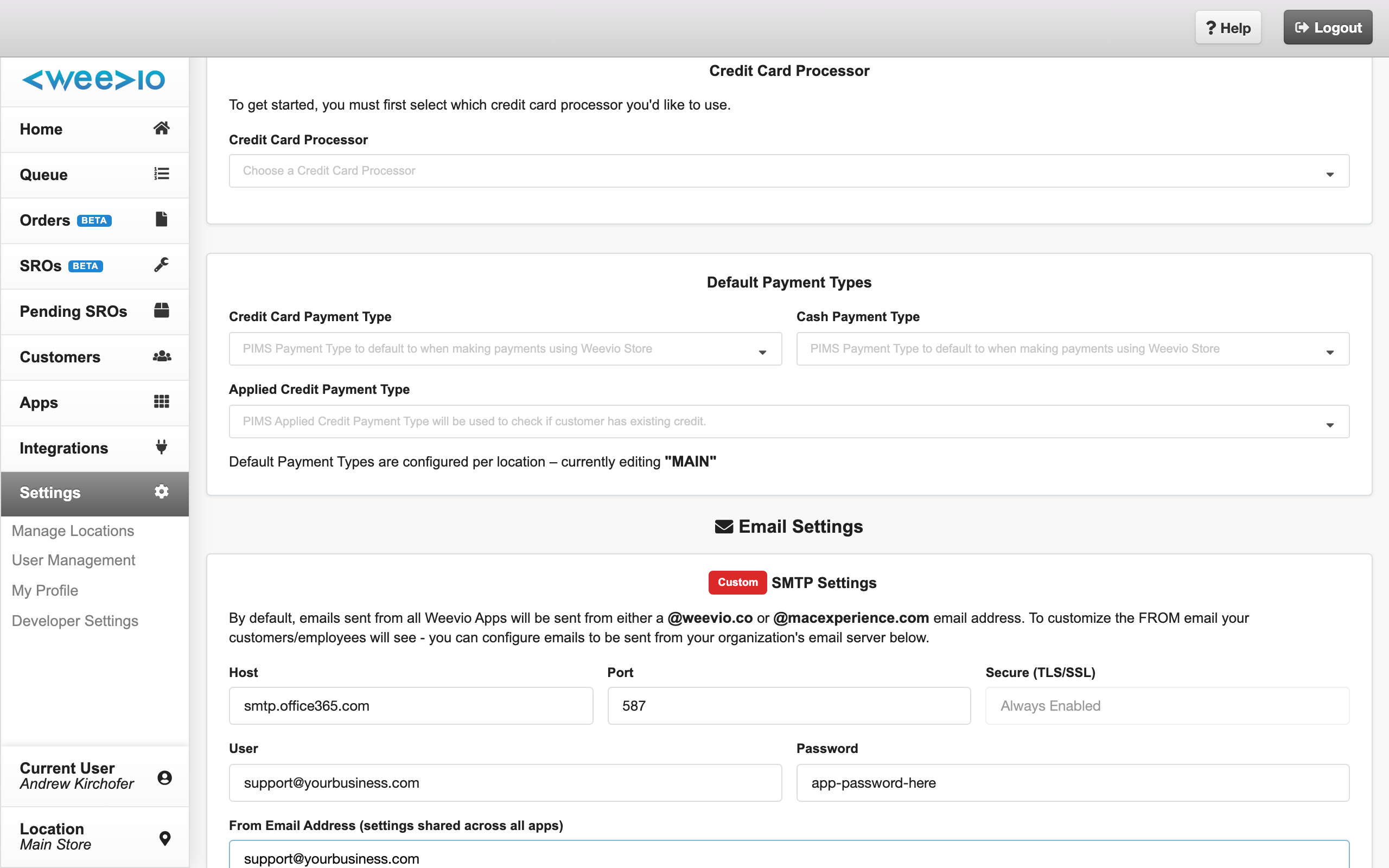
| Host | smtp.office365.com |
| Port | 587 |
| User | The full email address of a Microsoft 365 mailbox (e.g. [email protected]) |
| Password | An app password for that mailbox (or the regular password if MFA is disabled and SMTP AUTH is enabled) |
| From Email Address | The same mailbox address as User |
Step-by-step
Confirm SMTP AUTH is enabled (Microsoft 365 admin)
In the Microsoft 365 admin center, open the mailbox you plan to use, go to Mail → Manage email apps, and ensure Authenticated SMTP is checked. This usually requires a Global or Exchange administrator.
Generate an app password (mailbox owner)
If MFA is enabled on the mailbox, sign in to Microsoft's My Account → Security info page and add an App password. Copy the generated value — Microsoft will not show it again. If your Microsoft 365 plan does not expose the App passwords option, ask your administrator to enable per-app passwords or to provision a dedicated mailbox without MFA for outbound mail.
Enter the credentials in Weevio Cloud
On the Email Settings panel, enter the host, port, full email address, app password, and From address from the table above. The panel auto-saves as you type.
Send a test email
Click Send Test Email and enter a destination address you can check. Verify the message arrives and that the From matches your mailbox.
Set Up Google Workspace / Gmail
Like Microsoft 365, Google requires modern authentication for SMTP — you must generate a Google App Password (2-Step Verification must be enabled on the Google account first).
Settings to enter in Weevio Cloud
| Field | Value |
|---|---|
| Host | smtp.gmail.com |
| Port | 587 |
| User | The full Google Workspace or Gmail address (e.g. [email protected]) |
| Password | A 16-character App Password generated in Google Account settings |
| From Email Address | The same address as User |
Step-by-step
Enable 2-Step Verification
Sign in to the Google account at myaccount.google.com/security and turn on 2-Step Verification if it is not already on. App Passwords are only available on accounts with 2SV enabled.
Generate an App Password
On the same Security page, open App passwords, choose Mail as the app and Other as the device (label it "Weevio Cloud"), and copy the 16-character password Google generates.
Enter the credentials in Weevio Cloud
Use the values from the table above. Paste the App Password into the Password field exactly as Google displayed it (spaces optional).
Send a test email
Click Send Test Email to verify delivery.
Set Up Other SMTP Providers
Most business email providers (Rackspace, Zoho Mail, Mailgun, Amazon SES, your own Postfix server, and so on) work the same way — supply the host, port, mailbox credentials, and a From address that the provider permits.
A few rules of thumb:
- Port 587 is the standard "submission" port and uses STARTTLS. This is the right choice for almost every provider today.
- Port 465 uses implicit TLS. Use this if your provider explicitly requires it.
- Some providers (Amazon SES, Mailgun, SendGrid) issue SMTP-only credentials that are different from the mailbox login. Use those values, not your console password.
- The From Email Address must usually be a verified address or an address inside a verified domain on the provider — otherwise the provider will reject the message.
Send a Test Email
The Send Test Email button on the Email Settings panel sends a one-off message using the credentials currently entered. When you click it:
- Weevio Cloud prompts you for a destination email address.
- It attempts to send a short test message through your SMTP server.
- A confirmation alert appears once the request is accepted.
Note:
The confirmation only tells you that the SMTP server accepted the message for delivery — it does not guarantee the message actually arrived in the recipient's inbox. Always check the destination mailbox (and spam folder) to confirm. If the message does not arrive within a minute or two, the provider may be silently rejecting it for authentication, From-address, or anti-spoofing reasons; see Troubleshooting below.
Reset to Default
The Reset to Default button clears all six fields and returns your tenant to Weevio's default mail server. A confirmation prompt appears first:
"Are you sure? Emails will start to be sent out from
@weevio.coand/or@macexperience.comagain."
Use this if you want to roll back a misconfigured setup quickly, or if your custom SMTP provider is unavailable and you need email to keep flowing while you resolve the issue.
Troubleshooting
"Authentication failed" when sending the test email
- For Microsoft 365, the most common cause is that SMTP AUTH is not enabled on the mailbox, or that you are using the regular mailbox password while MFA is on. Enable SMTP AUTH and use an app password.
- For Gmail / Google Workspace, confirm that 2-Step Verification is on and that you generated an App Password specifically for Weevio Cloud — Google rejects regular passwords on SMTP.
- For other providers, double-check that the User field is the full email address, not just the local part.
Test email succeeds, but real customer emails do not arrive
- Confirm that the From Email Address is on a domain you control and is permitted to send by the SMTP provider. Some providers silently drop messages whose From does not match a verified mailbox/domain.
- Check your domain's SPF, DKIM, and DMARC records. Receiving servers (Gmail, Outlook.com) increasingly reject messages from misaligned domains. Add Microsoft 365's or Google Workspace's published SPF entries to your domain DNS.
- Check the recipient's spam folder. New From addresses sometimes land in spam until the recipient marks them as safe.
My emails are still going out from @weevio.co or @macexperience.com
- If the badge next to the Email Settings panel still says Default, your credentials were not saved. Re-enter the fields and watch for the saving spinner to complete.
- If sending fails for any reason (provider outage, expired app password, blocked sender), Weevio Cloud may fall back to its default mail server so the customer still receives the message. Run Send Test Email to confirm whether your SMTP credentials are currently working.
My Microsoft 365 mailbox does not show an "App passwords" option
This usually means MFA is being enforced through Security Defaults or a Conditional Access policy that does not allow per-app passwords. Ask your Microsoft 365 administrator to either enable App passwords for the mailbox, switch the mailbox to per-user MFA with App passwords allowed, or provision a dedicated mailbox configured for SMTP submission.
Microsoft is deprecating basic SMTP AUTH — what are my options?
If your Microsoft 365 administrator cannot enable SMTP AUTH (or has turned it off across the tenant), the only supported path today is to send through a different provider — for example a transactional-email service such as Amazon SES, Postmark, SendGrid, or Mailgun, while keeping your business mailbox on Microsoft 365. Configure the transactional provider's SMTP credentials in Email Settings and set the From Email Address to a verified address on your domain.
Related Features
- General Settings — configure your business locations and per-location PIMS and GSX codes.
- User Management — add and manage administrator and staff accounts that can change Email Settings.
- Customer Portal Setup & Configuration — Customer Portal also exposes per-app SMTP settings; the tenant-level configuration here is the default sender for the rest of the platform.
Need Help?
For assistance, please send a message to our Support page.