The Home Dashboard is the first screen you see after signing in to Weevio Cloud. It surfaces today's order activity and salesperson performance — so you can start each day already knowing where to focus.
Overview
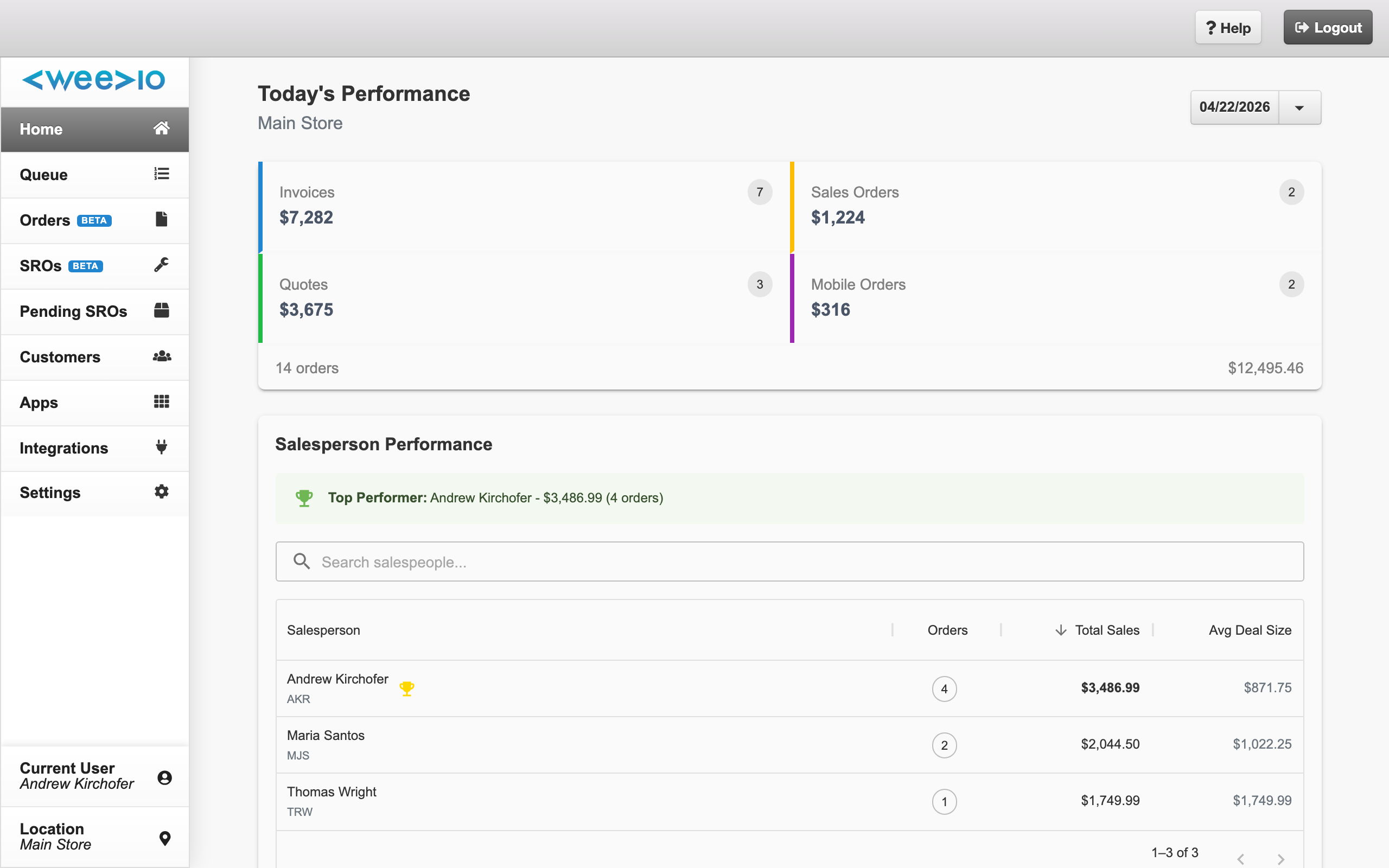
The dashboard pulls live data from your connected PIMS system and groups it into two sections:
- Daily Totals — counts and grand totals for Invoices, Sales Orders, Quotes, and Mobile Orders across the selected date range.
- Salesperson Sales — per-salesperson order count and revenue for the same range.
At the top of the page a dynamic title (e.g. "Today", "Past 7 Days") shows the current range, and the active store location is displayed just beneath it.
Filtering the Dashboard
Date Range
Use the preset buttons for the most common views, or open the calendar picker to select a custom range:
- Today
- Past 7 Days
- Past 30 Days
- Past 3 Months
- This Year
- Custom range — pick any start/end date from the calendar; a reset button returns you to the default.
Every card on the page updates to match the range you select.
Location
If your business operates more than one store, you can narrow the dashboard to a single location. The control appears in two places depending on the viewport you're using:
-
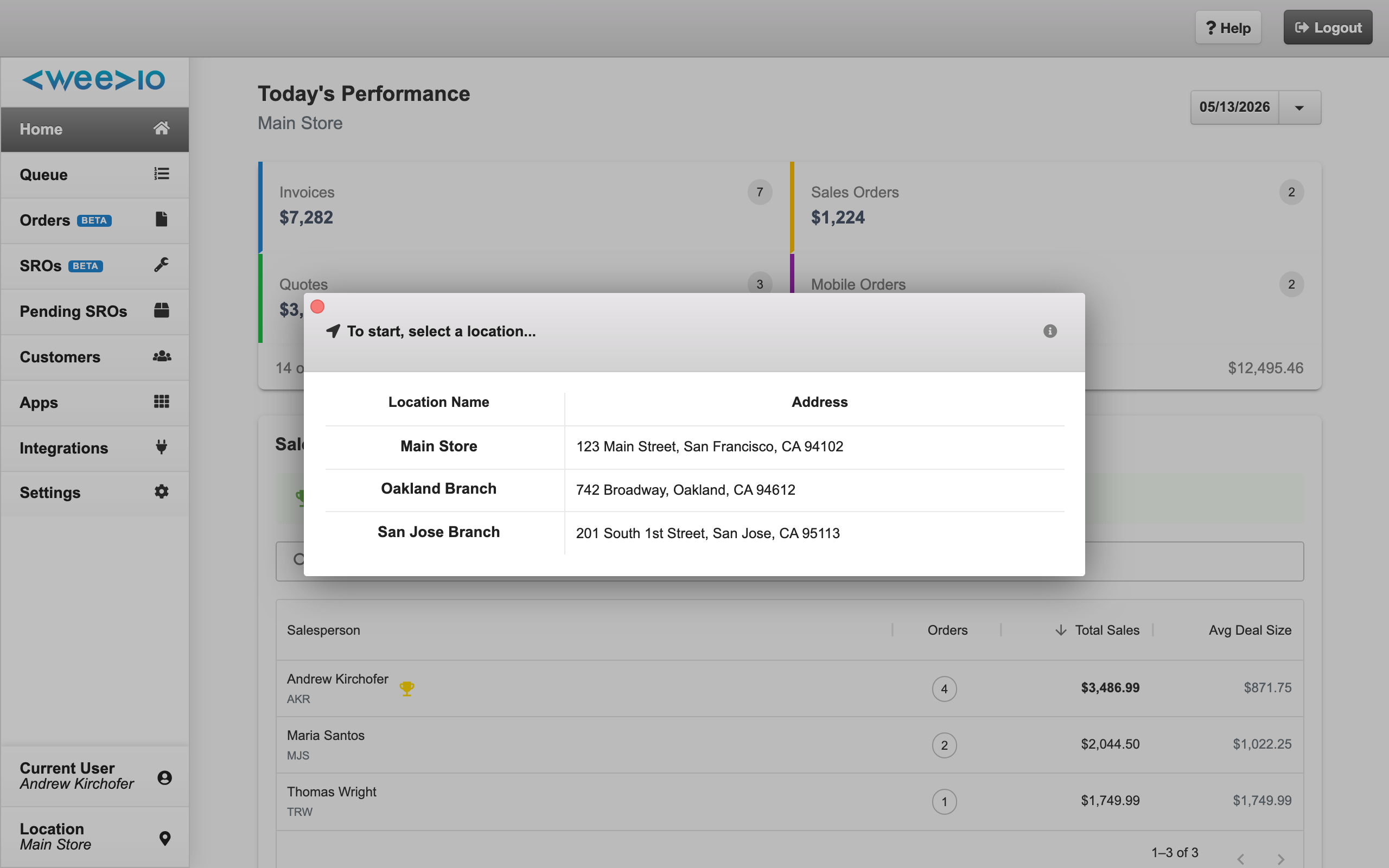
Desktop — click Location at the bottom of the left sidebar to open the location picker. The picker lists every active store with its address; click a row to switch.
-
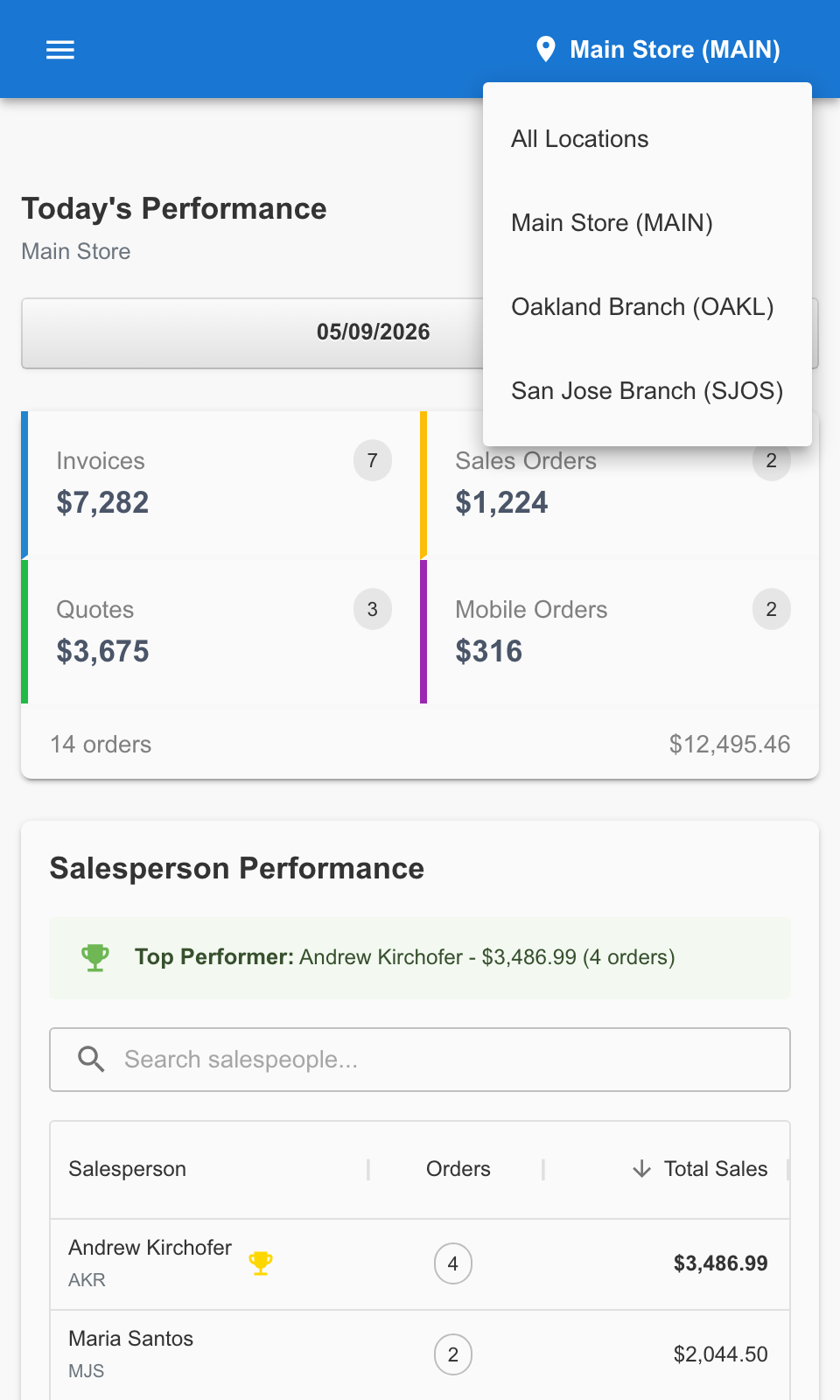
Mobile — tap the location chip in the top header to open the dropdown. The dropdown includes an All Locations option that combines data across every store.
Switching locations reloads the app:
Changing the selected location refreshes Weevio Cloud so every area of the app — not just the dashboard — reflects the location you chose. Your selection is remembered for future sessions.
Daily Totals Cards
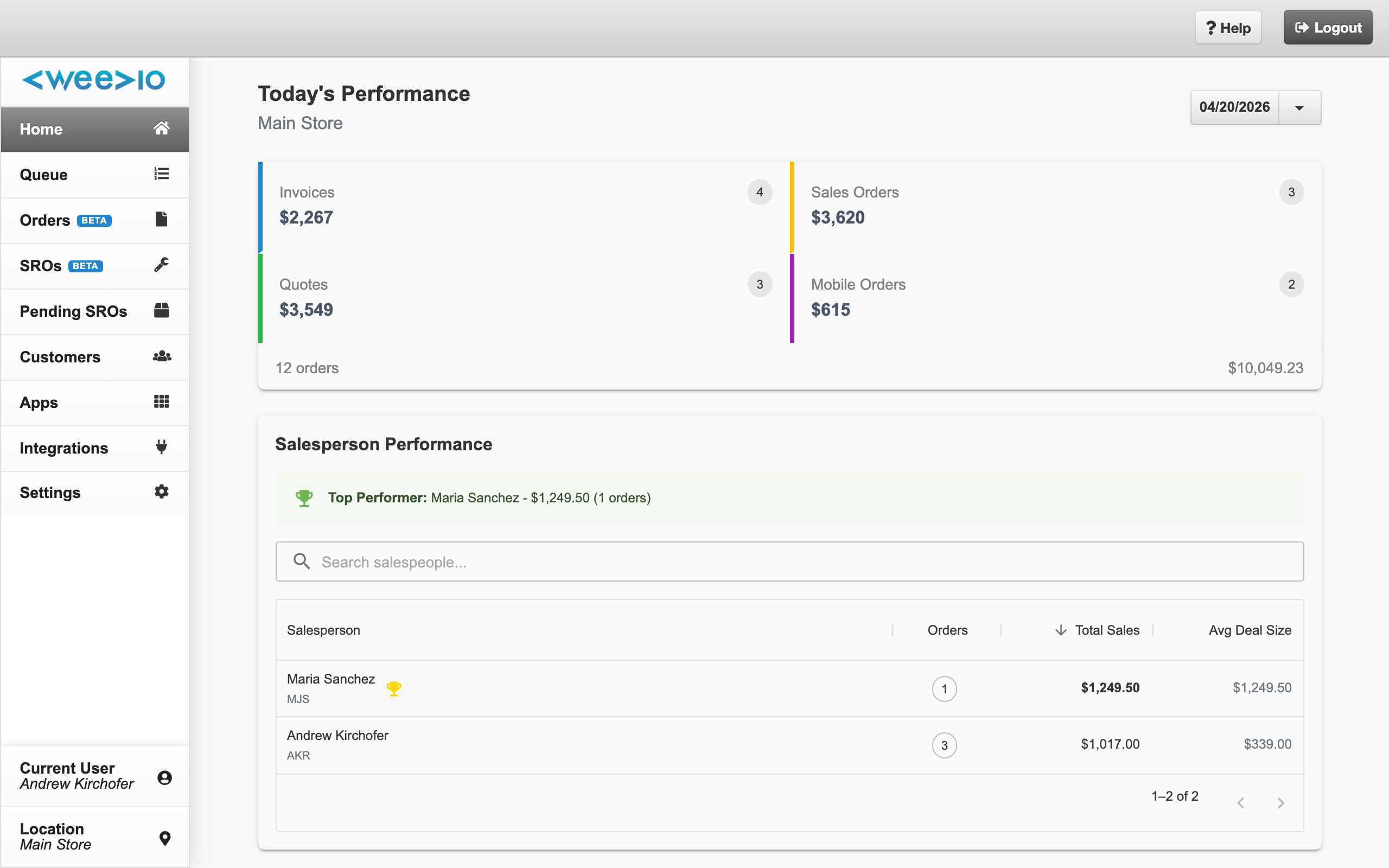
Each card shows the count of records in the selected range along with the aggregate grand total:
- Invoices — completed sales for the range.
- Sales Orders — confirmed orders still moving through fulfillment.
- Quotes — open quotes that have not yet been accepted.
- Mobile Orders — orders entered from mobile devices in the field.
The combined order count and combined grand total across all four cards are shown alongside them, giving you a single at-a-glance number for the day.
Salesperson Sales
The Salesperson Sales table breaks the same data down by team member, listing each salesperson's total order count and total revenue for the selected range. Use it to compare performance across the team or to confirm who recorded a specific sale.
When the Weevio Store Module Isn't Enabled
If your tenant hasn't purchased the Orders, SROs & Customers module, the dashboard shows a Purchase card in place of live data, along with a demo view so you can preview what the dashboard looks like before upgrading. Contact your Weevio Cloud account team to enable the module and populate the dashboard with your real order data.
Navigating from the Dashboard
From the dashboard you can jump directly to any other area of Weevio Cloud using the sidebar and top navigation:
- Orders — browse and manage the full order table.
- Service Repair Orders — work on repair tickets.
- Customer Management — look up customer records.
- Inventory — search product stock.
- Integrations — manage Shopify, PIMS, GSX, and other connections.
Mobile view:
On smaller screens the dashboard hides the top title bar, left sidebar, and primary navigation to keep the totals and salesperson table fully visible. Use the menu icon to reveal navigation when needed.
Need Help?
For assistance, please send a message to our Support page.