Customer Management in Weevio Store gives you a complete view of your customer base. Search customer records synced from your PIMS system, view detailed profiles with contact information and shipping addresses, and access transaction history including orders and repairs.
Customer Table
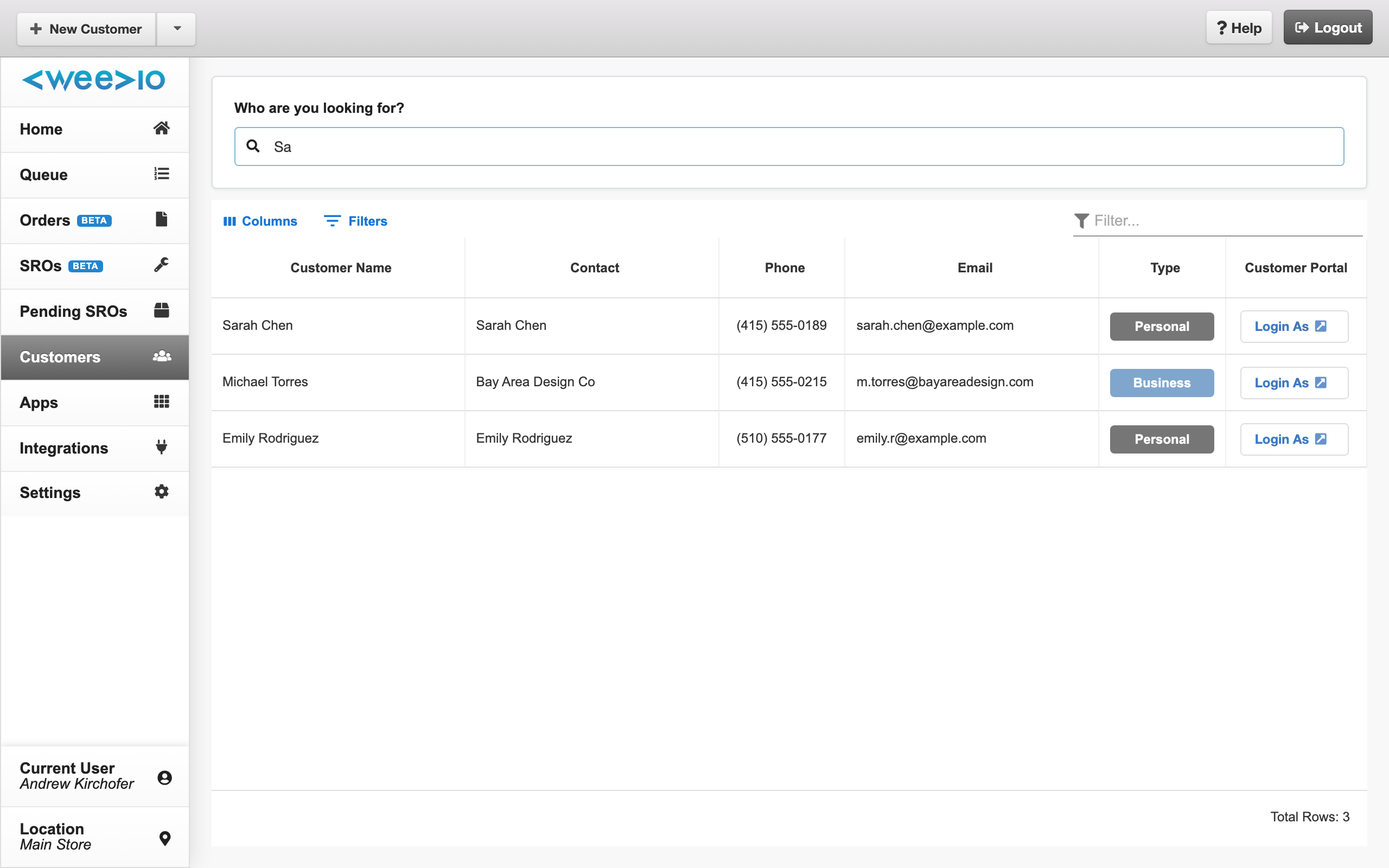
The Customer Table lets you search for customers across your PIMS system. Unlike other tables in Weevio Store, the Customer Table starts empty — use the search bar to find the customer you’re looking for.
Searching for Customers
The prominent “Who are you looking for?” search bar is your entry point. Type a customer name, code, email, or phone number to search your PIMS database. Results populate the table below as matches are found.
Once results are loaded, use the quick-filter in the toolbar to further narrow results across all visible columns.
Table Columns
| Column | Description |
|---|---|
| Customer Name | Customer’s full name or company name |
| Contact | Primary contact / attention name |
| Phone | Primary phone number |
| Primary email address | |
| Type | Business (blue label) or Personal (grey label) |
| Customer Portal | Login As button to access the Customer Portal as this customer |
Customer Portal Access
The Login As button in each row generates a sign-in link for the Customer Portal as that customer. This is useful for support staff who need to see exactly what a customer sees, troubleshoot portal issues, or demonstrate features.
Click any row to open the customer’s detail view.
Customer Detail View
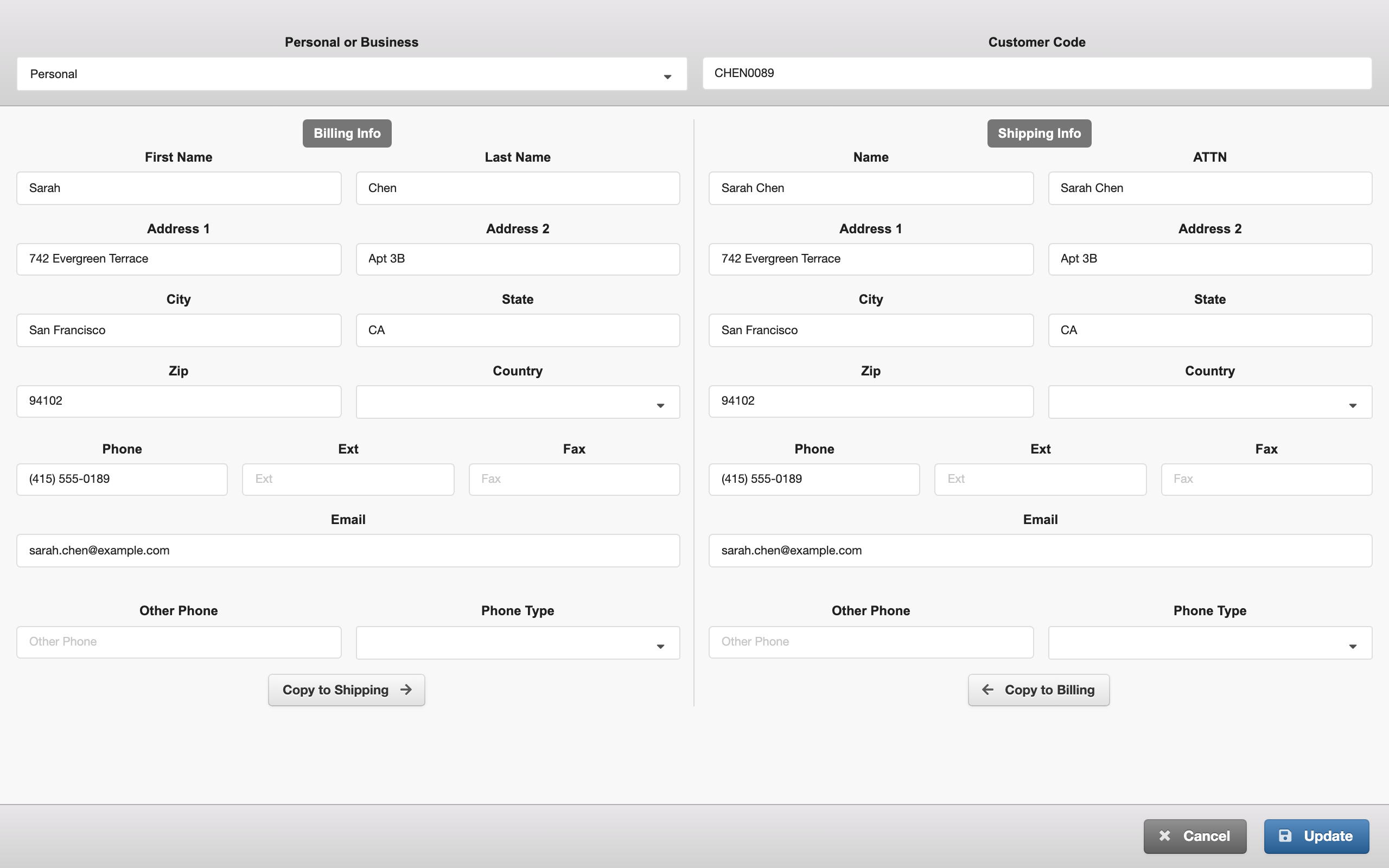
The customer detail view provides a full profile for a single customer. This same view is used for both viewing existing customers and creating new ones.
Customer Type
Select Personal or Business at the top of the form. This controls which fields are displayed:
- Personal — Shows first name, last name, and individual contact fields
- Business — Shows company name, attention/contact name, and business-oriented fields
Contact Information
The main form includes all customer contact details:
- Name — Full name (personal) or company name + attention contact (business)
- Customer Code — The unique PIMS identifier (auto-assigned for new customers, read-only for existing)
- Email — Primary email address
- Phone — Phone numbers on file
- Billing Address — Primary billing address with USPS address verification
- Shipping Address — Primary shipping address
Saving Changes
- For new customers, click Create to save the record to PIMS
- For existing customers, click Update to save any changes
- The save button shows a loading indicator while the operation is in progress
Note:
When creating a customer from within an order or SRO workflow, the detail view automatically closes and links the new customer to the originating record after saving.
Customer Search Modal
A quick-access customer search modal is available throughout Weevio Store — including from the order and SRO detail views. This lets you look up or verify a customer without leaving your current workflow.
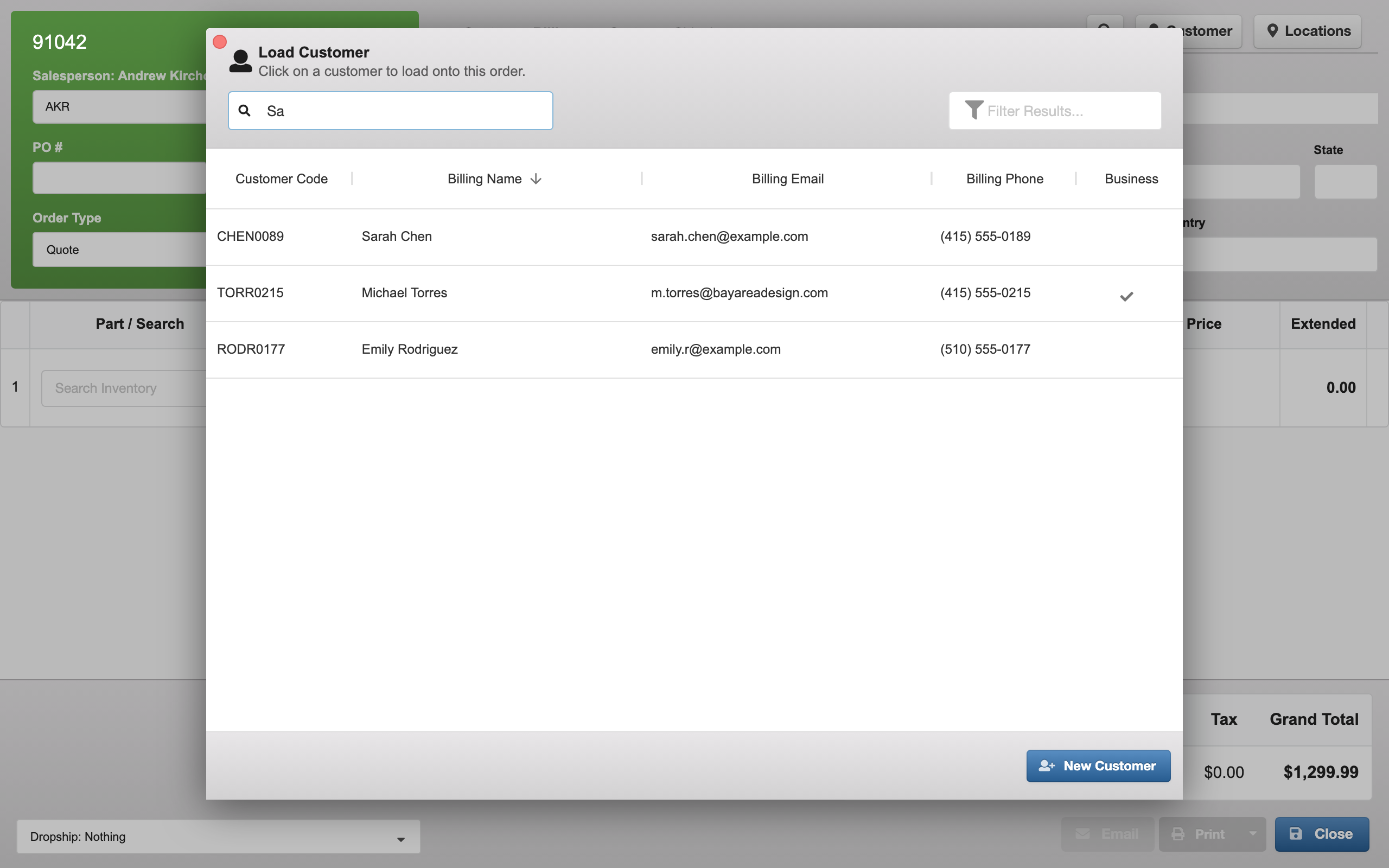
The modal supports the same search capabilities as the main Customer Table, returning matching PIMS records instantly. Select a customer to link them to an order or repair.
Need Help?
For assistance, please send a message to our Support page.