The Inventory module in Weevio Store provides real-time visibility into your product catalog and stock levels. Search for products, check availability, and access inventory data synced directly from your PIMS system. Inventory search is integrated directly into SRO and order workflows for adding parts and products.
Inventory Search
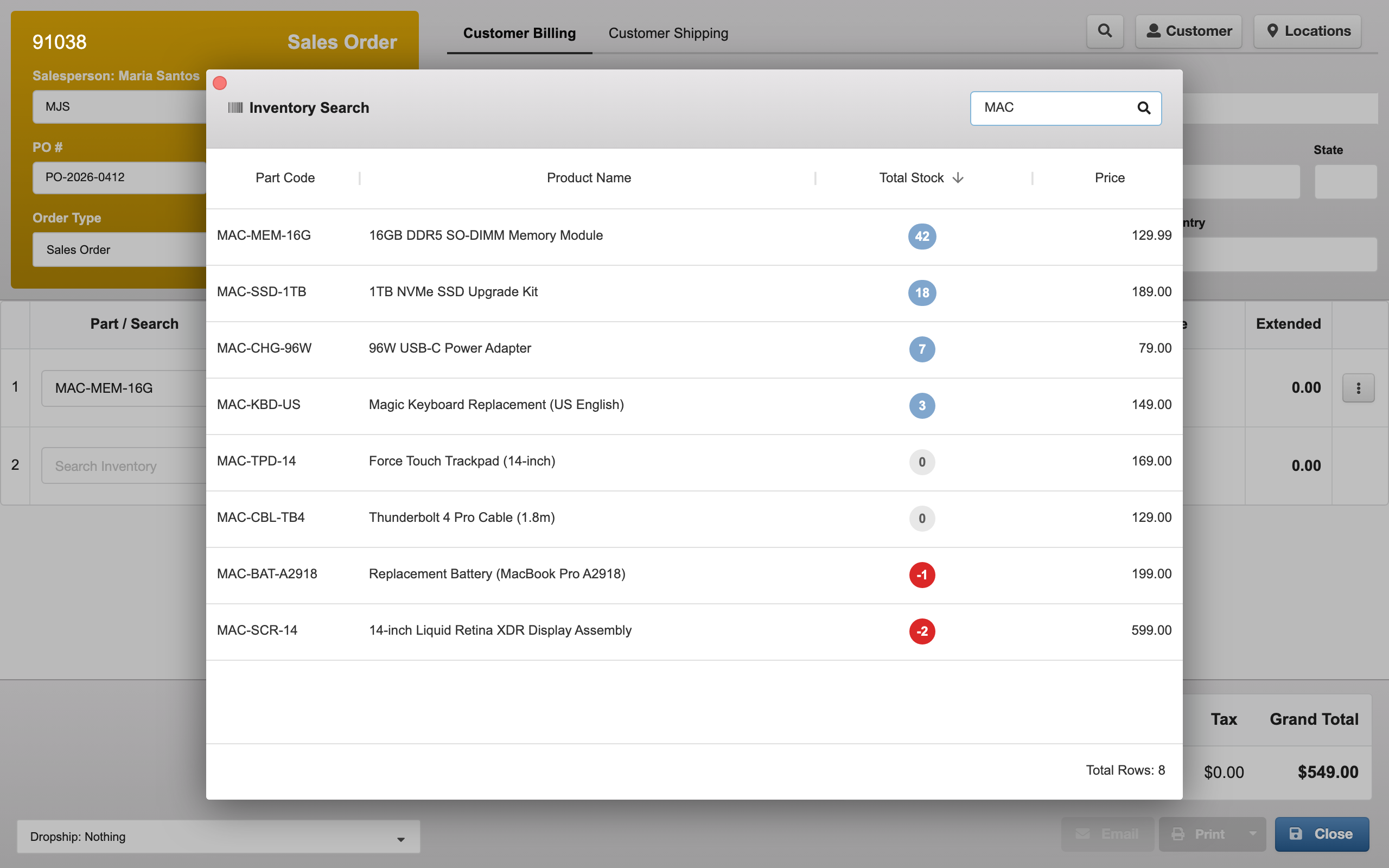
The inventory search is available as a modal dialog within SRO and order views. When adding parts to a repair or products to an order, click the search icon on a line item to open the inventory search.
Search and Filtering
The search input at the top of the modal filters results in real time as you type. You can search across multiple fields simultaneously — for example, typing a partial product name and part code separated by a space.
Your location’s full inventory is pre-loaded into a local cache, so search results appear instantly without waiting for server responses.
Search Results
| Column | Description |
|---|---|
| Part Code | Unique product identifier from PIMS |
| Product Name | Item description |
| Total Stock | Current quantity in stock, shown as a color-coded indicator: blue (in stock), red (negative/backordered), grey (zero) |
| Price | Current selling price |
Results are sorted by stock level (highest first) by default, making it easy to find available items. Discontinued products are automatically hidden unless they still have remaining stock.
Adding Parts to an Order or SRO
Click any row in the search results to select it. A confirmation dialog appears asking you to confirm the part selection. Once confirmed, the part is automatically added to the current line item in your order or SRO with its details pre-filled.
Stock Levels
Monitor real-time stock levels across your inventory using the color-coded indicators:
| Indicator | Color | Meaning |
|---|---|---|
| In Stock | Blue | Items available for sale or use in repairs |
| Backordered | Red | Negative stock — more items committed than physically available |
| Out of Stock | Grey | Zero quantity on hand |
Note:
Inventory levels are synchronized from your PIMS system. Changes made in PIMS — receiving stock, processing sales, inventory adjustments — are reflected in Weevio Store automatically.
PIMS Inventory Synchronization
Weevio Store’s inventory data stays current through automatic synchronization with your PIMS system:
- Real-time updates — Stock changes in PIMS are reflected in Weevio Store
- Bidirectional accuracy — Orders and SROs processed through Weevio Store update PIMS inventory automatically
- Product catalog sync — New products added in PIMS appear in Weevio Store’s inventory search
Shopify Integration:
If you use the Shopify integration, inventory levels also sync to your Shopify store. See PIMS Sync — Inventory Sync for details on the Shopify synchronization process.
Need Help?
For assistance, please send a message to our Support page.