How It Works
The inventory sync is a one-way background process that pushes product data and inventory quantities from PIMS to Shopify.
- The sync process polls for changes approximately every 60 seconds.
- New products are created in Shopify and published to all sales channels automatically.
- Existing products are updated when their PIMS record has been modified.
Getting Started
Inventory items must be flagged as "OK To Show On SHOPIFY" in PIMS before they will sync.
Where to find the flag:
- Single item: PIMS inventory record → WEB → Additional Data for WEB → "OK To Show On SHOPIFY"
- Bulk editing: Inventory → Search Editor → select items → WEB → ADJUST OK for SHOPIFY flag
Location Matching
For inventory quantities to sync correctly, Shopify location names must match PIMS location names.
Where to find locations:
- Shopify: Shopify Admin → Settings → Locations
- PIMS: File → Locations Module → List All Locations
PIMS location names must be unique.
Note:
Location names must match exactly between Shopify and PIMS. If they don't match, quantities will not sync for that location.
Excluding Sub-Locations from Inventory Sync
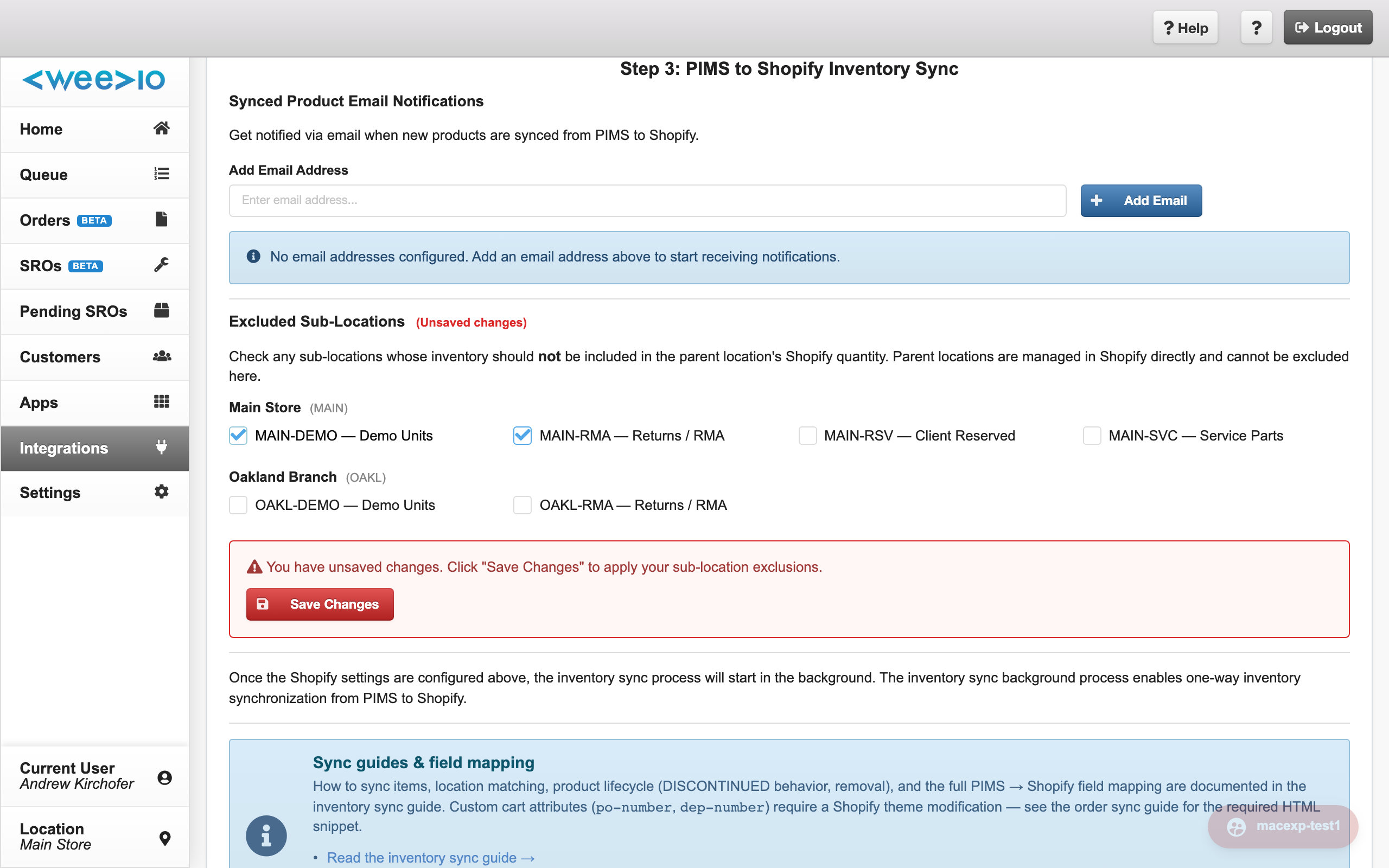
If your PIMS server organizes inventory across sub-locations under a parent location, you can choose which sub-locations should be excluded from the quantity Weevio sends to Shopify. This is useful for stock that lives in PIMS but should not be available for sale online — for example, items reserved for specific clients, demo units, returns/RMAs, or service parts.
By default, the integration sums all sub-locations under a parent into a single Shopify quantity for that parent location. Excluding a sub-location subtracts its on-hand quantity from that sum.
Where to find it: Weevio Cloud → Integrations → Shopify → scroll to Step 3: PIMS to Shopify Inventory Sync → Excluded Sub-Locations panel.
How it works
- Sub-locations are listed in a checkbox grid, grouped under their PIMS parent location header.
- Parent locations themselves are not listed — they are managed in Shopify directly under Shopify Admin → Settings → Locations.
- Check any sub-location whose stock should be omitted from its parent location's Shopify quantity.
- When you change a selection, a red (Unsaved changes) label appears next to the panel title, and a red Save Changes button appears below the checkboxes.
- Click Save Changes to save your selection. Updates to the exclusion list can take up to 24 hours to appear in your Shopify quantities.
- Adjustments can be made at any time. To re-include a sub-location, uncheck it and save.
Opt-in behavior
With no boxes checked, the inventory sync behaves exactly as before — the integration sums all sub-locations under a parent into the Shopify quantity for that location. Exclusion is opt-in: tenants that don't configure exclusions are unaffected.
Adding or closing sub-locations in PIMS
The panel reads sub-locations directly from PIMS. Newly added or closed sub-locations appear the next time you load the Shopify settings page.
Troubleshooting
The panel shows "No sub-locations to manage." Your PIMS server doesn't currently have any sub-locations configured, so there's nothing to exclude. This feature only applies when inventory is organized across sub-locations in PIMS. Contact your PIMS administrator if you'd like to start using sub-locations.
A sub-location appears under "Unlinked Sub-Locations." Sub-locations whose parent code doesn't match a known parent location in PIMS are grouped together under this header. Confirm the sub-location's parent link is set correctly in PIMS.
Note:
If a parent location and one of its sub-locations share the same location code (for example, both labelled MAIN), only the sub-location row appears in the panel. The parent location is never excluded by the integration, even if its code would match an entry in the exclusion list.
Field Mapping
The following table shows how PIMS fields map to Shopify fields during product creation and updates.
| PIMS Field | Shopify Field | Synced During | Notes |
|---|---|---|---|
| PRODUCT NAME TO USE INSTEAD / NAME | Title | Create + Update | Only updates after creation when "PRODUCT NAME TO USE INSTEAD" is filled in, allowing title management from Shopify UI |
| MORE INFO TEXT | Body HTML | Create | Located in PIMS under WEB → Additional Data for WEB → MORE INFO TEXT |
| MANUFACTURER NAME | Vendor | Create + Update | Located in PIMS under Home → Vendor/Manufacturer Information. Vendor cannot be overridden in Shopify — any manual edit will be overwritten on the next sync. |
| ADD TO PRODUCT PAGE | Product Type | Create + Update | Located in PIMS under WEB → Additional Data for WEB. Select only one item. |
| PRICE | Price | Create + Update | Located in PIMS under Home → Default Price/Costing → Price. See Pricing & Variants for details. |
| MSRP / RETAIL | Compare-at price | Create + Update | The struck-through "was" price. Located in PIMS under Home → Default Price/Costing. Only applied when set — leave blank to omit. |
| NON-TAXABLE | Taxable | Create + Update | Inverted: if PIMS NON-TAXABLE is checked, Shopify taxable is unchecked |
| PART CODE | SKU | Create + Update | Located in PIMS under Home → Identification → Part Code |
| BARCODE | Barcode | Create + Update | Located in PIMS under Home → Identification → Barcode |
| SHP. WEIGHT | Weight | Create + Update | Located in PIMS under Home → General Information → Shp. Weight |
| Don't Adjust On-Hands | Inventory Tracking | Create + Update | When checked in PIMS, disables inventory level tracking in Shopify for this product |
| PRODUCT IMAGE | Image 1 | Create only | Only synced during initial product creation. Manage images via Shopify UI after creation. |
| MORE INFO IMAGE | Image 2 | Create only | Only synced during initial product creation. Manage images via Shopify UI after creation. |
| — | Continue selling when out of stock | Create | Enabled by default for products created by the integration |
| LEAD TIME | Metafield: expected_ship_time | Create | Requires custom metafield in Shopify admin with namespace "custom.expected_ship_time" (integer type) |
Note:
Vendor is always sourced from PIMS Manufacturer Name. The Shopify integration has no override or alternate source for the Vendor field. If you change Vendor directly in Shopify, your edit will be overwritten on the next PIMS sync. To change the Vendor shown in Shopify, update the Manufacturer Name in PIMS.
Sync Timing
Note:
"Create" fields are synced once when the product is first created in Shopify. "Create + Update" fields are re-synced whenever the PIMS inventory record is modified.
Some fields like Title and images use a "create only" strategy to allow merchants to manage content directly in Shopify without it being overwritten.
Product Lifecycle
What happens when a product is DISCONTINUED?
The integration will continue selling until quantity reaches 0, then archive the product in Shopify.
How to remove a product from Shopify?
Uncheck "OK to Show on SHOPIFY" and ensure "READY FOR SHOPIFY" is checked in PIMS — the integration will archive the product in Shopify.
Email Notifications
Configure email addresses in the Shopify integration settings to receive notifications when new products are created in Shopify.
Need Help?
For assistance, please send a message to our Support page.