Service Repair Orders (SROs) are the core workflow in Weevio Store for managing device repairs. From intake to completion, the SRO module lets you track every repair through its lifecycle — view status updates, manage equipment and parts, communicate with customers, and generate receipts.
Note:
Looking for the scan-to-receive intake workflow? See Pending SROs V2 for barcode scanning and batch device receiving.
SRO Table
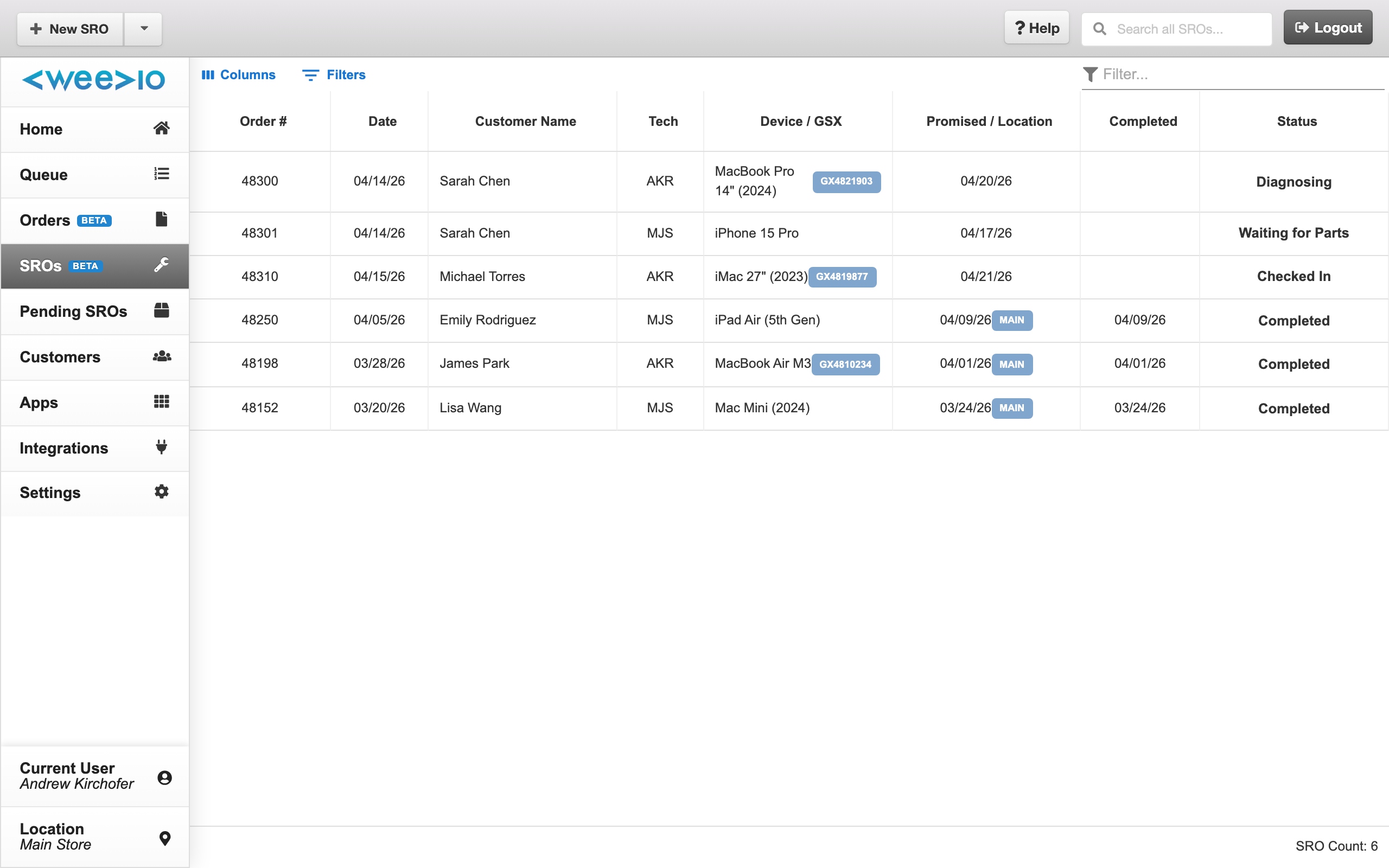
The SRO Table is your central view for all service repair orders. It loads SROs from your PIMS system for the current location (up to the past 365 days) in a searchable, sortable data table.
Searching and Filtering
Use the search bar at the top of the table to quickly filter SROs. The filter applies in real time as you type, searching across all visible columns including SRO number, customer name, device information, and status.
Table Columns
| Column | Description |
|---|---|
| Order # | SRO number — the unique repair order identifier |
| Date | Date the SRO was created |
| Customer Name | Customer associated with the repair |
| Tech | Technician/employee assigned to the repair |
| Device / GSX | Equipment name, with a blue GSX Confirmation Code label when available |
| Promised / Location | Promised completion date and finished location |
| Completed | Date the repair was completed |
| Status | Current repair status |
Sorting and Tools
Click any column header to sort the table. The toolbar provides additional options for exporting data, toggling column visibility, and adjusting table density. A live SRO Count in the footer reflects the number of records matching your current filter.
The table auto-refreshes when you return to the browser tab, ensuring you always see the latest data.
Click any row to open the SRO detail view.
SRO Detail View
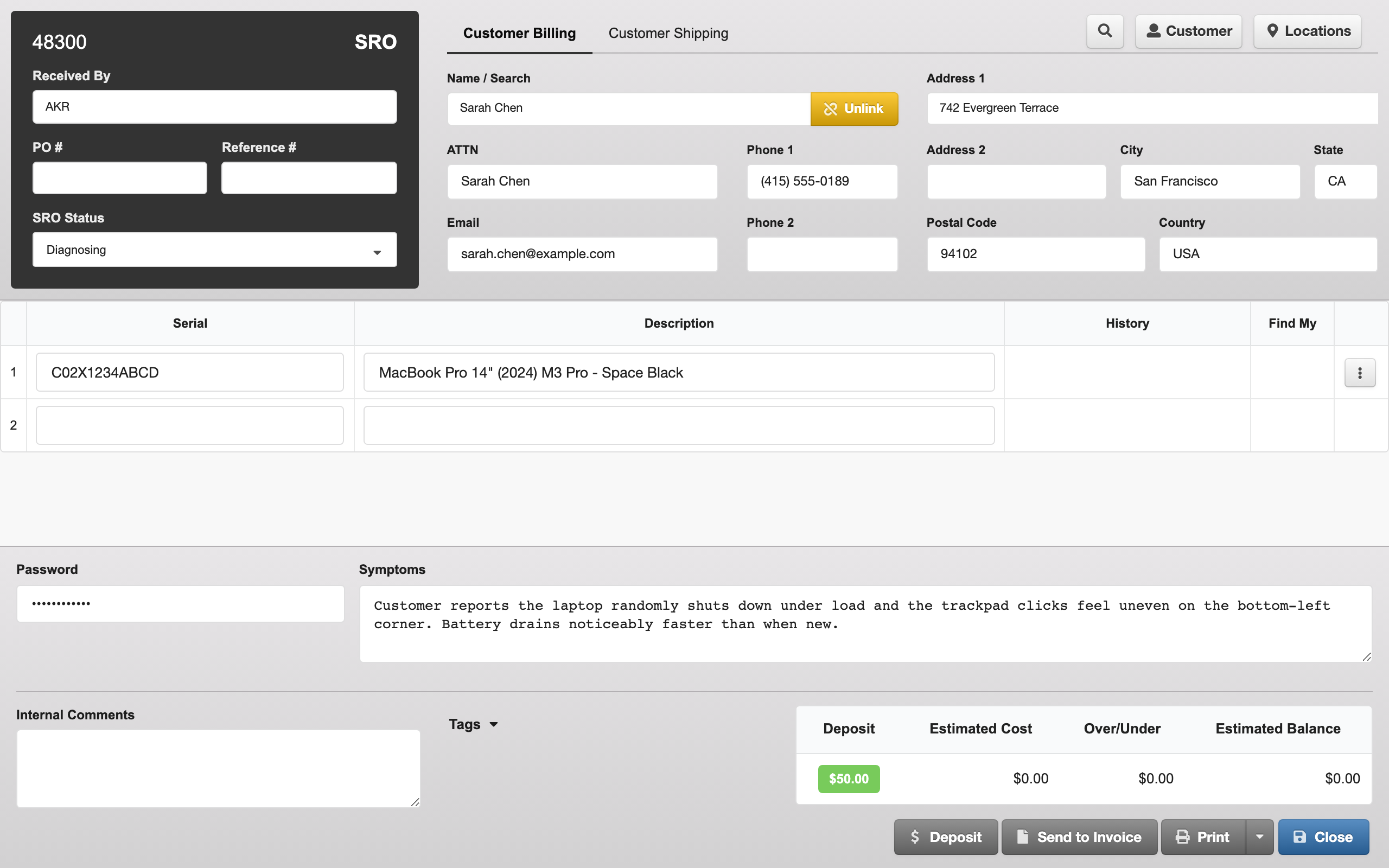
The SRO detail view provides comprehensive information about a single repair order. This same view is used both for viewing existing SROs and creating new ones.
Header — Customer and Status
The top section contains:
- Customer search — An autocomplete field to link a PIMS customer to the SRO. Search by name or customer code.
- Billing address — Pulled automatically from the linked customer record
- Shipping address — Defaults to the customer's primary address; use the shipping location switcher to select from their saved additional locations
- SRO Status — Dropdown to set the current repair status (populated from your PIMS status list)
- Received By — Employee code of the technician who received the device
Note:
All fields auto-save when you click away. A checkmark icon briefly appears to confirm each save. If a save fails, the field reverts to its previous value.
Equipment Table
The equipment section lists all devices associated with the repair:
| Column | Description |
|---|---|
| Line # | Sequential line number |
| Serial Number | Device serial number (editable inline) |
| Description | Equipment description (editable inline; auto-populated from GSX when available) |
| History | Shows EXISTS or EMPTY to indicate whether prior repair history exists for this serial |
| Find My | Shows ON (red) or OFF (green) to indicate the device's Find My Device lock status |
| Actions | Menu with Delete, Run Diagnostics (GSX), and Check Warranty Status (GSX) |
New empty lines are automatically appended as you fill in equipment, allowing rapid entry of multiple devices.
Note:
A customer must be linked to the SRO before equipment can be added. The equipment table displays “Select a customer to get started” until a customer is selected.
Repair Details
Below the equipment table:
- Password — Device password (hidden by default; visible while you're editing the field)
- Symptoms — Customer-reported symptoms and issue description
- Internal Comments — Staff-only notes not visible to customers
Tags
Tags indicate the current state of the repair. Active tags appear as blue labels; available tags include:
- Service In-House
- Billed
- Canceled
- Under Dispute
- Hot Bench
- Ready for Pickup
- Commission Paid
Expand the tags section to view all available tags and toggle them on or off.
Financial Summary
A summary table at the bottom tracks the financial status of the repair:
| Field | Description |
|---|---|
| Deposit | Amount the customer has paid upfront |
| Estimated Cost | Total estimated cost for the repair |
| Over/Under | Difference between estimated and actual costs |
| Estimated Balance | Remaining amount due from the customer |
Action Buttons
| Button | Description |
|---|---|
| Signature | Capture a customer signature for the repair authorization |
| Deposit | Process a deposit payment from the customer |
| Send to Invoice | Convert the SRO into an invoiced order. Once converted, this button becomes a link to the invoice number. |
| Dropdown with options: Forms Designer templates, SRO and Deposit receipt, or Equipment Tags | |
| Close / Save | Close the detail view (changes are auto-saved) |
GSX Integration
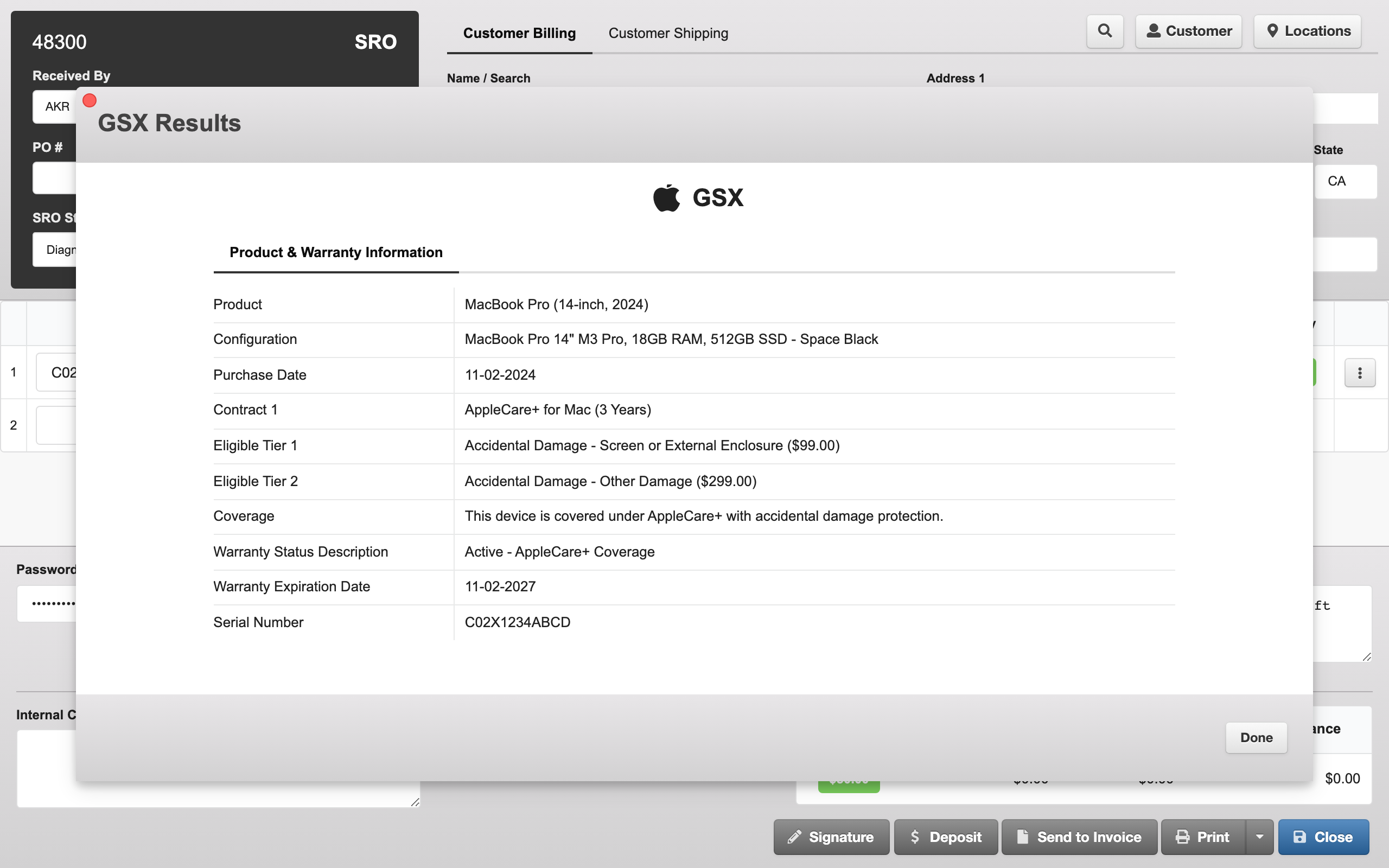
For Apple Authorized Service Providers, the SRO detail view integrates with Apple’s Global Service Exchange (GSX):
- Warranty Status — Check warranty and AppleCare coverage for any equipment line by serial number
- Run Diagnostics — Initiate Apple diagnostics directly from the equipment action menu
- Auto-populate descriptions — When a serial number is entered, the device description is automatically filled from GSX product data if the field is empty
- Find My Device — Automatically checks Find My Device lock status for each equipment line on load
Creating Service Repair Orders
SROs can be created through several workflows:
Scan-to-Receive (Recommended)
Use the Pending SROs V2 workflow to scan device serial numbers and automatically create SROs with customer verification and equipment tag printing.
New SRO from Detail View
Open the SRO page without selecting an existing order to start a blank SRO. Search for and link a customer, then add equipment lines — the SRO is created in PIMS automatically.
Manual Creation in PIMS
Create SROs directly in your PIMS system. They sync to Weevio Store and appear in the SRO table automatically.
SRO Lifecycle
A typical service repair order follows this workflow:
Each status transition is recorded in the SRO’s status history, and customers with a tracking link can follow their repair’s progress in real time via the Repair Status Tracking page.
Receipts and Printing
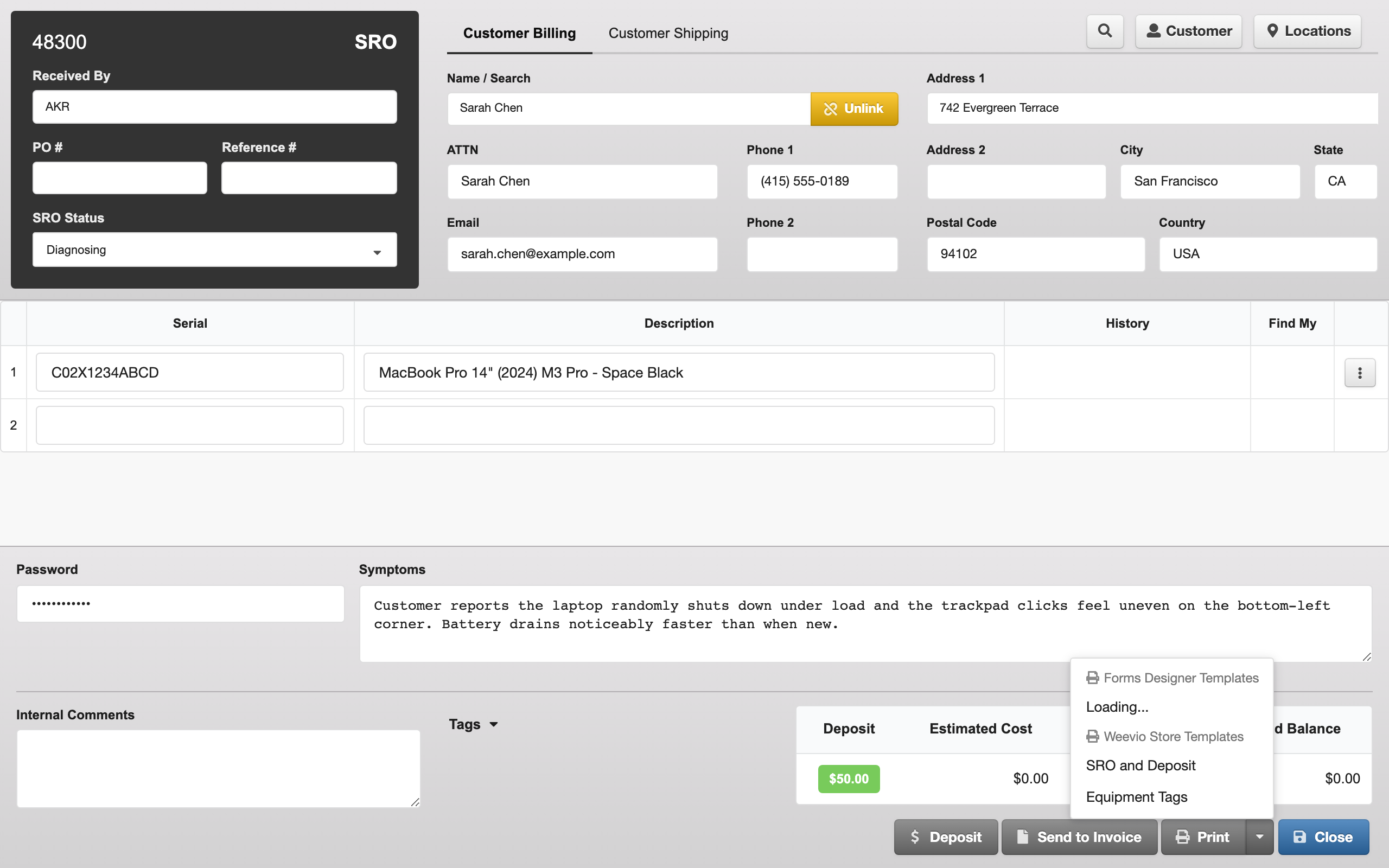
Generate and print documents directly from the SRO detail view using the Print dropdown:
- Forms Designer Templates — Use your configured PIMS Forms Designer templates for customized printouts
- SRO and Deposit Receipt — A combined receipt showing repair details and deposit payment information
- Equipment Tags — Print labels for each device with the SRO number, customer name, device description, and date received. When multiple equipment lines exist, a dialog lets you select which devices to print tags for.
Note:
Receipts and printouts pull data directly from your PIMS system, ensuring pricing and line items always match your records.
Need Help?
For assistance, please send a message to our Support page.