Overview
When your business operates across multiple locations (branch locations and a Main location), SROs created or updated at one location need to sync to others. Weevio Cloud integrates with your PIMS system to keep SRO data synchronized, but there are important rules governing how and when this sync occurs — especially after GSX reconciliation.
Understanding these sync rules helps you avoid situations where SRO status changes at a branch location are not reflected at Main.
How SRO Sync Works
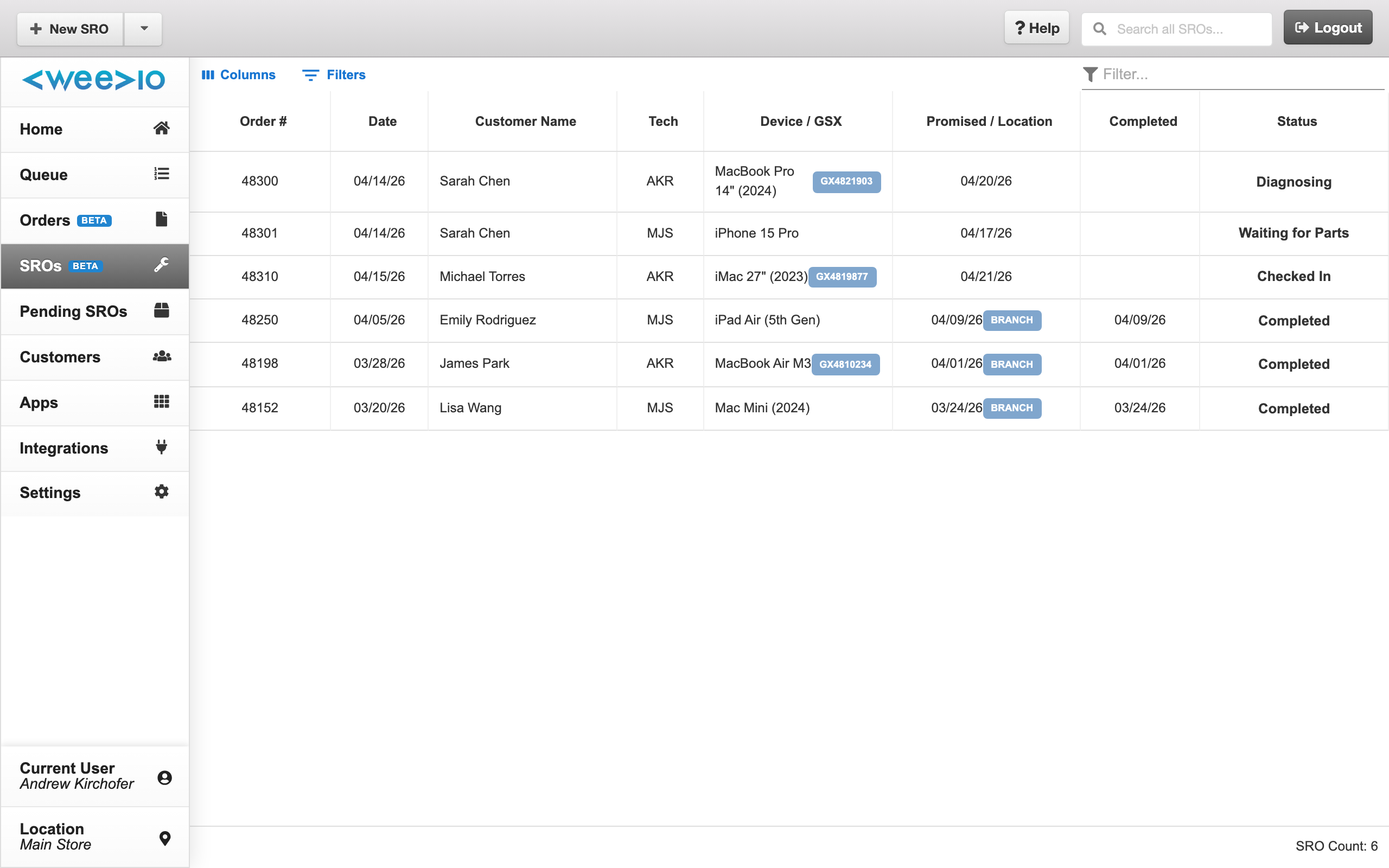
Each location in Weevio Cloud operates with its own Location Code from your PIMS system. When you view the SRO table, you only see SROs assigned to your current location.
Sync Direction
SRO data flows between branch locations and Main through your PIMS system:
- Branch → Main: When a technician at a branch location updates an SRO (changes status, adds notes, invoices), those changes sync to Main through PIMS
- Main → Branch: Changes made at Main can sync back to branch locations
- Branch → Branch: Direct sync between branch locations is not supported — changes route through Main
Note:
The SRO table in Weevio Cloud always shows SROs for your current location. To see SROs from another location, you need to switch locations or view them at Main.
What Syncs
The following SRO data syncs between locations:
- SRO status (Open, In Progress, Closed, etc.)
- Invoice and billing information
- Equipment details and serial numbers
- Customer information
- Technician assignments
- Notes and comments
The GSX Reconciliation Lock
This is the most important sync rule to understand: once GSX reconciliation occurs on an SRO at Main, that SRO stops accepting further updates from branch locations.
Why This Happens
GSX reconciliation writes Apple's official repair and billing data to the SRO at Main. To prevent branch location updates from overwriting this reconciliation data, the PIMS system locks the SRO at Main against further incoming sync from branches.
What This Looks Like
A common scenario:
- A technician at a branch location completes a repair
- The technician invoices and closes the SRO at the branch
- Meanwhile, GSX reconciliation runs at Main
- The branch's status change (invoiced/closed) does not sync to Main
- Main still shows the SRO as open or in-progress
Note:
This is not a bug — it is a deliberate protection mechanism. GSX reconciliation data at Main takes precedence over branch updates to ensure Apple's official records are preserved.
How to Recognize a Reconciliation Lock
If you update an SRO at a branch location and the change does not appear at Main, the most likely cause is that GSX reconciliation has already occurred on that SRO. Check the SRO at Main for GSX reconciliation data — if it is present, the SRO is locked against branch sync.
Data Sync Flag
The data sync flag is a setting on individual SROs that controls whether the SRO participates in location sync. You might expect that resetting this flag would force a re-sync — but it has important limitations.
When Resetting the Data Sync Flag Works
- The SRO has not been through GSX reconciliation at Main
- The sync issue is caused by a temporary communication error
- The SRO data at Main has not been locked by reconciliation
When Resetting the Data Sync Flag Does NOT Work
- The SRO has been through GSX reconciliation at Main — the reconciliation lock takes precedence over the data sync flag
- In this case, resetting the flag has no effect because the PIMS system blocks the update regardless
Note:
Do not rely on the data sync flag to resolve post-reconciliation sync issues. If GSX reconciliation has occurred, you need to use the "SRO LOADED" workaround described below.
Workaround: Break and Re-Link via "SRO LOADED"
When the GSX reconciliation lock prevents a branch's changes from syncing to Main, you can use the SRO LOADED field to break and re-link the invoice-to-SRO connection, which clears the lock and lets your update go through.
Open the SRO at Main
Navigate to the SRO at your Main location in Weevio Cloud. Confirm that the SRO shows reconciliation data and is not reflecting the branch's latest changes.
Access Additional Info
In the SRO detail view, locate the Additional Info section. This contains extended SRO fields that are not shown in the main view.
Modify the SRO LOADED field
Find the SRO LOADED field in Additional Info. Change its value to break the current invoice-to-SRO link. This tells the PIMS system to release the reconciliation lock on this SRO.
Re-link the SRO
After breaking the link, restore the SRO LOADED field to re-establish the connection. This triggers a fresh sync that pulls in the branch's changes.
Verify the sync
Check that the SRO at Main now reflects the correct status and data from the branch location. The invoice and status changes from the branch should now be visible.
Note:
This workaround must be performed at the Main location. Branch users cannot break the reconciliation lock from their location.
Best Practices
To minimize sync issues across locations, follow these guidelines.
Timing Reconciliation
- Invoice before reconciling: Complete all invoicing at the branch location before GSX reconciliation runs at Main. This ensures the branch's final status syncs before the lock takes effect.
- Coordinate reconciliation timing: If possible, schedule GSX reconciliation to run after branch locations have finished their daily invoicing and status updates.
- Reconcile only at Main: Performing GSX reconciliation exclusively at Main reduces the chance of conflicting sync states.
Daily Workflow Tips
- Check SRO status at Main after reconciliation to verify that branch changes synced correctly before the lock took effect
- Communicate across locations when an SRO is being actively worked on at a branch and is approaching reconciliation at Main
- Document reconciliation schedules so branch technicians know the cutoff time for their updates to sync before the lock
When to Contact Support
Contact Weevio support if:
- The "SRO LOADED" workaround does not resolve the sync issue
- Multiple SROs are stuck in a locked state and you need a bulk resolution
- You need help adjusting reconciliation timing to avoid future conflicts
Need Help?
For assistance, please send a message to our Support page.