Use this page to diagnose PIMS Sync issues before contacting support. Most issues fall into a small number of patterns — work through the relevant checklist, gather the details listed at the bottom, and have answers ready if you do need to escalate.
Pricing Not Syncing
A common pattern: a price is updated in PIMS — for example, a promotional price ends and the regular price is restored — but Shopify still shows the old value for one or more SKUs.
Before contacting support, work through the checklist below in order. Each step rules out the most common cause first.
1. Confirm the PIMS price field is what changed
Shopify Price syncs from a single PIMS field: Home → Default Price/Costing → PRICE. If the change was made to a different field (MSRP, cost, list price), it will not reach Shopify.
- Open the PIMS inventory record.
- Verify the new value is in the PRICE field (not MSRP/Retail or a cost field).
- Note the last-edit timestamp on the inventory record.
2. Verify the item is allowed to sync to Shopify
Two flags on the inventory record gate sync. If either is in the wrong state, price updates will not propagate.
| Flag | Where to find it in PIMS | Required state for price updates |
|---|---|---|
| OK To Show On SHOPIFY | Inventory record → WEB → Additional Data for WEB | Checked |
| READY FOR SHOPIFY | Inventory record → WEB | Checked |
Note:
If OK To Show On SHOPIFY is unchecked while READY FOR SHOPIFY is checked, the integration will archive the product in Shopify on the next pass rather than update its price. See the Inventory Sync page for the full product lifecycle.
3. Confirm the product is not Discontinued
A DISCONTINUED item in PIMS continues selling on Shopify until on-hand quantity reaches zero, at which point the integration archives the product. Once archived, no further price updates flow to Shopify.
- Check the DISCONTINUED flag on the inventory record.
- If the item is discontinued and quantity is 0, the product is archived and price updates stop. Restore the item in PIMS first if it should remain on Shopify.
4. Rule out the "Don't Adjust On-Hands" misconception
The Don't Adjust On-Hands flag is often blamed for price-sync issues, but it only suppresses inventory-level (quantity) tracking in Shopify. The PRICE field continues to sync on Create and Update regardless of this flag.
If this was your only suspected cause and the gating flags above are all correct, move on to the next step — the price should be syncing.
5. Allow for propagation time
Two timers matter:
- Settings changes to the Shopify integration (Step 2 / Step 3 of the in-app setup) take up to 1.5 hours to take effect. If you recently changed integration settings, the new behavior will not be active until that window has passed.
- Inventory record edits (price, flags) are picked up by the sync process approximately every 60 seconds. Shopify-side caching can mean the storefront takes a few additional minutes to reflect the new price after the sync completes.
If less than ~15 minutes have passed since your PIMS edit, wait and re-check the Shopify product before continuing.
Note:
The 1.5-hour propagation window applies to integration settings in Weevio Cloud, not to per-item price edits. Edits to inventory records are picked up on the next 60-second poll, but can take 15-30 min to appear in Shopify.
6. Verify the product exists and is matched in Shopify
If the PIMS PART CODE and the Shopify SKU don't match, the integration cannot find the right Shopify product to update.
- In PIMS: Home → Identification → PART CODE.
- In Shopify: open the product → variant → SKU.
- These must match exactly, including case and any prefix or suffix.
If the product is missing entirely on Shopify but is flagged correctly in PIMS, the issue is creation, not update. Open the Shopify Admin and search for the SKU. If it is genuinely absent, the next sync pass should create it.
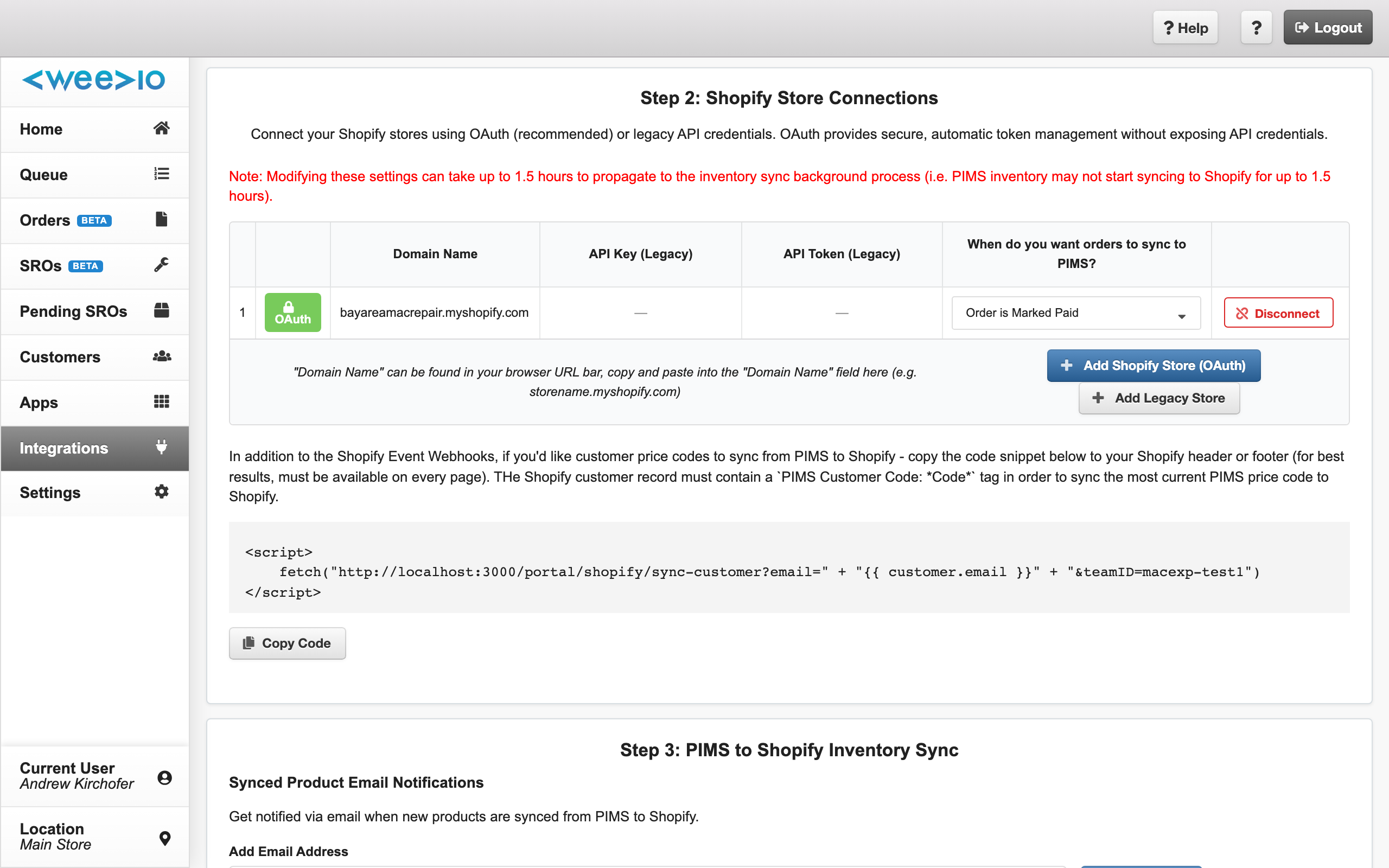
7. Check that the Shopify store is still connected
If the Shopify store connection has expired or been revoked, no updates of any kind will reach Shopify.
- Open Settings → Integrations → Shopify in Weevio Cloud.
- Confirm the connected store status is healthy.
- See Store Connection for reconnection steps if needed.
Inventory Quantities Not Syncing for One Location
Quantities sync per-location, and per-location matching is independent of price. A common case: price updates correctly across all locations, but on-hand quantities are wrong at one location. The cause is almost always a location name mismatch.
Verify the location names match exactly between Shopify and PIMS:
- Shopify: Settings → Locations
- PIMS: File → Locations Module → List All Locations
Location names must match including spelling, casing, and whitespace. If they don't, the quantity for that location won't sync — but price, which is product-level, still will.
Note:
PIMS location names must be unique. Duplicate names in PIMS will produce unpredictable per-location sync behavior even when the Shopify name matches.
Settings Changes Don't Appear to Take Effect
If you changed something in Settings → Integrations → Shopify and the integration is still behaving the old way:
- Wait up to 1.5 hours before treating this as a problem. Integration settings are cached and re-read on a schedule.
- After 1.5 hours, edit any inventory record so the next 60-second sync cycle picks it up with the new settings.
Before Contacting Support
When the checklist above doesn't resolve the issue, gather the following before opening a support ticket. Having these on hand removes a round-trip and lets support move directly to log review.
- PART CODE of the affected inventory item (and the matching Shopify SKU if different).
- Timestamp of the most recent edit in PIMS — date and approximate time, including timezone.
- Flag states observed on the inventory record at the time you checked:
- OK To Show On SHOPIFY
- READY FOR SHOPIFY
- DISCONTINUED
- Don't Adjust On-Hands
- Expected value vs. observed value on Shopify (for example, "PIMS PRICE is $129.99, Shopify shows $99.99").
- Whether other items in the same batch synced correctly, or whether all items are affected.
- Whether the Shopify connection in Weevio Cloud shows as healthy.
Related
- Inventory Sync — full field mapping table and flag reference
- Order Sync — order-direction sync settings
- Improved Order Reliability — order webhook retry behavior during PIMS outages
- PIMS Settings — tenant-wide PIMS connection settings
- Startup Sign-In Issues — fixing the PIMS connection when sign-in hangs
Need Help?
For assistance, please send a message to our Support page.