Universal Search lets you quickly find orders and repairs across your entire account without navigating through individual pages.
Accessing Search
You can access Universal Search in two ways:
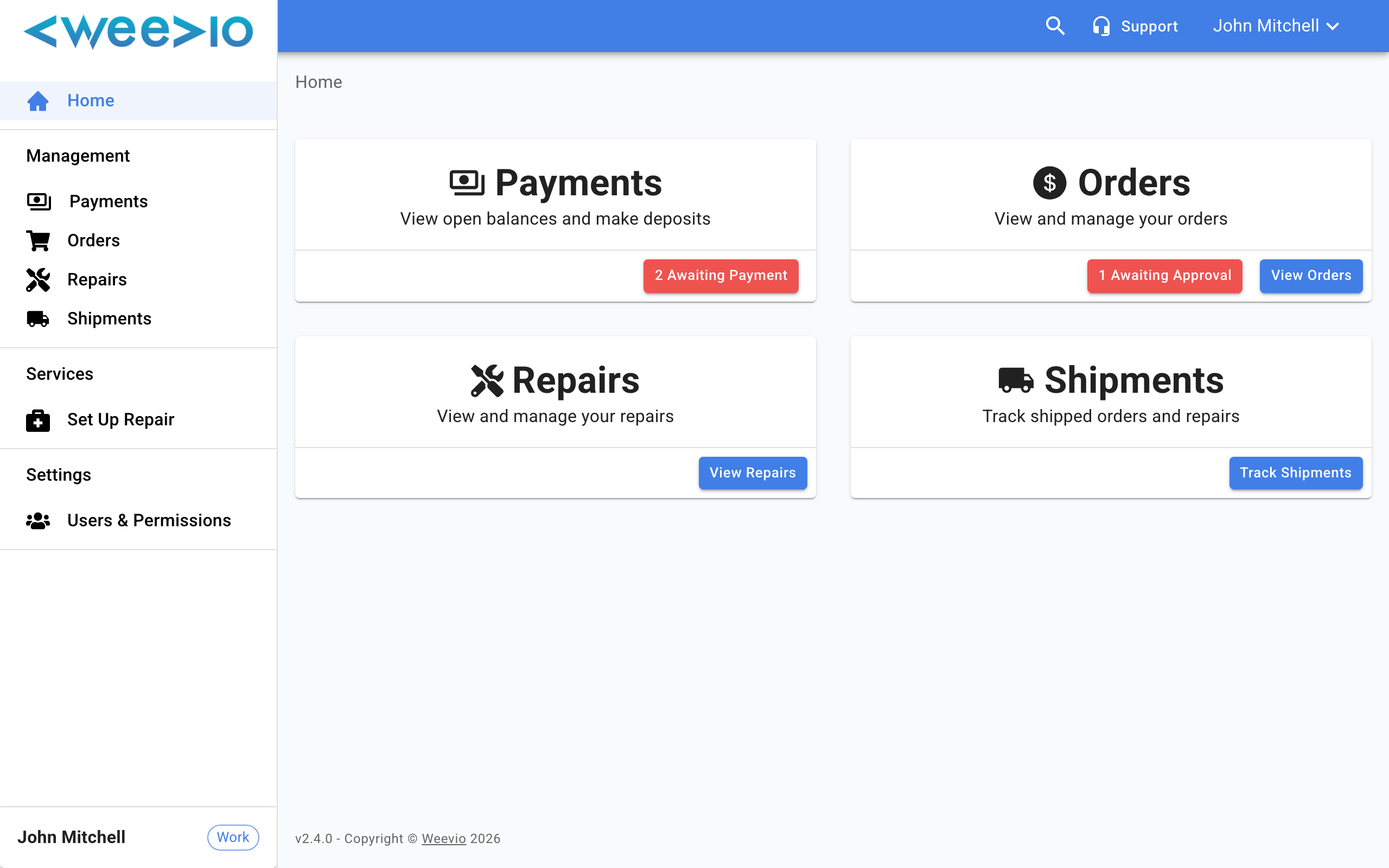
- Navigation bar search — A compact search field at the top of every page. Click it to start typing, and it expands to accept your query.
- Full search page — A dedicated page with a larger search field and room to display detailed results.
What You Can Search For
Universal Search matches your query against multiple fields across both orders and repairs:
| Search By | Examples |
|---|---|
| Order number | Your order reference number |
| SRO number | Service repair order number |
| Serial number | Device serial number |
| PO number | Purchase order number |
| Customer name | Billing or shipping name |
Note:
Search results are scoped to your current customer account. You'll only see orders and repairs associated with the account you're logged into.
Understanding Results
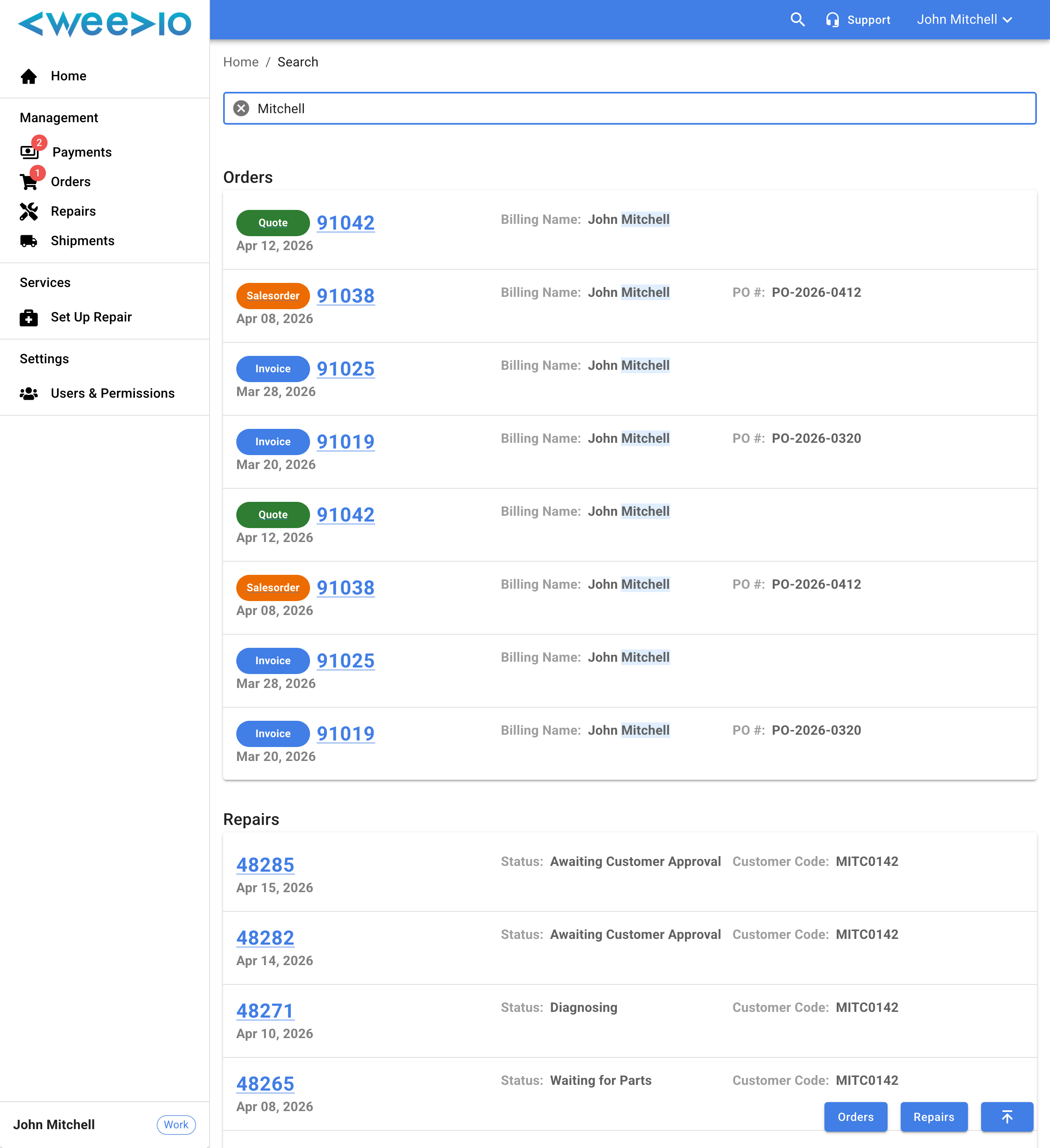
Results are organized into two sections: Orders and Repairs. Matching search terms are highlighted in the results, making it easy to spot why each result was returned.
Order Results
Each order result displays:
- Order type (color-coded label) and order number — click the order number to open the full order
- Order date
- Billing name and shipping name (if different)
- PO number (if applicable)
- Matched serial number (if your search matched a serial within the order)
Repair Results
Each repair result displays:
- SRO number — click to open the full repair record
- Date (last modified or created)
- Repair status
- Received by (technician name)
- Matched serial number (if your search matched a serial within the repair)
Navigating Long Result Lists
When a search returns many results, floating navigation buttons appear in the bottom-right corner of the page:
- Orders — Jump to the orders section
- Repairs — Jump to the repairs section
- Scroll to top — Return to the search input at the top of the page
Click any order number or SRO number in the results to navigate directly to that record's detail page.
Related Features
Need Help?
For assistance, please send a message to our Support page.