The Repairs section lets you track all service repair orders (SROs) associated with your account, view detailed information about each repair, and take action when your approval is needed.
Repairs Table
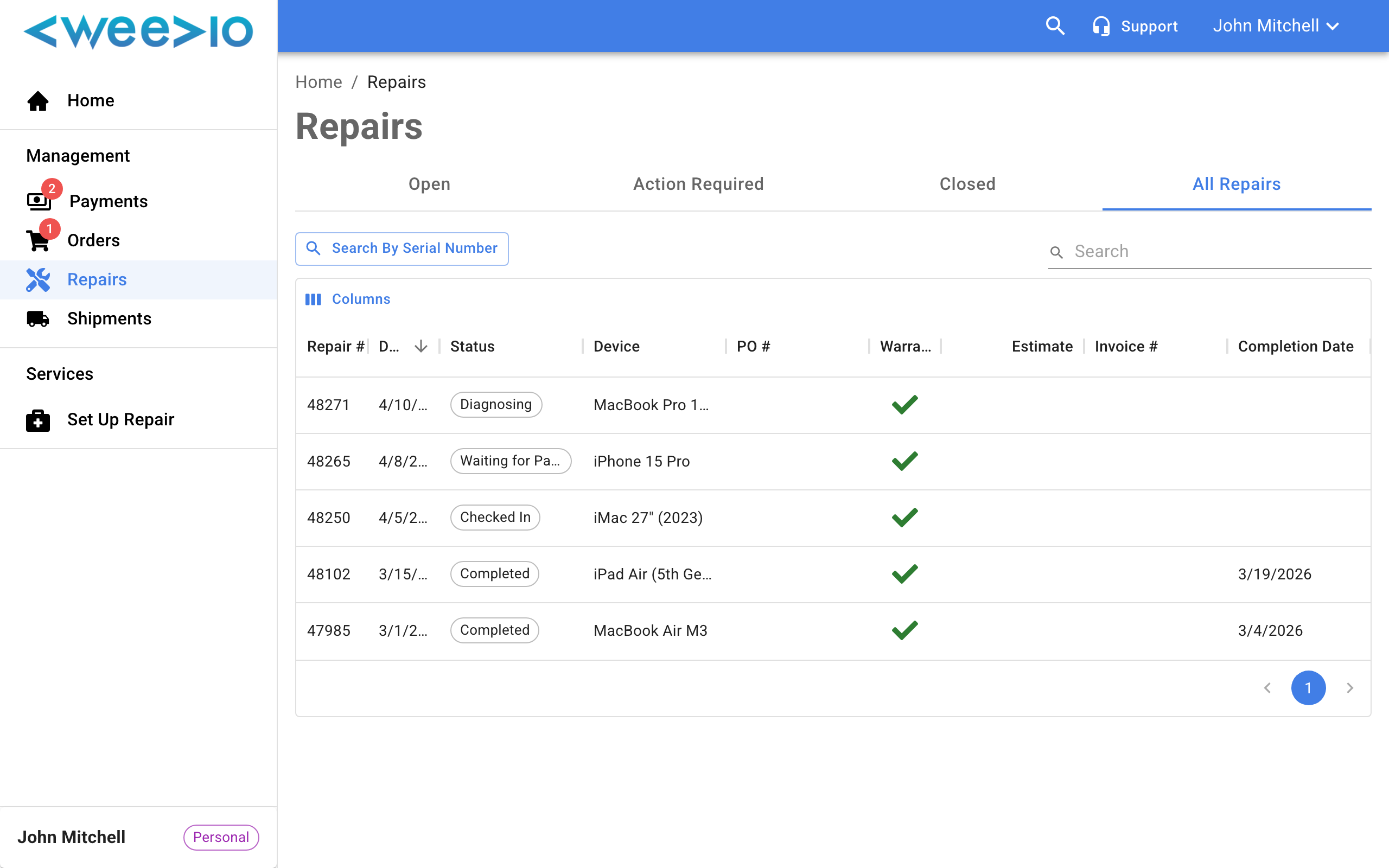
The repairs table lists all your repair orders. By default, it shows open repairs so you can quickly check the status of active work.
Filtering Repairs
The repairs table has four tabs:
- Open — Active repairs currently in progress
- Action Required — Repairs awaiting your approval (see Approval Workflow)
- Closed — Completed or canceled repairs
- All Repairs — Every repair across all statuses
Searching and Sorting
Use the search bar to find specific repairs by SRO number, device description, or other details. Click column headers to sort the table.
Repair Detail View
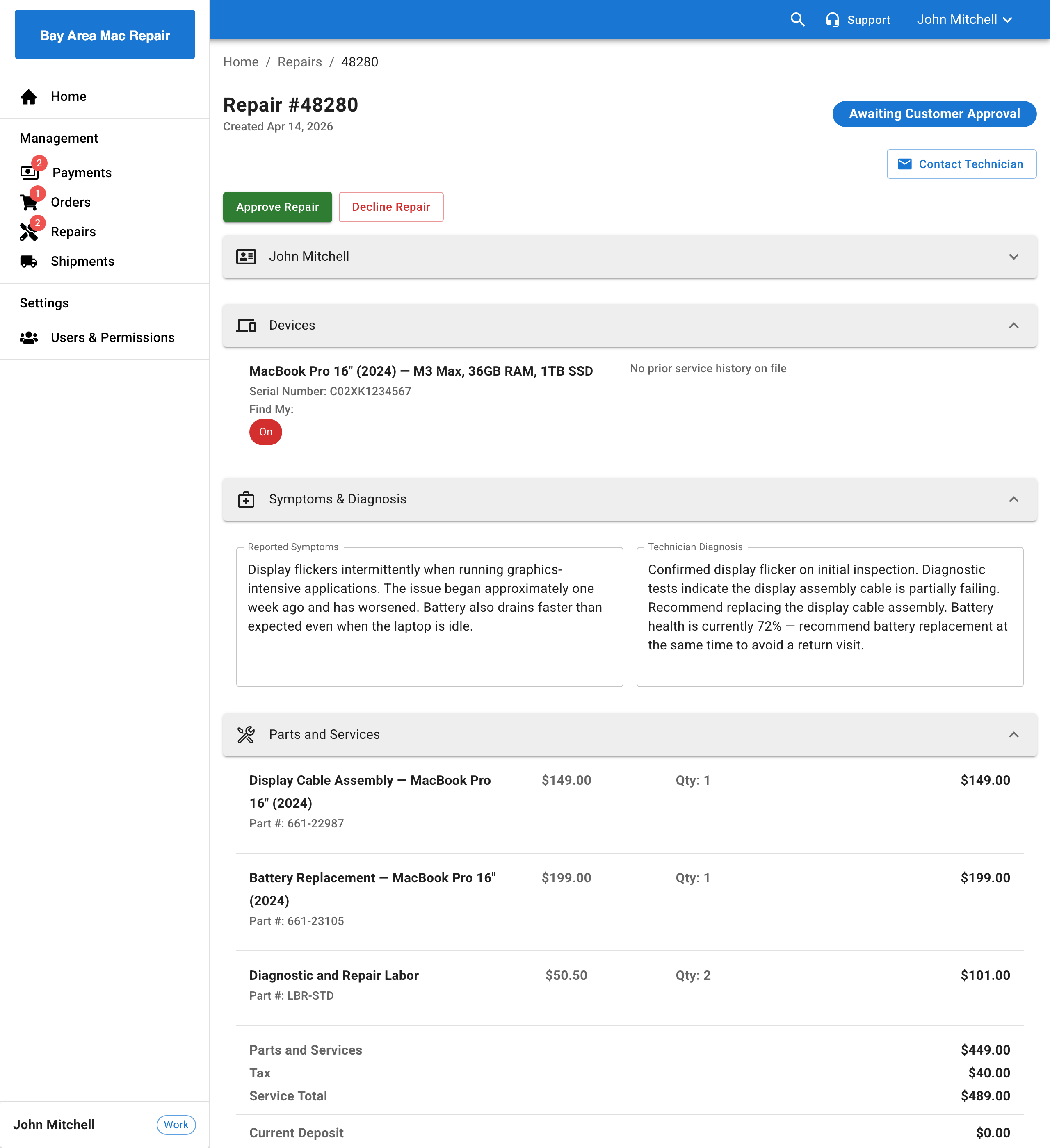
Click any repair in the table to view its full details. The repair detail page is organized into several sections.
Repair Header
Displays the SRO number and current repair status.
Customer Details
Shows your billing and shipping contact information for this repair, organized in tabs:
- Billing — Name, phone, and billing address
- Shipping — Name, phone, and shipping address
Devices
The Devices section lists all equipment included in the repair. For each device, you can see:
| Field | Description |
|---|---|
| Description | Device model or name |
| Serial Number | The device's unique serial number |
| Find My Status | Whether Apple's Find My feature is enabled (if applicable) |
| History | Any relevant repair or service history |
Note:
If Find My is shown as enabled on your device, you may need to disable it before the repair can proceed. Your technician will advise you if action is needed.
Symptoms and Diagnosis
This section displays two text fields:
- Reported Symptoms — The issue description you or your technician provided when the repair was created
- Technician Diagnosis — Notes from the technician after inspecting the device
Parts and Services
The parts list shows all parts and labor associated with the repair:
| Field | Description |
|---|---|
| Description | Part or service name |
| Part Code | Unique part identifier |
| Unit Price | Price per unit |
| Quantity | Number of units |
| Line Total | Total for the line |
A totals summary at the bottom shows:
- Parts and Services — Subtotal for all parts and labor
- Tax — Estimated tax amount
- Service Total — Grand total for the repair
- Current Deposit — Amount you have already paid
- Total Balance Due — Remaining amount owed
Approving or Declining Repairs
When your service provider enables the approval workflow, repairs needing your review appear in the Action Required tab with color-coded status chips. You can approve or decline repairs individually from the detail page, or select multiple repairs for bulk approval.
For the complete guide — including bulk actions, declining, payment requirements, and admin configuration — see SRO Approval Workflow.
Contacting Your Technician
From any repair detail page, click the Contact button in the actions header to send a message directly to the technician assigned to your repair.
Need Help?
For assistance, please send a message to our Support page.