The Orders section lets you view all orders associated with your account, search for specific orders, and take action on quotes that require your approval.
Order Table
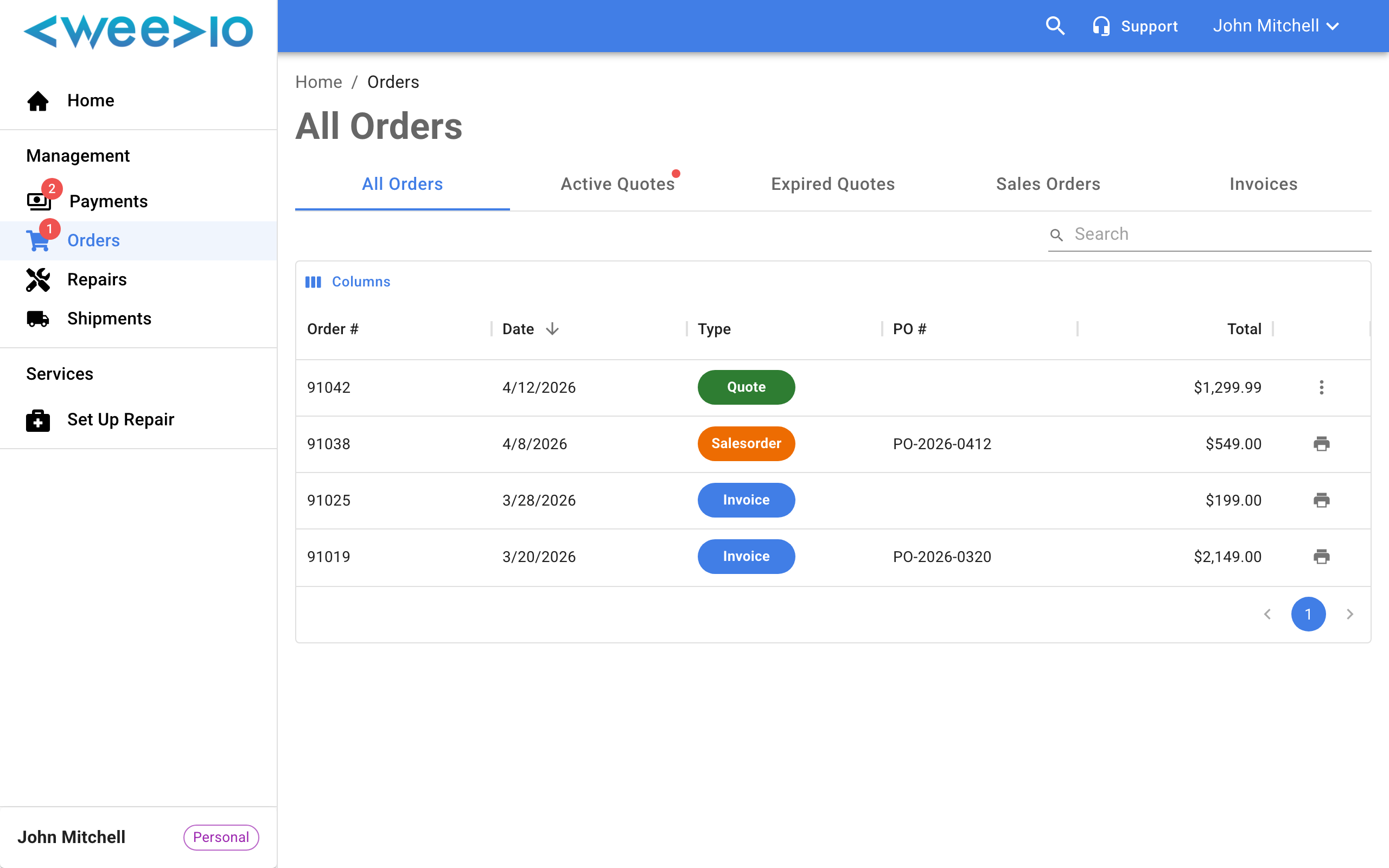
The order table displays all your orders in a searchable, sortable list. You can browse orders, filter by status, and click any order to view its full details.
Searching and Filtering
Use the search bar at the top of the table to find orders by order number, product name, or other details. You can also filter the table to show only orders that are awaiting your approval.
Sorting
Click any column header to sort the table by that field. Click again to reverse the sort order.
Order Detail View
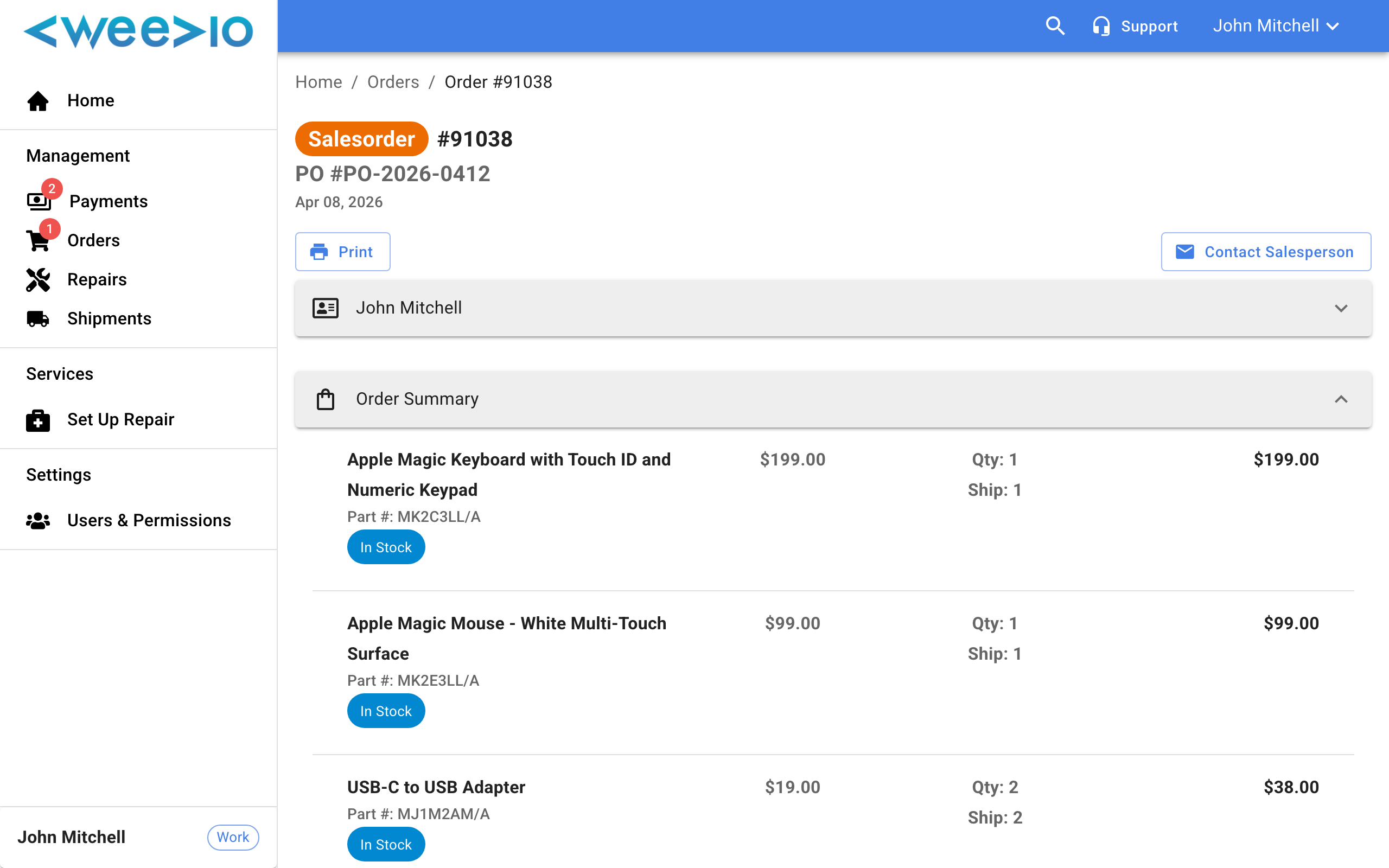
Click on any order in the table to open the detail view. The order detail page shows comprehensive information about the order.
Order Header
The header displays the order number and current status at a glance.
Customer Details
View your billing and shipping information associated with the order, including contact name, phone numbers, and addresses.
Line Items
The line items section lists every product in the order, including:
| Field | Description |
|---|---|
| Description | Product or service name |
| Part Number | Unique product identifier |
| Quantity | Number of units ordered |
| Unit Price | Price per unit |
| Line Total | Total price for the line (quantity x unit price) |
A summary at the bottom shows the subtotal, tax, and grand total for the order.
Tracking
If your order has been shipped, the Tracking section displays all associated tracking numbers. Click any tracking number to look up the shipment status in a new browser tab.
Note:
The Tracking section only appears when tracking numbers have been added to your order.
Approving Quotes
When an order is created as a quote, it requires your approval before it can be processed. Orders awaiting approval display an alert banner at the top of the detail view.
Open the order
Navigate to the order that is awaiting approval. You can find it through the Awaiting Approval badge on the Orders dashboard card or by filtering the order table.
Click to approve or update
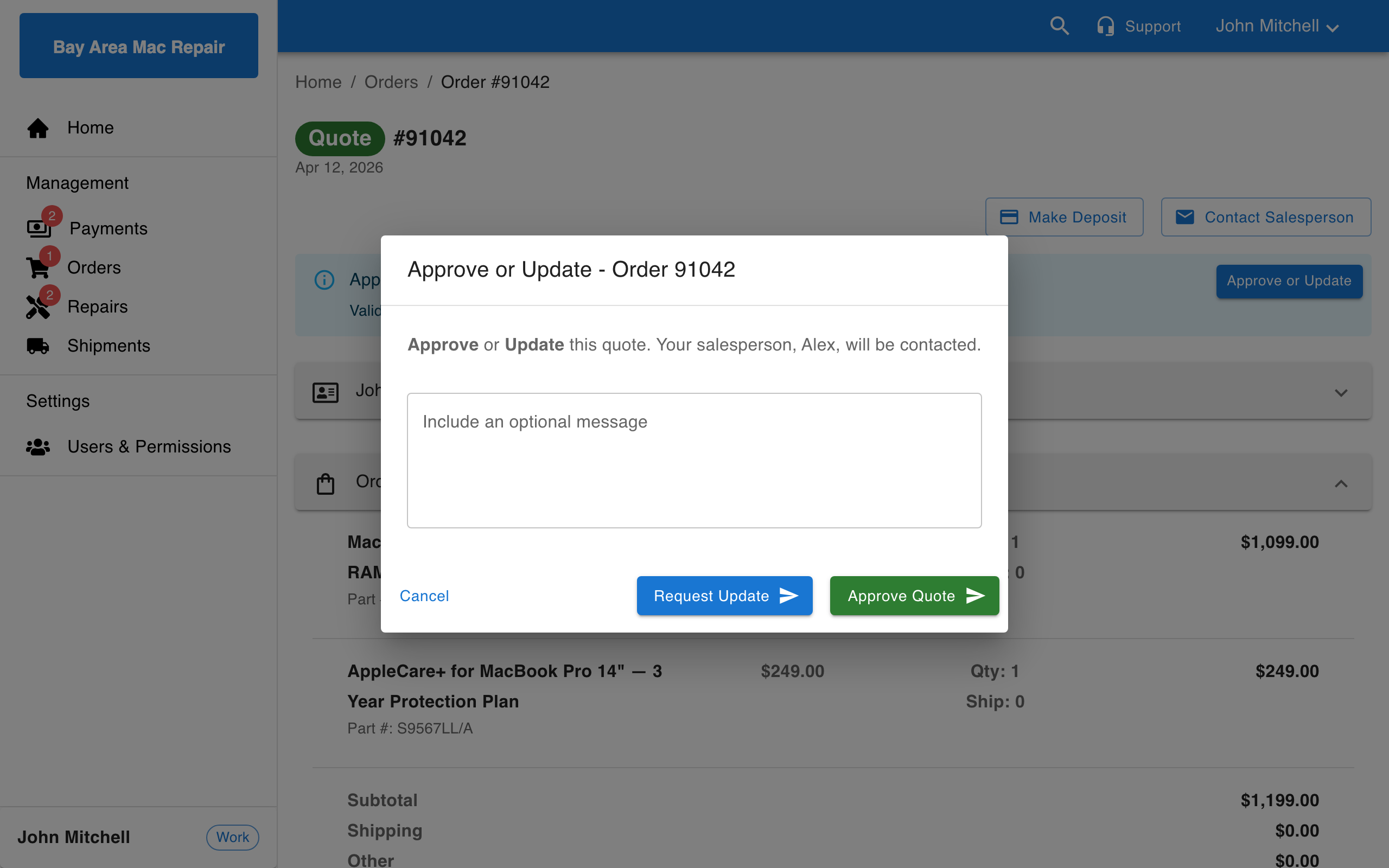
Click the approval alert banner at the top of the order detail page to open the approval dialog.
Add an optional message
In the dialog, you can type an optional message to your salesperson. This is useful for providing context or requesting changes.
Submit your decision
Click Approve Quote to accept the quote as-is, or click Request Update to ask your salesperson for changes. Your salesperson will be notified by email.
Contacting Support
From any order detail page, click the Contact button in the actions header to send a message directly to the salesperson assigned to your order. You will receive a confirmation when your message is sent successfully.
Need Help?
For assistance, please send a message to our Support page.