The Overview Dashboard is the first page you see after logging into the Customer Portal. It provides a quick summary of your account activity through four cards, each linking to a dedicated section of the portal.
Dashboard Cards
When you log in, the dashboard displays up to four summary cards:
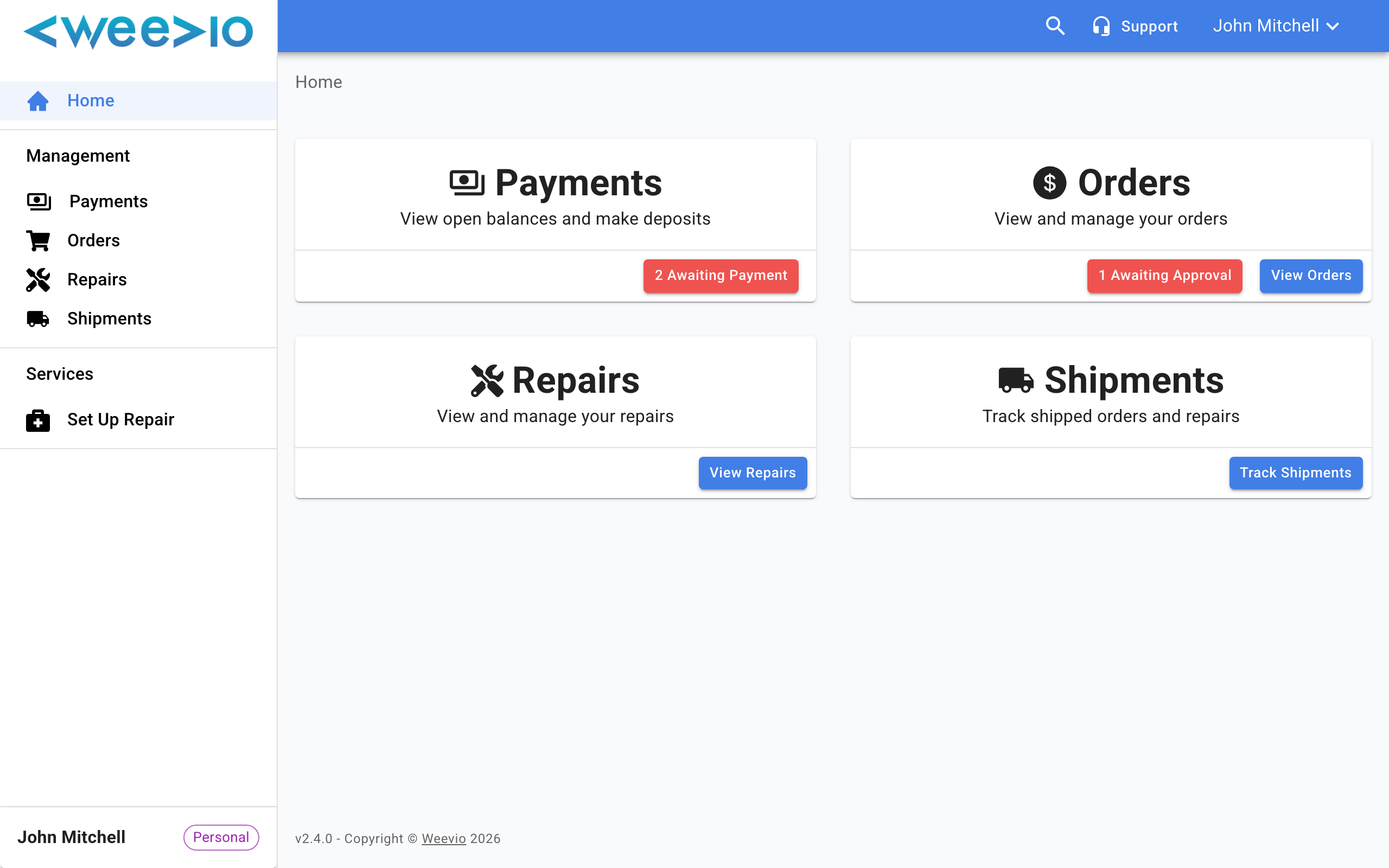
Payments Card
The Payments card shows how many invoices or deposits are currently awaiting payment. Click Awaiting Payment to go directly to your outstanding balances, or click the card to browse all payments.
Note:
The Payments card only appears if your service provider has enabled online payments for their Customer Portal.
Orders Card
The Orders card gives you quick access to your order history. If any orders require your approval (such as quotes), you will see an Awaiting Approval badge with the count. Click View Orders to browse all orders, or click the badge to see only those needing your attention.
Repairs Card
The Repairs card shows any repairs that need action from you. If repairs are awaiting your approval, an Action Required badge appears with the count. Click View Repairs to see all open repairs.
Shipments Card
The Shipments card lets you track shipped orders and repairs. Click Track Shipments to view all shipments with tracking information.
Navigating from the Dashboard
Each card links directly to its respective section in the portal. You can also use the sidebar navigation to access any section at any time.
Need Help?
For assistance, please send a message to our Support page.