The Customer Portal uses a passwordless login system. Instead of a traditional password, you receive a secure sign-in link via email each time you log in.
How to Sign In
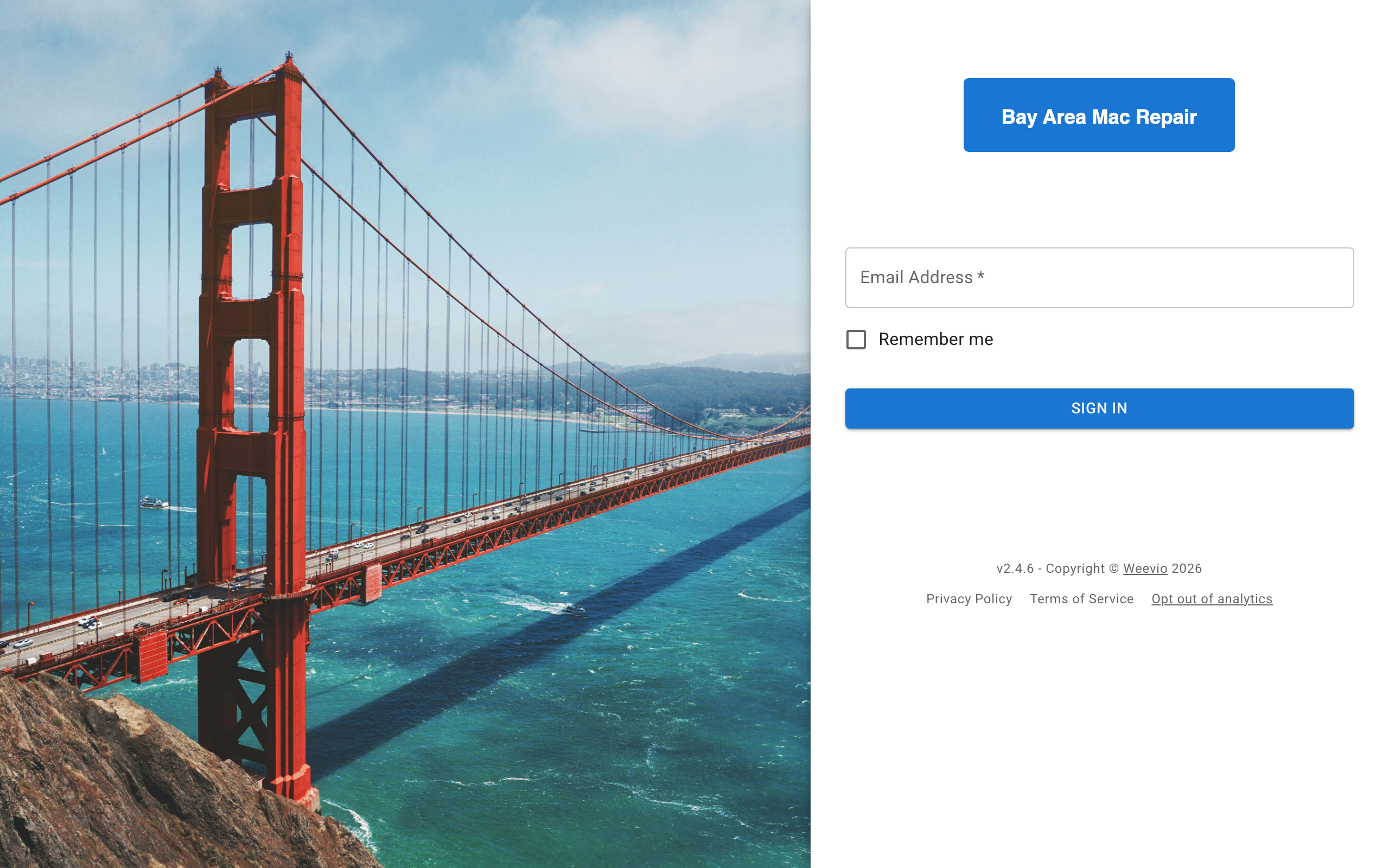
Enter Your Email
On the login page, type the email address associated with your customer account.
If you'd like the portal to keep you signed in across browser sessions, check the Remember me box before continuing.
Click Sign In to proceed.
Verify Your Account
The portal verifies your email against existing customer records. You'll see a brief loading indicator while this check completes.
If no customer record is found for your email, you'll see a message: "We couldn't find any customer records on file for: [email protected]." Click Try Another Email to go back and enter a different address. If you believe your account should exist, contact your service provider using the support email shown on the page.
Check Your Email
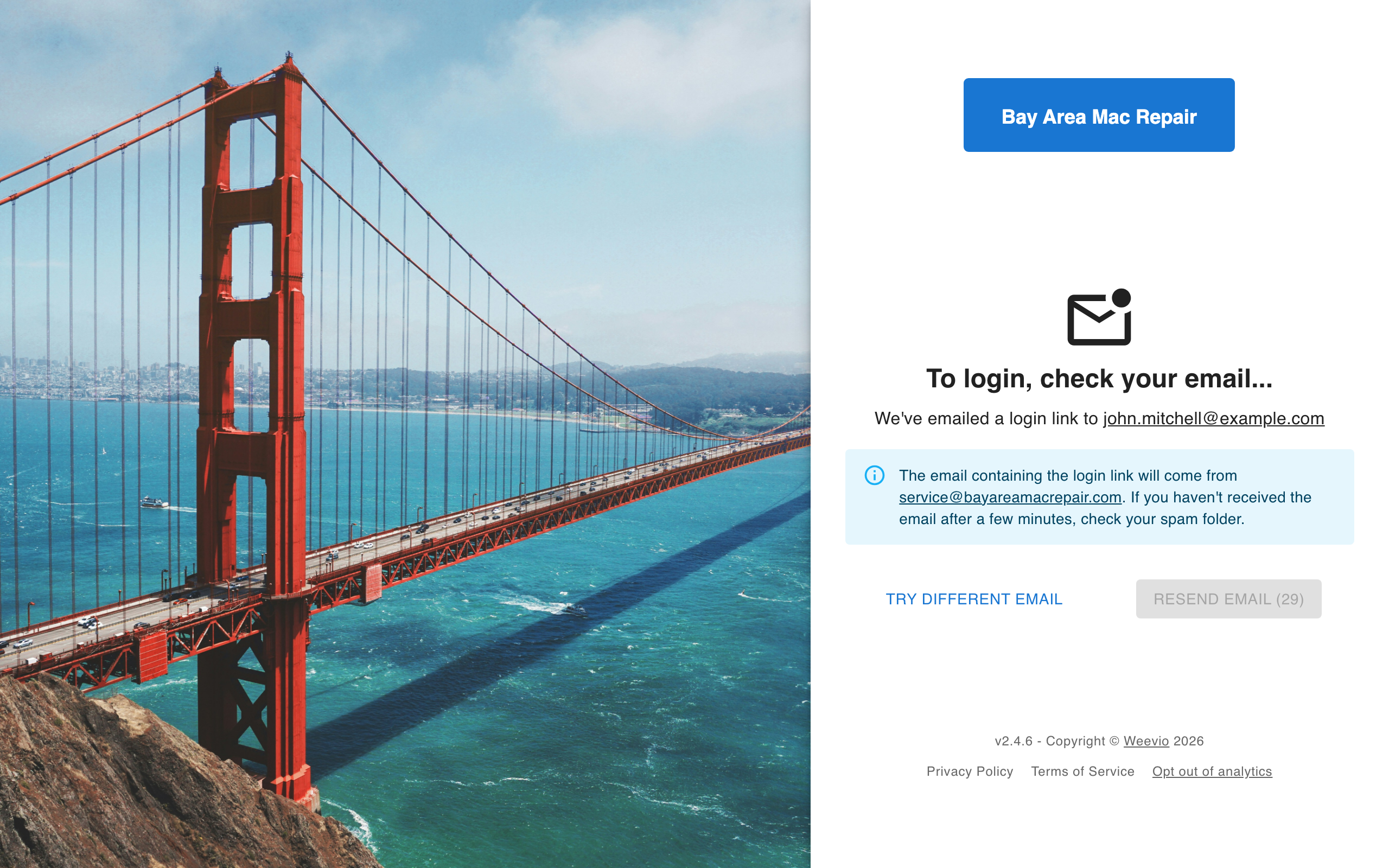
Once verified, the portal sends a secure sign-in link to your email address. You'll see a confirmation screen with the email address the link was sent to.
Note:
Check your spam or junk folder if you don't see the email within a minute. The sender address is displayed on the confirmation screen — look for emails from that address.
If the email doesn't arrive, click Resend Email after the 30-second cooldown timer expires. To use a different email address, click Try Different Email to start over.
Select an Account
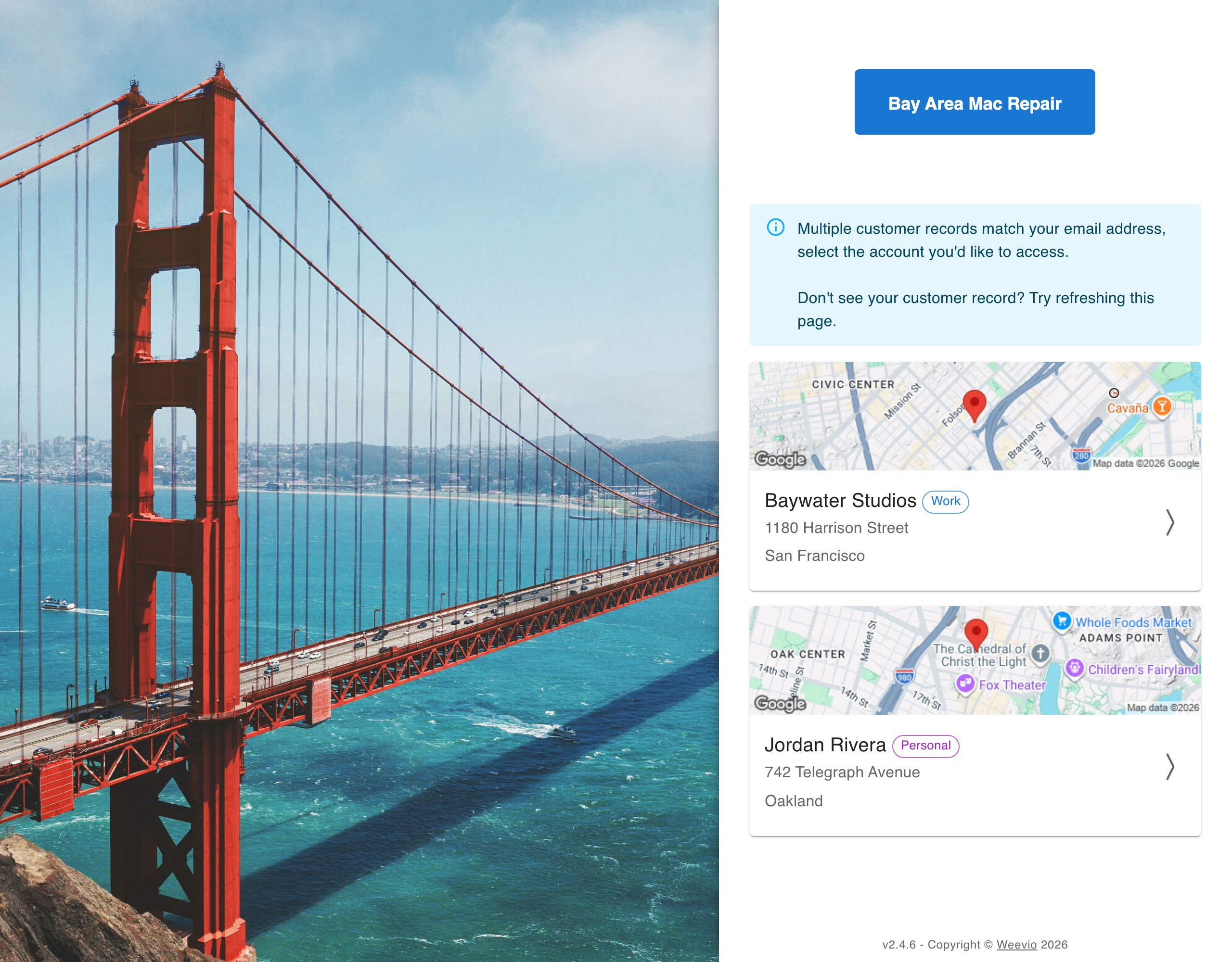
If your email is associated with multiple customer accounts, you'll be asked to choose which one to access. Each account card shows:
- Customer name with a Work or Personal label
- Billing address with a map preview
Click the account you want to access. If an account shows an Account Disabled badge, contact your administrator to regain access.
If your email matches only one customer record, this step is skipped automatically and you're taken straight to the Overview Dashboard.
White-Labeled Login Experience
The login page appearance is customized by your service provider. The company logo, background image, and color scheme reflect your provider's branding. For more details on how administrators configure the login appearance, see Branding & Images.
Privacy Controls
The login page footer includes links to the Privacy Policy and Terms of Service, along with an option to opt out of analytics tracking. Click the opt-out link to disable analytics collection. If you've previously opted out, the link changes to allow you to re-enable analytics.
Troubleshooting
"We couldn't find any customer records on file"
This means the email you entered doesn't match any customer account on file. Double-check your email address for typos. If the issue persists, contact your service provider — they may need to add or update your customer record.
Sign-in link not arriving
- Check your spam or junk folder
- Verify you entered the correct email address
- Wait for the cooldown timer and click Resend Email
- Make sure the sender email address shown on the confirmation screen isn't blocked by your email filters
Account shows as disabled
If you see an Account Disabled badge on your account card, your access has been turned off by an administrator. Contact your service provider to have it re-enabled. See Users & Account Management for more details on account access.
Related Features
- Overview Dashboard — The landing page after signing in
- Branding & Images — Customize the login background and logo
- Users & Account Management — Manage user access and permissions
Need Help?
For assistance, please send a message to our Support page.