The Setup Repair workflow lets you submit repair requests for one or more devices directly through the Customer Portal. This is ideal for businesses that need to send in multiple devices for service at once.
Note:
The Setup Repair feature must be enabled by your service provider. If you do not see it in your portal, contact your provider to request access.
Starting a Repair Request
Navigate to the Setup Repair page from the portal sidebar to begin a new repair request. The workflow guides you through several steps to provide all the information needed for your devices.
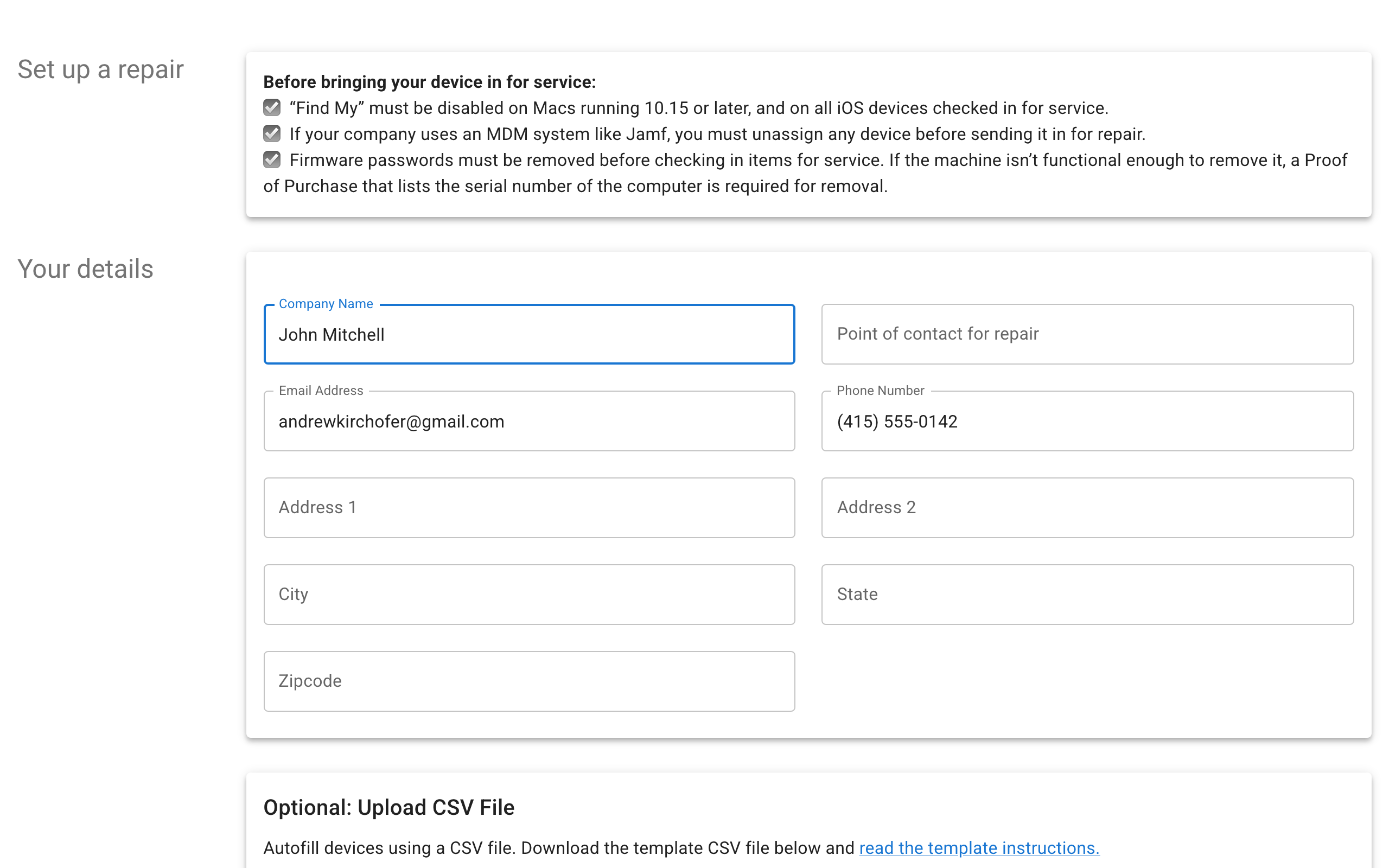
Adding Devices
You can add devices to your repair request in two ways:
Manual Entry
Add devices one at a time by entering the device details directly into the form. This is best for small repair requests with only a few devices.
CSV Upload
For bulk repair requests, you can upload a CSV file containing all your device information at once.
Download the CSV template
Click the CSV instructions link to view the required file format and download a template. The template shows the expected columns and formatting for your devices.
Fill in your device data
Open the template in a spreadsheet application and fill in the details for each device you need repaired.
Upload the CSV file
Return to the Setup Repair page and upload your completed CSV file. The system will parse your file and populate the device list.
Custom Fields
Your service provider may configure custom fields that appear during the repair setup process. These fields collect additional information specific to their repair workflow, such as return shipping preferences, warranty information, or special instructions.
Fill in all required custom fields before proceeding to the next step.
Instruction Steps
Your service provider may include custom instruction steps in the repair workflow. These steps provide guidance on how to prepare your devices for service, such as packaging instructions, data backup reminders, or required documentation.
Read each instruction step carefully and follow the directions before submitting your request.
Review and Confirmation
Before submitting, review all the devices and information you have entered.
Review your devices
Check that all devices and their details are correct. You can edit or remove devices before submitting.
Agree to terms
Review and accept the Terms of Service and Privacy Policy. An e-signature may be required depending on your provider's configuration.
Submit your request
Click the submit button to send your repair request. You will receive a confirmation number on the next screen.
After submission, a confirmation page displays your unique confirmation number. You can use this number to reference your repair request when contacting your service provider.
What happens next?:
Once submitted, your service provider will review the repair request and create individual service repair orders for your devices. You can track the progress of each repair in the Repairs section of the portal.
Need Help?
For assistance, please send a message to our Support page.