This page covers how to renew and manage the GSX SSL certificate and private key that authenticate Weevio Cloud with Apple's Global Service Exchange. It applies only to Apple Authorized Service Providers (AASPs) who have GSX integration enabled.
If you are setting up GSX for the first time, start with GSX Integration. Certificate management is an ongoing maintenance task that takes over once your initial setup is complete.
Why GSX Requires a Certificate
Apple uses an SSL client certificate (plus a matching private key) to authenticate every API call Weevio Cloud makes to GSX on your behalf. Without a valid certificate, Weevio Cloud cannot:
- Schedule or sync Apple repair appointments
- Send GSX-driven appointment confirmation emails
- Look up GSX coverage, parts, or repair status from inside Weevio Cloud
The certificate is issued to your Sold-To account by Apple, not by Weevio. You request and renew it through GSX directly, then upload the resulting files into Weevio Cloud.
Certificate vs. Activation Token
These two credentials are easy to confuse. They are not the same, and they renew on different schedules.
| Credential | What it is | Where it comes from | When it expires |
|---|---|---|---|
| GSX Certificate & Private Key | A pair of .pem files used for SSL authentication on every GSX API call | Issued by Apple to your Sold-To account through GSX | Apple's current policy: 13 months (changed from 25 months) |
| GSX Activation Token | A short string used during initial authentication and token refreshes | Generated from Apple Partner Connect | Long-lived; rotate only when Apple Partner Connect indicates it is required |
Note:
If you receive an automated email from Weevio Cloud warning that your GSX certificate/key from Apple expires soon, the action you need to take is uploading a renewed certificate and private key — not a new Activation Token.
Apple's 13-Month Renewal Cycle
In 2024 Apple shortened GSX SSL certificate validity from 25 months to 13 months. This means renewal is now closer to an annual task than a biennial one, and many AASPs are surprised when the warning arrives sooner than expected.
We recommend the following cadence:
- 30 days before expiration: Add a calendar reminder to start the renewal in GSX. Apple recommends initiating the renewal at least 30 days ahead of the expiry date.
- Renewal day: Upload the new certificate and key into every system that uses the same Sold-To certificate (see Coordinating Across Systems).
- After upload: Run Verify Connection in Weevio Cloud to confirm the new certificate is valid.
Renewing Your Certificate
The renewal process has three stages: request the new certificate from Apple, upload it into Weevio Cloud, then verify connectivity.
Request a renewed certificate in GSX
Sign in to GSX and follow Apple's official process for renewing your SSL certificate. Apple publishes the steps in GSX Article ID 105184: SSL Certificate Renewal.
Apple will issue you two files:
- A private key file (filename typically looks like
privatekey.pem) - A certificate file (filename typically looks like
Applecare-APP157-{Sold-To}.Prod.apple.com.cert)
Both files must be in .pem format. Save them somewhere secure — Weevio Cloud only accepts .pem files at upload time.
Upload the files in Weevio Cloud
Navigate to Integrations → GSX in Weevio Cloud (/pos/integrations).
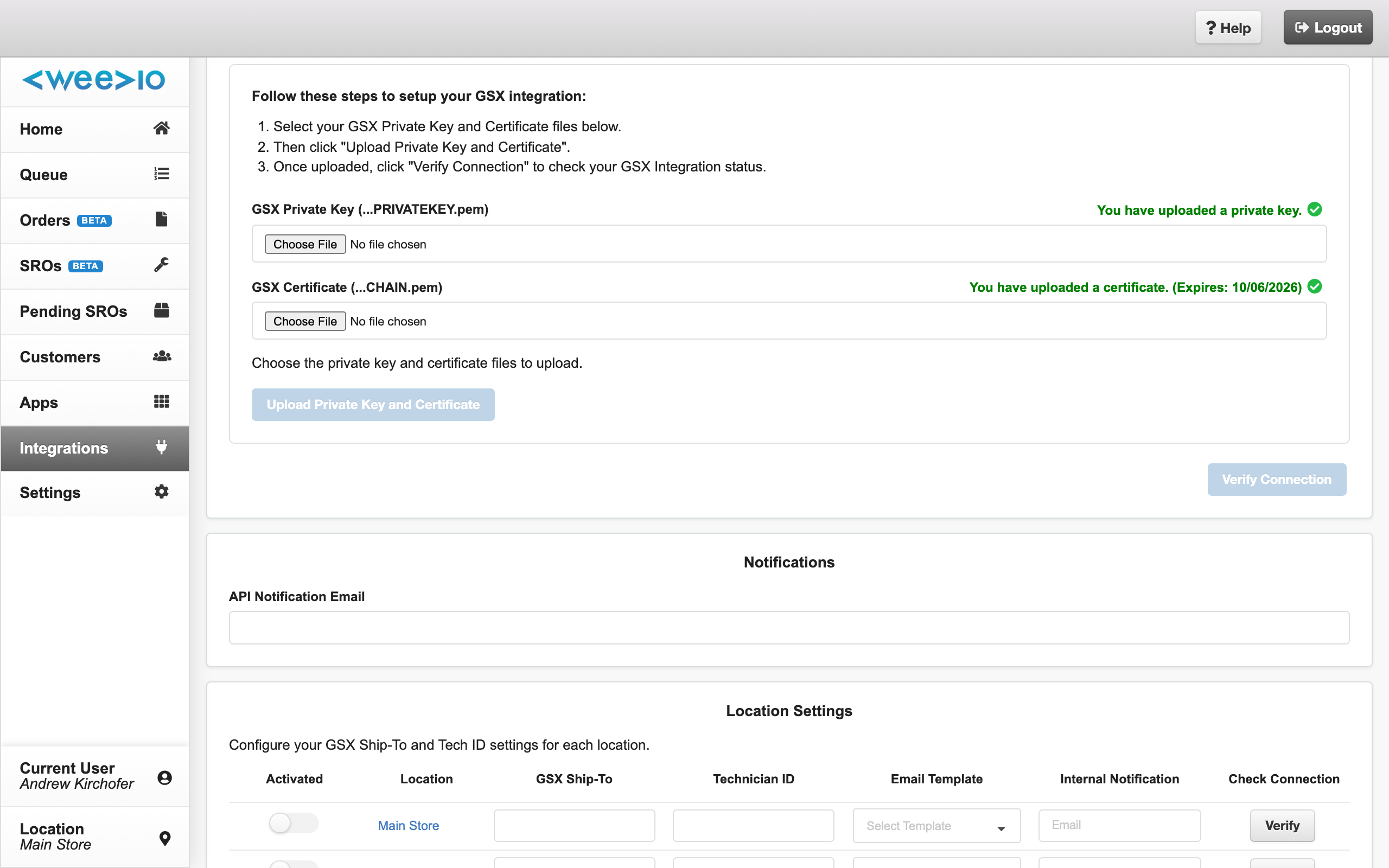
The Authentication section shows the current status of your certificate and key:
- Green status with
(Expires: MM/DD/YYYY)— a valid certificate is installed. - Red status with
(Expired: MM/DD/YYYY)— the certificate on file has expired and needs renewal. - Gray status — no certificate has been uploaded yet.
Use the GSX Private Key (...PRIVATEKEY.pem) file picker to select your new private key, then the GSX Certificate (...CHAIN.pem) picker to select the new certificate. Click Upload Private Key and Certificate to send both files to Weevio Cloud.
Note:
Weevio Cloud only accepts certificate files in .pem format. If Apple gave you the certificate in another format (such as .cer or .p12), convert it to .pem before uploading. If your file picker rejects the file with the error "Invalid file. Please upload a certificate type.", this is the most likely cause.
Verify the connection
After both files are uploaded and your Activation Token, GSX Apple ID, GSX Sold-To, and Certificate Private Key Passphrase are filled in, click Verify Connection.
If the connection succeeds, the new expiration date appears alongside the green status.
If it fails, Weevio Cloud shows one of:
- "GSX connection failed. This could be due to an invalid certificate or an incorrect passphrase. Please verify both and try again."
- "The certificate is not valid. Check the certificate and try again."
- "GSX Authentication failed. Ensure the private key and certificate are valid."
See Troubleshooting below for what to check.
Coordinating Across Systems
Note:
Apple issues one certificate per Sold-To account. If you use the same Sold-To with multiple systems — for example Weevio Cloud and a separate POS or PIMS — you must upload the renewed certificate to every system that uses it. Renewing in only one system will leave the other systems unable to authenticate with GSX.
When planning a renewal, list every product that calls GSX with your Sold-To. This typically includes:
- Weevio Cloud (this system)
- Your POS / PIMS vendor, if it uses GSX directly
- Any other Apple-authorized integration your business uses
We recommend the following workflow:
- Decide who owns the renewal — usually whoever holds the GSX login. Coordinate the date with each vendor in advance.
- Initiate the renewal in GSX. Apple issues a single new certificate for the Sold-To.
- Upload the same new certificate and key into every system that uses it, on the same day where possible.
- Run Verify Connection (or each vendor's equivalent) on each system before closing out the renewal.
Setting a shared calendar reminder 30+ days before expiry — and again on renewal day — helps avoid the situation where one system silently breaks because its copy of the certificate was missed.
Sold-To Account Changes
Most renewals happen under the same Sold-To account that was originally configured in Weevio Cloud. If your business has gone through an ownership change, sale, or restructure, the renewed certificate may be issued under a new Sold-To. Treat this as a change of credentials, not just a refresh.
Before uploading a certificate that is tied to a new Sold-To:
- Confirm the Sold-To number on the renewed certificate matches the Sold-To configured in Weevio Cloud (Integrations → GSX → API Settings → GSX Sold-To).
- If the Sold-To has changed, update the GSX Sold-To field to the new 10-digit number (including any leading zeros) and confirm the GSX Apple ID is still correct.
- Review your per-location GSX Ship-To Code and GSX Tech ID mappings under Settings → General Settings. These may need to be re-mapped if the underlying Apple records changed during the ownership transfer.
- After uploading the new cert and key, run Verify Connection to confirm appointment scheduling, GSX-driven email confirmations, and other GSX-backed functions resume cleanly.
If anything fails to resolve after a Sold-To change, contact Weevio support — re-mapping locations across a Sold-To change sometimes needs assistance.
What Happens When the Certificate Expires
If a renewal is not completed before the expiration date, the GSX integration stops working. You may notice:
- The Authentication section on the GSX Integration page turns red with the message "You have uploaded a certificate but it has expired."
- New Apple repair appointments fail to sync with GSX.
- Automated GSX appointment-confirmation emails stop sending.
- GSX-driven lookups inside Weevio Cloud return errors.
To recover, follow the steps in Renewing Your Certificate. There is no "reset" required after an expiration — uploading a fresh, valid certificate and key resumes service immediately.
Troubleshooting
"You have not uploaded a certificate."
No certificate is on file. Upload both the private key and the certificate .pem files, then click Verify Connection.
"You have uploaded a certificate but it has expired." The cert on file is past Apple's expiration date. Request a renewed certificate through GSX (Apple Article ID 105184) and upload the new files.
"Invalid file. Please upload a certificate type."
The file you selected is not in .pem format. Re-export from GSX as .pem, or convert your existing file before uploading.
"GSX connection failed. ... invalid certificate or an incorrect passphrase." Either the cert/key pair does not match, or the Certificate Private Key Passphrase field is wrong. Re-check the passphrase Apple supplied with the certificate, then click Verify Connection again.
"The certificate is not valid." The uploaded cert was rejected by Apple. Common causes:
- The cert and key were issued to different Sold-To accounts (mismatch).
- The cert was already revoked when a newer one was issued in GSX.
- An older cached cert was uploaded by mistake. Re-download the latest from GSX and try again.
Verify Connection button is disabled. The button only enables once the Activation Token, GSX Apple ID, GSX Sold-To, Certificate Private Key Passphrase, certificate, and private key are all set. Fill in any missing fields, then retry.
Renewal worked here, but my POS/PIMS broke. You renewed Weevio Cloud's copy but did not update the same certificate in the other system that shares the Sold-To. Upload the renewed cert into your POS/PIMS as well — see Coordinating Across Systems.
If a problem persists after walking through the steps above, contact Weevio support and include the Sold-To, the date the certificate was issued, and the exact error message shown on the GSX Integration page.
Need Help?
For assistance, please send a message to our Support page.